


Have you ever thought about the features that Instagram has provided for us? You might think well, there are a couple features like stories, lives and reels. But boy there are so many features in this app that you haven’t even thought of.
In the blog, I’ve listed every Instagram feature ever. Let’s start to check them all out.
Instagram Features List
So, I have categorized Instagram features, and inside of each category I’ve brought some relevant features. Let’s start!
Instagram Account Management Features
Add and manage multiple accounts from the same device: Easily switch between your various Instagram accounts without the need to log in and out.
To do so, follow these steps:
Open Instagram and go to your profile, you can add another Instagram account in 3 different ways:
- First way: tap and hold on your profile picture on the bottom right, then tap on ‘Add Instagram account’.
- Second way: tap and hold on your username on the top left, then tap on ‘Add Instagram account’.
- Third way: tap on three lines on the up right and click on settings and privacy. Then, scroll down till you see the option ‘Add another account’
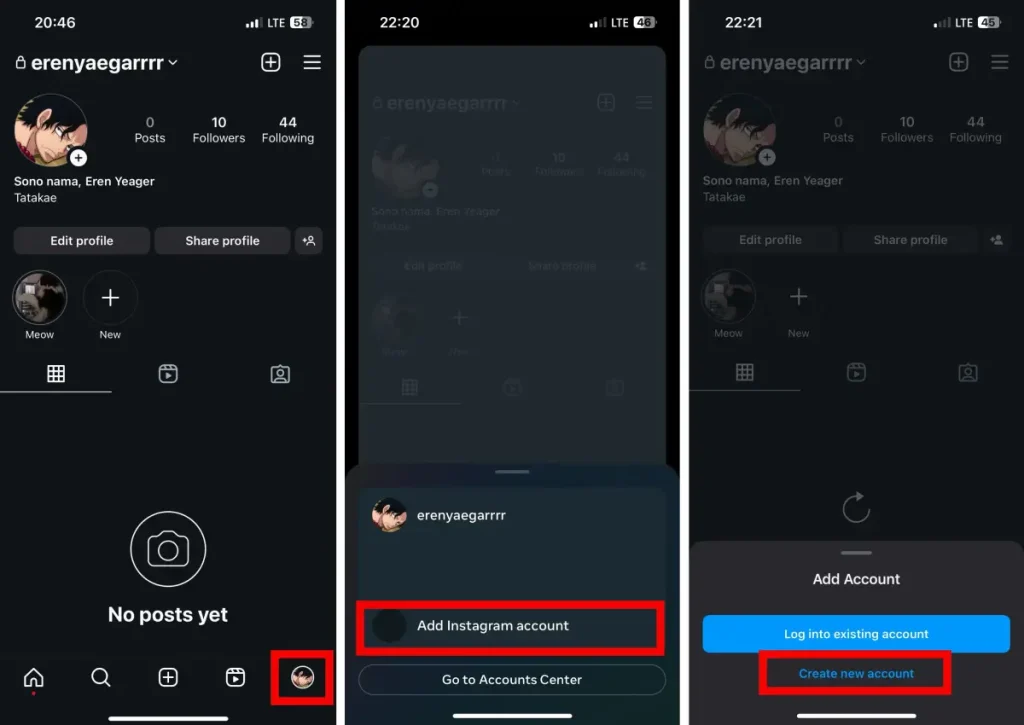
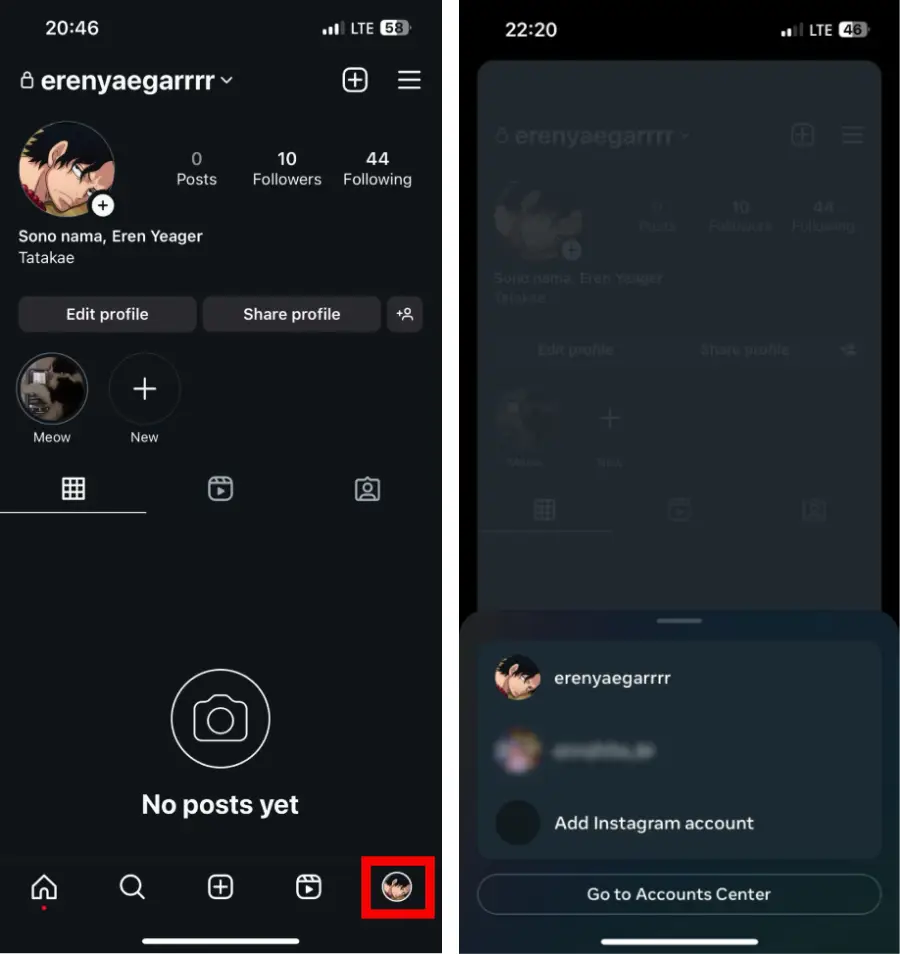
When you added your second account, there are three ways to switch between accounts:
- Tap and hold on your profile picture on the bottom right, then tap on the account that you want to use
- Tap and hold on your your username on the top left, then tap on the account that you want to use
- Double tap on your profile picture on the bottom right, and your account will switch to the other
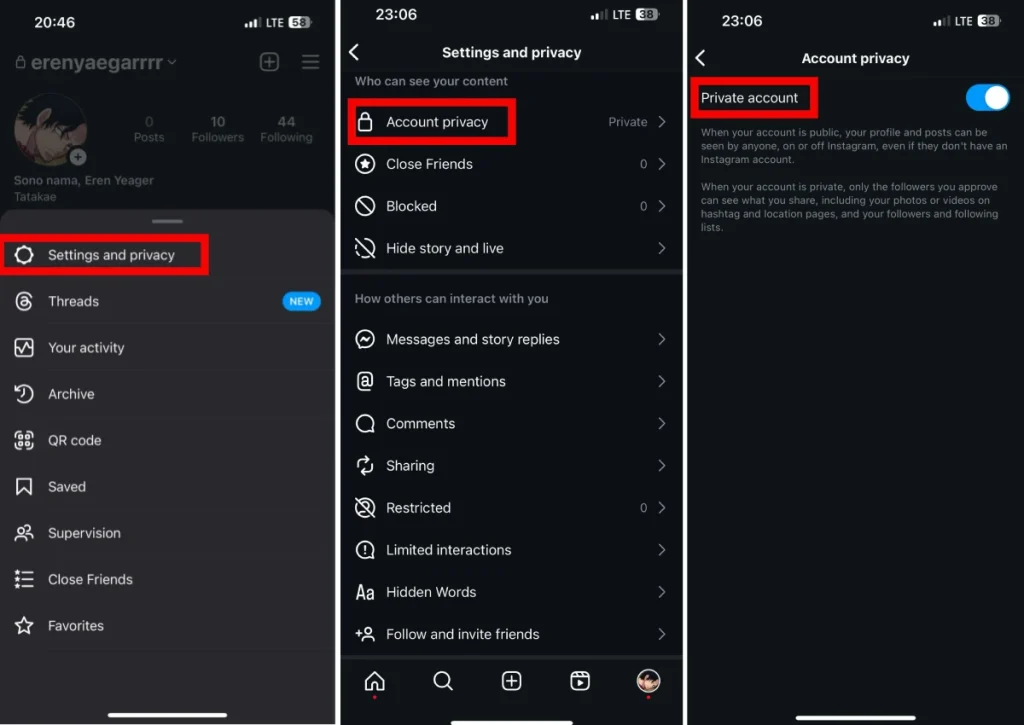
Making your account private or public: Choose who sees your posts – keep it private for close friends or make your Instagram account public for a broader audience. Here is how to do it:
- Open IG and go to your profile, then tap on the three lines on the top right
- Tap on settings and privacy
- Scroll down to see ‘account privacy’ and tap on it
- Switch to private or public account
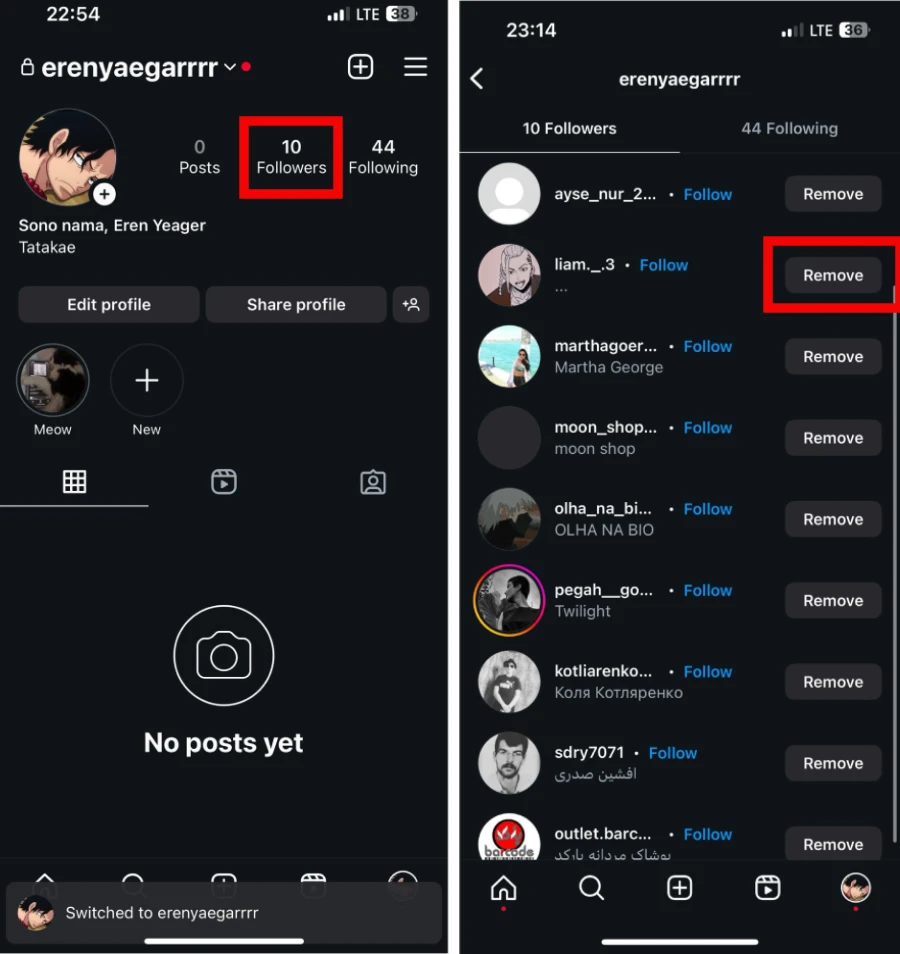
Remove your followers: Have control over your followers by removing someone without them being notified. Here is how to do it:
- Go to your profile
- Tap on your followers
- Scroll down to see the one you want to remove
- Tap on their profile
- Tap on the three dots top left
- Select ‘Remove follower’
You can also search their username and then follow the exact same steps
Follow other accounts to see their content: Stay connected with friends, influencers, or interests by following their accounts.
To follow someone’s account, tap on their profile picture or username, then you’ll see a blue section that says ‘follow’, tap on that.
Link your IG with your Facebook account: Connect your Instagram and Facebook for seamless sharing and cross-platform interaction.
1. Go to your Instagram profile
2. Select Edit profile
3. Under Public business information, select Page
4. Tap Create Facebook Page or Connect an account
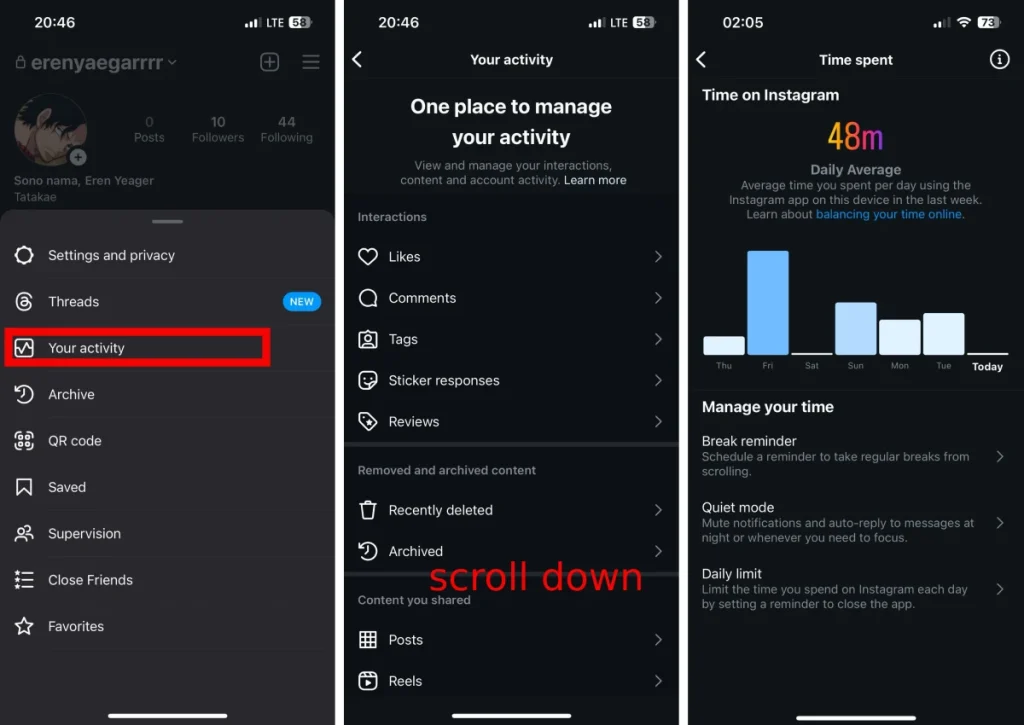
See time spent: Keep tabs on your Instagram usage and manage your screen time for a healthy social media balance.
To see your time spent, tap on the three lines on the upper right. Then, click on ‘your activity’. Then, scroll down and click on time spent.
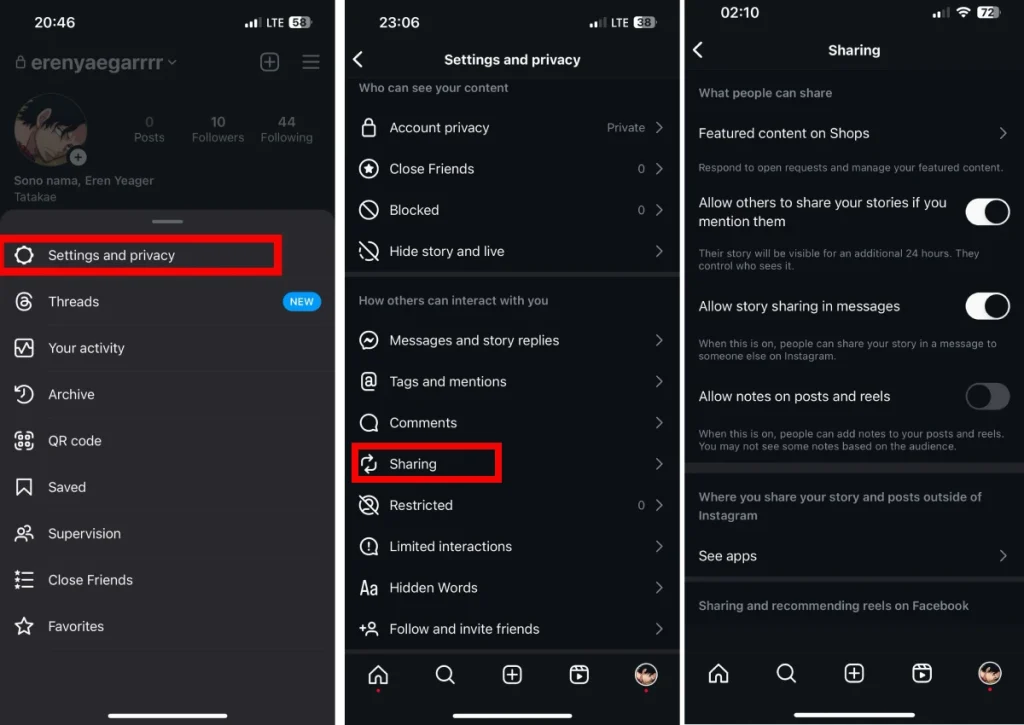
Adjust sharing: Adjust sharing stories if you mention them, sharing in messages: Customize your sharing preferences for stories and direct messages to control who sees your content. To do so, follow these steps:
- Tap or your profile picture in the bottom right to go to your profile.
- Tap in the top right, then tap Settings and privacy.
- Tap Accounts Center, then tap Sharing across profiles.
- Tap the account to Share from, then tap the account to Share to.
Device permission for accessing camera, contacts, photos, microphone, etc.: Grant necessary permissions for Instagram to access features like camera, contacts, and photos.

Create a favorites list: Stay updated with posts from your favorite accounts by curating a special favorites list. Here is how to do it:
- Tap Instagram in the top left of feed, then tap Favorites.
- Tap in the top right.
- Tap Search at the top, then enter who you want to search for.
- Tap Add next to an account’s name to add them to your favorites. To remove an account from your favorites, tap Remove next to their name.

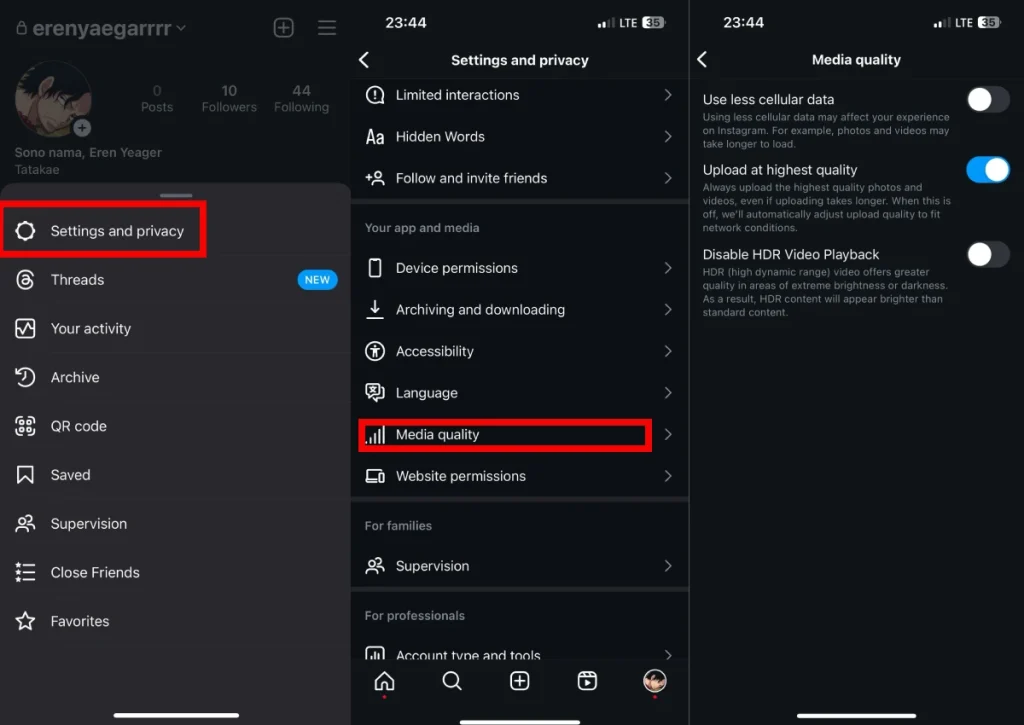
Adjust Media quality: Tailor your media quality settings to optimize data usage and enhance your Instagram experience. To adjust media quality, follow these steps:
- Tap on the three lines on the top left
- Tap and settings and privacy
- Scroll down to see media quality
- Click on media quality and adjust it as you wish
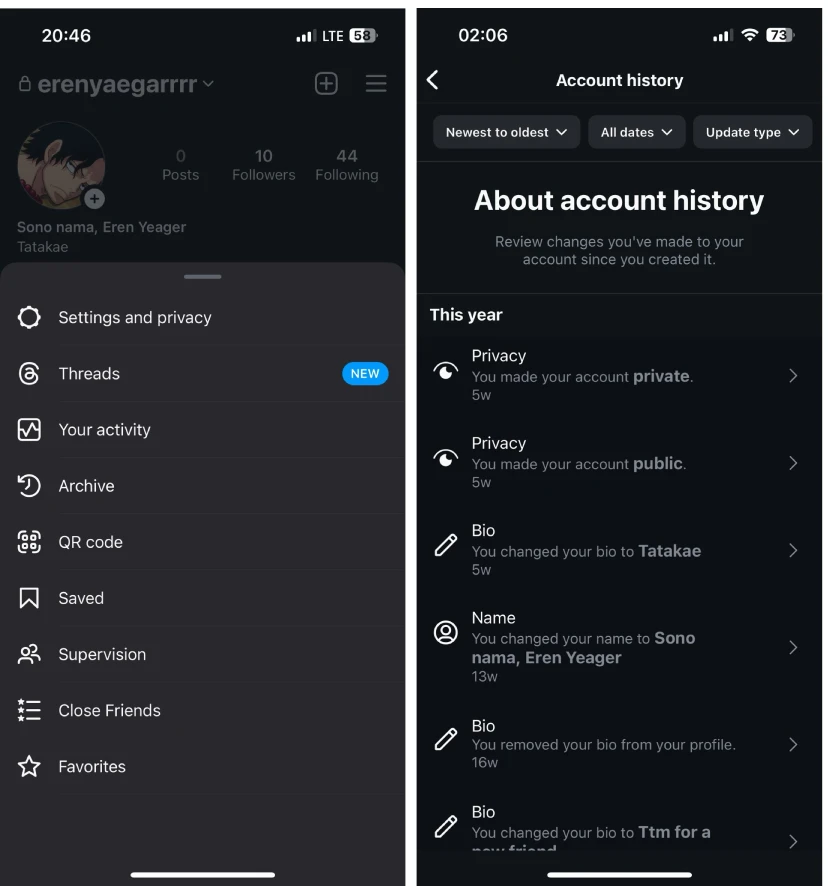
Account history: you can see the history of your account and all the changes you’ve made. Here is how to see your account’s history:
- Tap or your profile picture in the bottom right to go to your profile.
- Tap in the top right, then tap Your activity.
- Tap Account history. Scroll to view all the changes you’ve made to your account.
Instagram Bio features
Write a Bio: Craft a short and sweet description about yourself or your interests to let others know more about you. You can write up to 150 characters in your bio.
To do so, follow these steps:
- Open Instagram and go to your profile
- Tap on edit profile
- Write your Bio
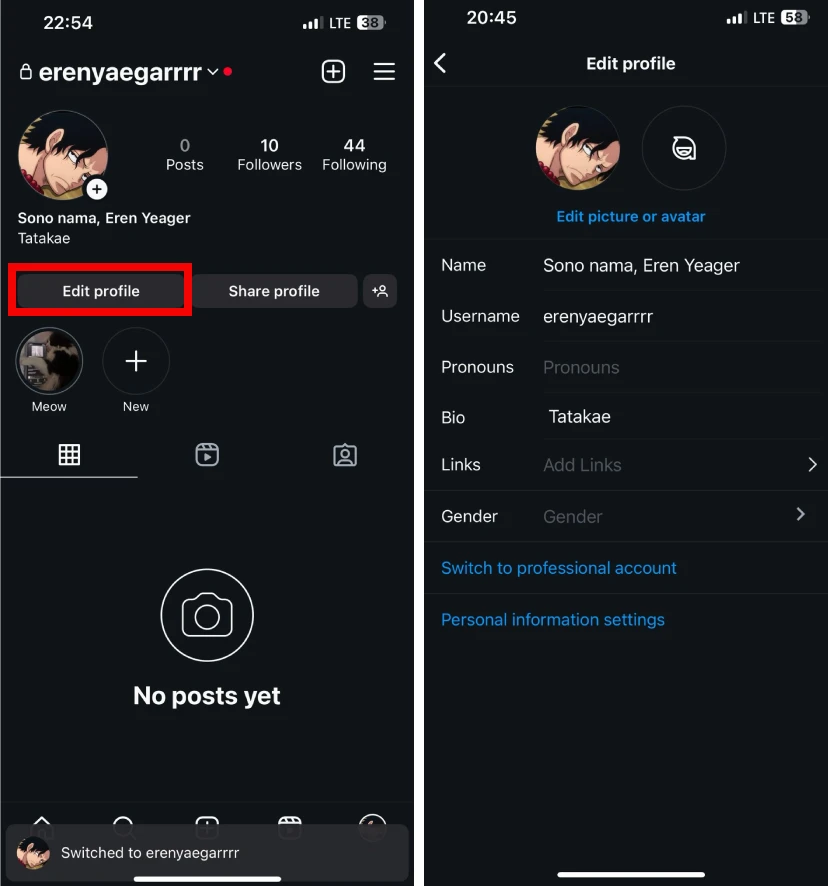
Here are other things you can add to your bio:
Add link to bio: Share a clickable link in your bio, directing followers to your website, blog, or other social profiles.
Mention another account in Bio: Give a shoutout or connect with other users by mentioning their profiles in your bio.
Content Sharing and Viewing:
Feed, The main feed where you see posts from accounts you follow: Scroll through a personalized stream of photos and videos from the accounts you’re interested in.
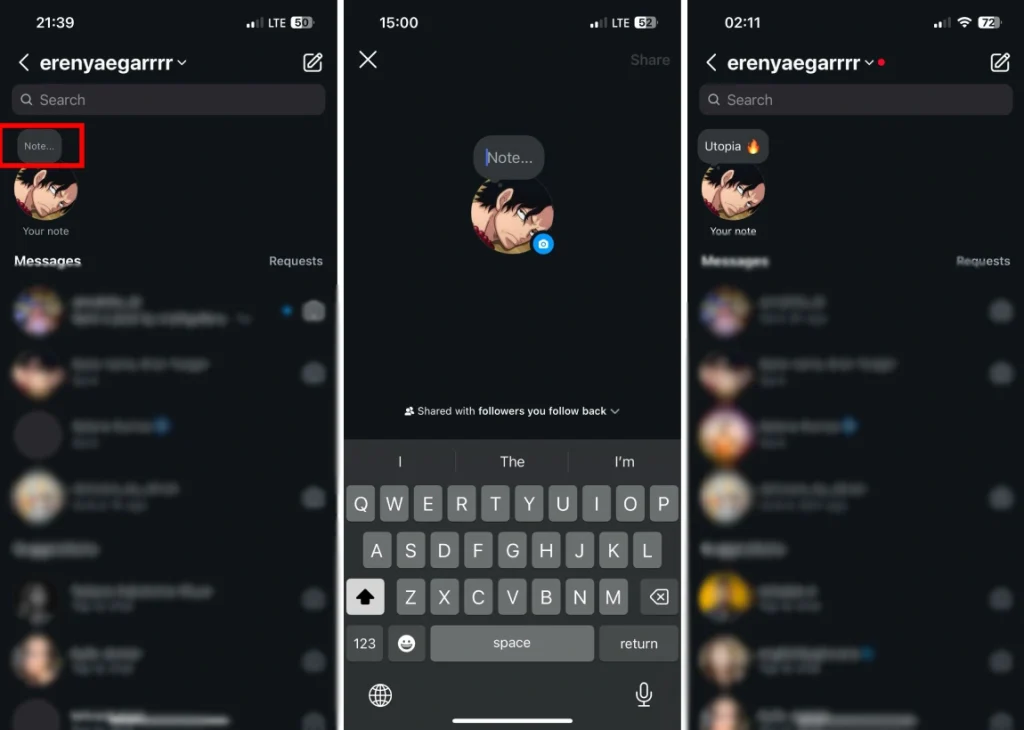
Notes: Share text-based messages with your followers. Express yourself beyond visuals by sharing text-based updates with your Instagram audience.
- To make a note, open Instagram feed and go to your direct messages
- Then, you’ll see your profile picture on the top left with a little sign that says ‘add note’ tap on that and write your note.
Archive: The ability to archive your posts instead of deleting them. Safely store your posts in an archive, keeping your feed organized without permanently removing content.
To see your archived posts and stories, follow these steps:
- Open Instagram and go to your profile
- tap on the three lines on the top right and select archives
- Above the page, you can select between archived posts, stories and lives.

Broadcast Channels: Share live videos with up to 10,000 people simultaneously. Go live and engage with a large audience in real-time through Instagram’s live video feature. Here is how to create a broadcast channel:
- Open IG and go to your DMs
- Select the button on the top right-hand corner that looks like a little pen and pad emoji.
- Tap on ‘create broadcast channel’
Archived stories: After 24 hours, when your stories are removed, they will also be stored in stories archives and you can find them there.

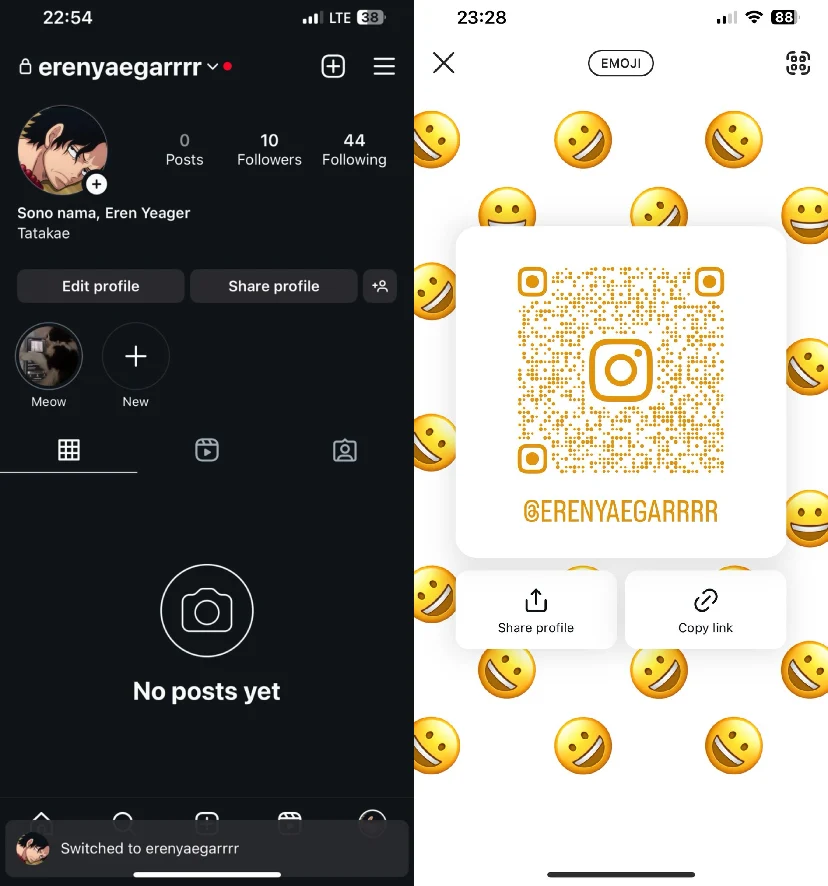
QR code for others to follow you: Simplify the process of gaining followers by sharing a scannable QR code and copying your profile link with others. Here is how to do it:
- Tap or your profile picture in the bottom right to go to your profile.
- Tap , then tap QR code.
- To customize it, touch anywhere on the screen or tap the button at the top to try other designs.
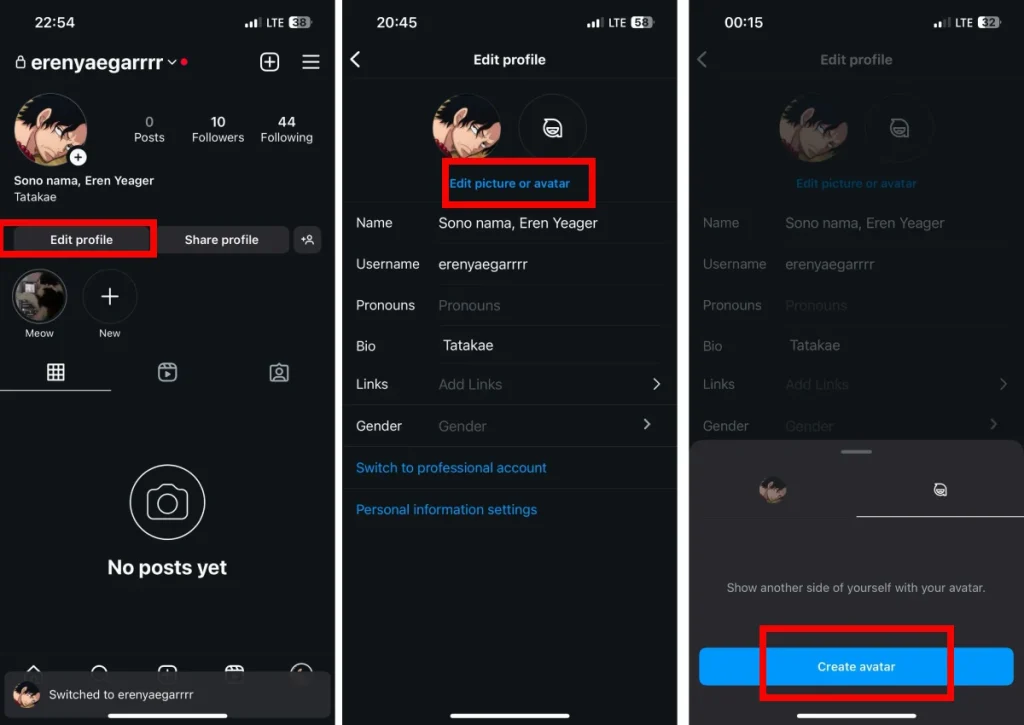
Add avatar: Personalize your profile further by adding an avatar – a visual representation of yourself or your brand.
- Tap or your profile picture in the bottom right to go to your profile.
- Tap Edit Profile at the top, then tap Create avatar.
- Tap Get started, choose your avatar’s skin tone.
- Personalize your avatar with hairstyles, outfits and more.
Interaction Controls
Adjust tagged photos setting, hide or approve them, etc.: Manage the photos you’re tagged in by adjusting settings to control what appears on your profile. Here is how to do it:
- Tap or your profile picture in the bottom right to go to your profile.
- Tap in the top right, then tap Settings and privacy.
- Below How others can interact with you, tap Tags and mentions.
- Tap Manually approve tags.
Hide, delete, or disable comments and likes on your posts: Have control over the engagement on your posts by hiding, deleting, or disabling comments and likes.
Here is how to delete comments:
- Open the comments section and swipe left on the comment that you want to delete
- Then, tap on the trash can sign
- Here is how to disable comments:
- On the screen where you add a caption or location to your post, tap Advanced settings, then tap Turn off commenting.
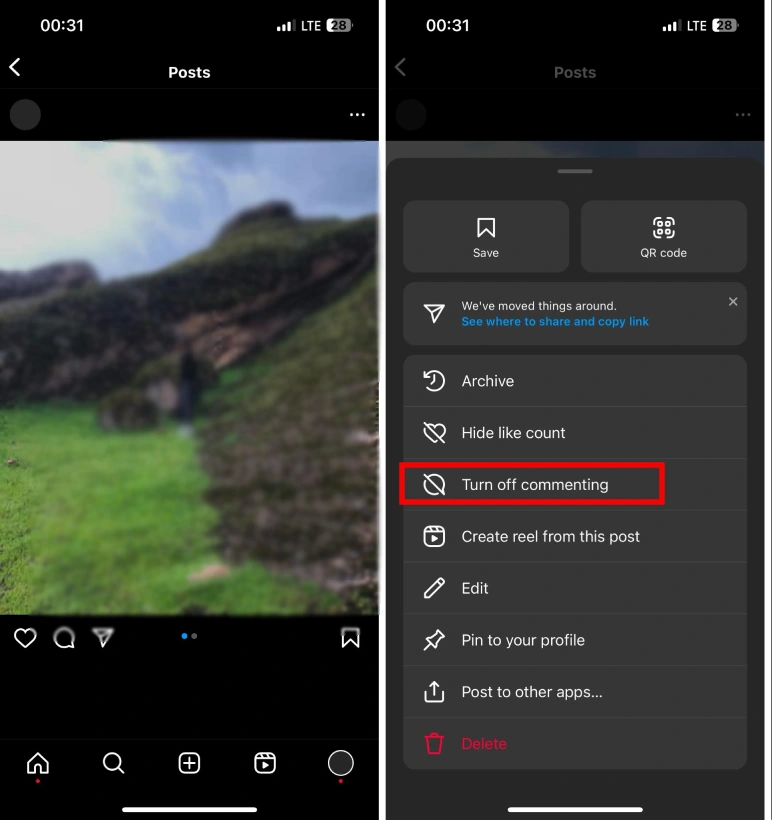
If you’ve already posted with the comments on here is how to turn off comments:
- Tap on the three dots on the top right of your posts
- Tap on turn of commenting
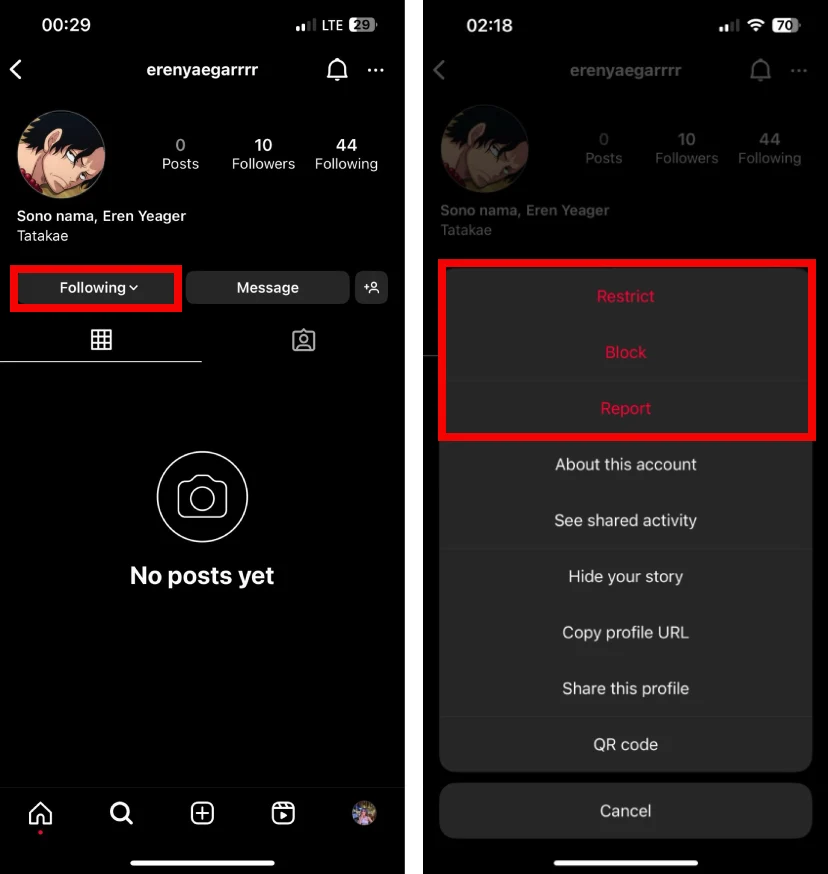
Block: Prevent unwanted interactions and content by blocking users who disrupt your Instagram experience. Here is how to block someone on IG:
- To block someone on IG, go to their profile
- Tap on the sign that says ‘follow’ or ‘following’
- Tap on block
Mute: Temporarily silence posts and stories from specific accounts without unfollowing them. Here is how to mute someone on IG:
- To mute someone on IG, go to their profile
- Tap on the sign that says ‘follow’ or ‘following’
- Tap on mute
Restrict: Manage unwanted interactions by restricting certain users, limiting their visibility and engagement on your account.
- To restrict someone on IG, go to their profile
- Tap on the sign that says ‘follow’ or ‘following’
- Tap on restrict
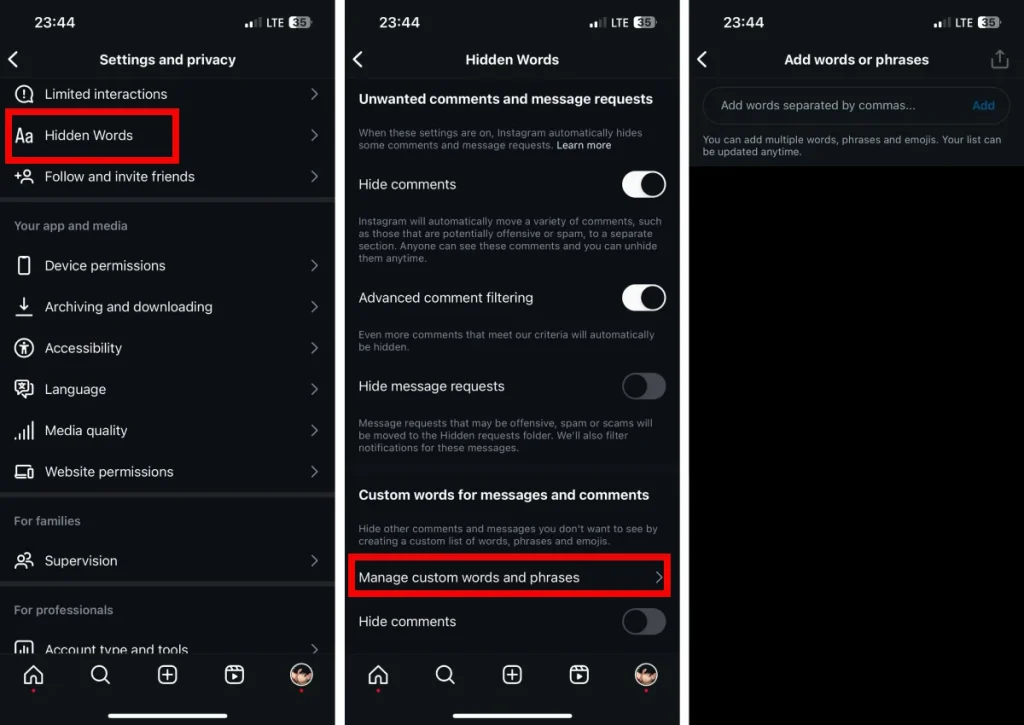
Hidden Words Filter: Helps filter out offensive or inappropriate comments. Choose the words you find offensive or spammy and Instagram won’t show the comments that contain those words under your posts.
- Open the Instagram app and tap on your profile picture in the bottom right corner.
- Select the “Settings” gear icon in the top right corner.
- tap on “Hidden Words.”
- Toggle the switch next to “Hide comments containing words” to turn on this feature.
- Tap on “Manage list” and start adding keywords and phrases that are commonly used in spam comments. You can also add emojis.
- Once you’ve added the desired keywords, tap on “Done” to save your changes.
Media Management:
Your activity: you can find all of the posts you’ve liked and all of the comments you have left in a part called ‘your activity’.
- To see your activity on IG, click on the three lines on to top right corner of your profile
- Then, tap on ‘your activity’

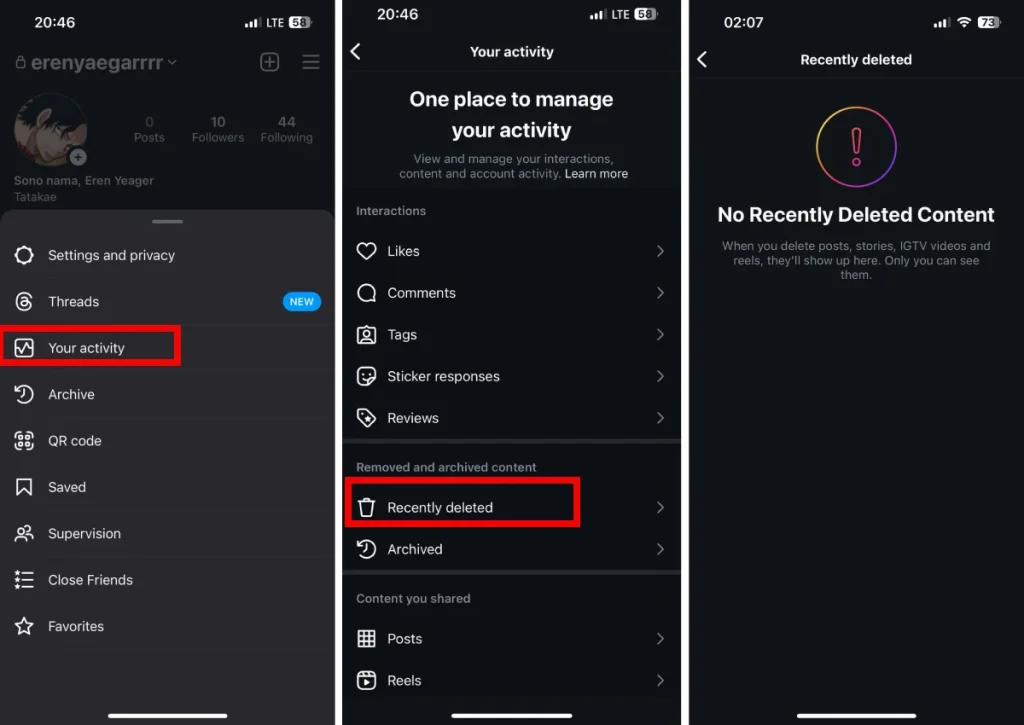
Recently deleted: Recover accidentally deleted posts by accessing a folder that stores recently deleted content.
- Tap or your profile picture in the bottom right to go to your profile.
- Tap in the top right, then tap Your activity.
- Tap Recently deleted. …
- Tap the photo, video, or story you’d like to restore or permanently delete
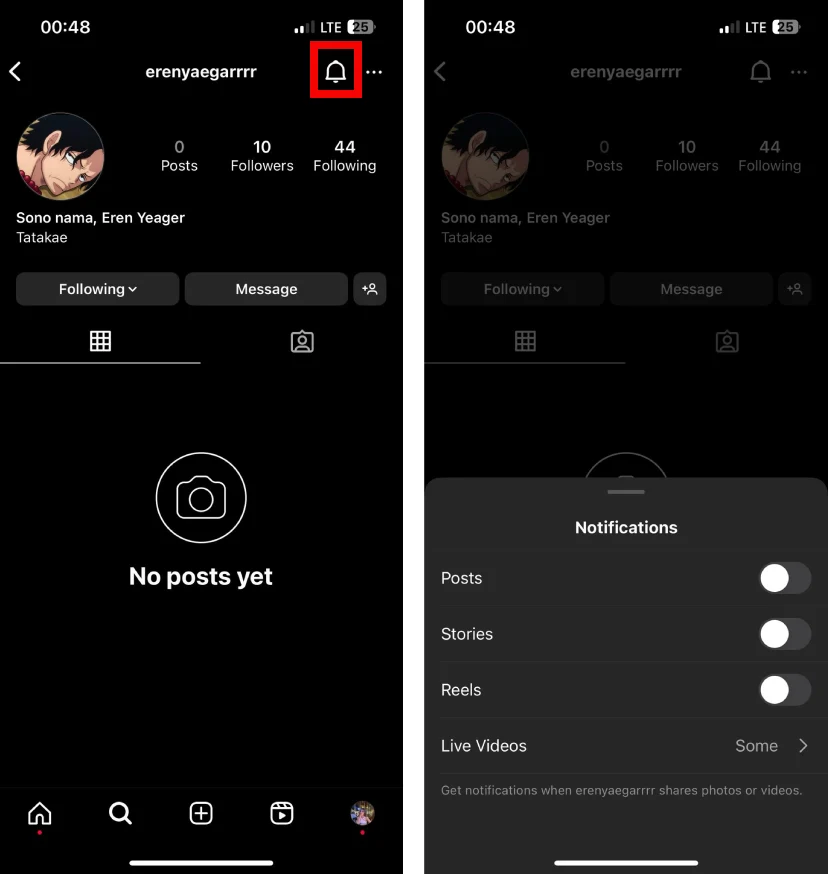
Turn on notification when people post: Stay in the loop with your favorite accounts by receiving notifications whenever they post new content.
- Go to their profile.
- Tap in the top right.
- Tap next to Posts, Stories, Reels or Videos to turn notifications on or off.
- Or tap next to Goes live and select any notification option.
Notification Features
Notification Features: Customize your notification preferences to tailor your Instagram experience to your liking:
- Tap or your profile picture in the bottom right to go to your profile.
- Tap Following in the top right.
- Next to the account tap then tap Manage Notifications.
- Tap next to the feature that you want to turn on notifications for.
Pause all: Take a break from notifications by temporarily pausing all alerts to enjoy some uninterrupted time.
Quiet mode: Set your Instagram to quiet mode, reducing the frequency of notifications for a more peaceful experience. Here is how to turn it on:
- Tap or your profile picture in the bottom right to go to your profile.
- Tap in the top right, then tap Settings and privacy.
- Tap Notifications.
- Tap Quiet mode.
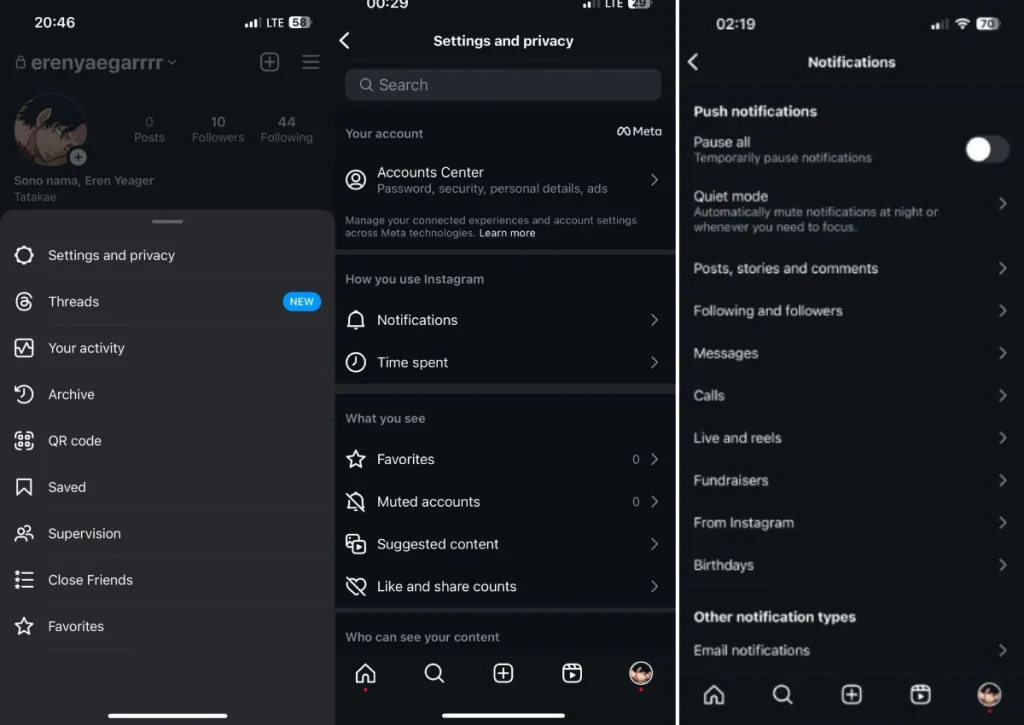
Adjust notifications for posts, stories, comments, messages, calls, lives, reels, etc.: Control which types of activities trigger notifications, ensuring you stay informed about what matters most to you.
Instagram Story Features
Use filters: Enhance your Stories with creative visual effects by applying a variety of filters.
Here is how to use filters:
- From the homepage, swipe left yo open the camera page
- Next to the shutter button (the white circle at the bottom center of the scree) is a horizontal list of effects
- You choose the filter that you like and then take a picture with it
Music to your story: Add a musical touch to your Stories by including your favorite tunes. Here is how to add music to your story:
- When you chose the picture that you want to add to your story click on the sticker icon on the top right
- When the sticker section opens, you’ll see the sign ‘Music’
- Click on the Music sign and choose song that you want to use
- You can choose 15 seconds or less of the song to add to your story
Stickers: Express yourself with a variety of fun and interactive stickers in your Stories. Here is how to add instagram stickers to your stories:
- When you chose the picture that you want to add to your story, click on the sticker icon on the top right
- Then you can choose among the stickers available or search for them
Date: Keep your audience informed about when your Story was posted by adding a date.
- When you chose the picture that you want to add to your story, click on the sticker icon on the top right
- Then choose the sign with the date in it
Adding another photo: Share more moments in a single Story by including multiple photos. Here is how to do it:
- Open you story and tap on the sticker sign on the top right
- Scroll down to see a circle with the sign of a picture in it
- Tap on that and choose the picture you want to add to your story
- When you added the picture, you can top on it to change its shape, it can turn to heart, circle and square
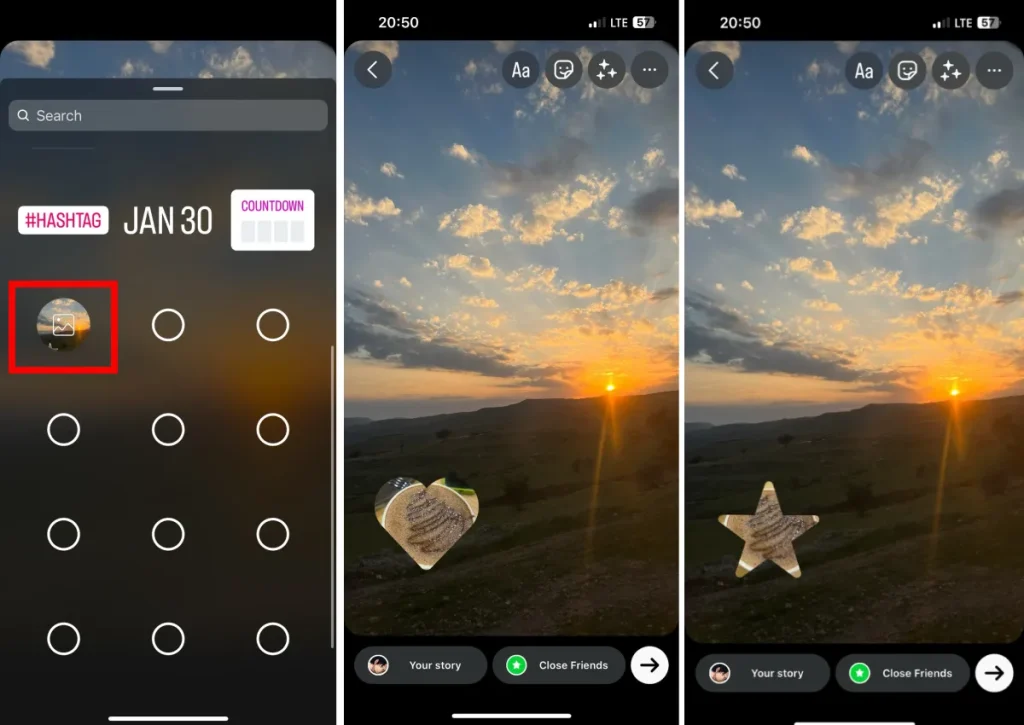
Boomerang: Create captivating looped videos with the Boomerang feature in your Stories.
- Open Instagram stories
- In the left side, you’ll see the boomerang sign, tap on it
Multiple photos: Share a sequence of images to tell a more complete story in your Stories.
- Open Instagram stories
- In the left side, you’ll see the layout sign, tap on it
- You can choose up to four photos
Hands-free: Record videos without holding down the record button for a more relaxed shooting experience.
- Open Instagram stories
- In the left side, you’ll the hands-free sign, tap on it
- Tap on the shutter button and the story will be recorder hands-free
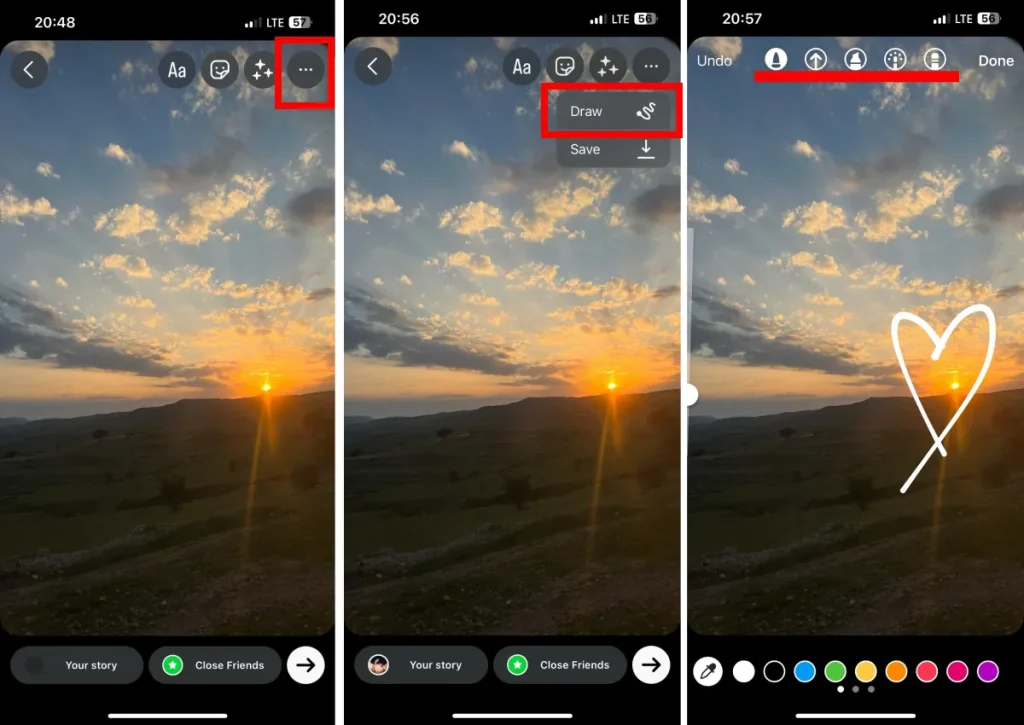
Doodle: Add a personal touch to your photos or videos by doodling on them in your Stories. Here is how to do it:
- Open Instagram stories
- On the top of the page you’ll the a sign of a pen, tap on it
- You can choose between different markers and doodle
Close friends: Share exclusive content with a select group by using the Close Friends feature in Stories. Here is how to make a close friends list:
- Tap or your profile picture in the bottom right to go to your profile.
- Tap in the top right, then tap Close Friends.
- Tap next to the people you want to add to your Close Friends list. …
- To remove someone on your list, tap next to their name.

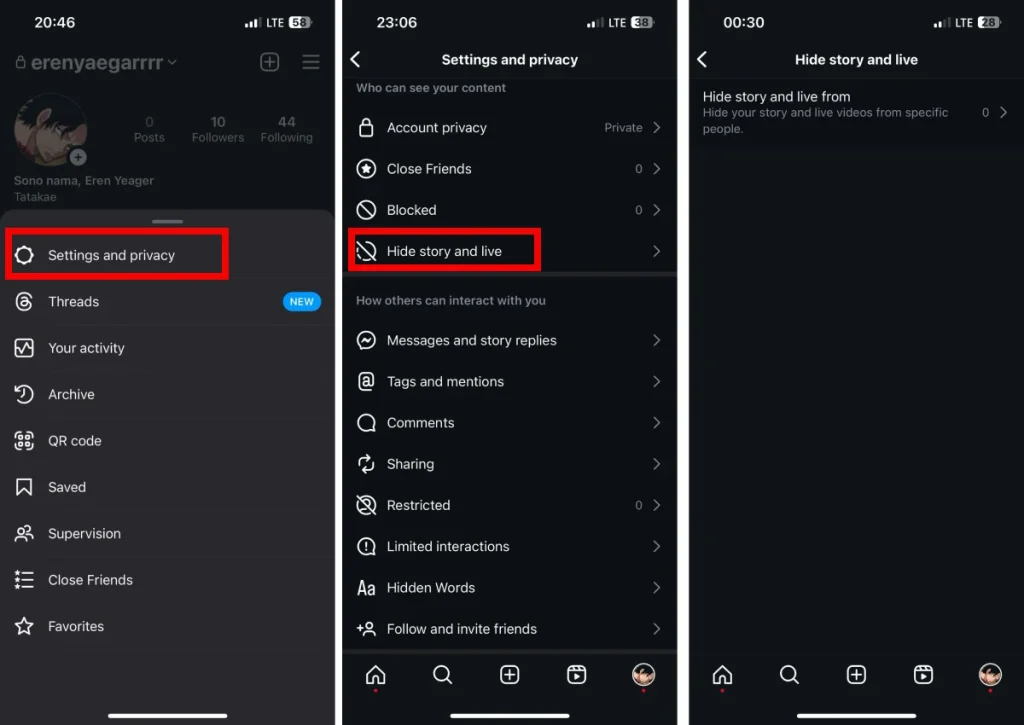
Hiding your stories: Control who sees your Stories by adjusting privacy settings to hide them from specific users. Here is how to hide your story:
- Tap or your profile picture in the bottom right to go to your profile.
- Tap in the top right, then tap Settings.
- Tap Privacy, then tap Story.
- Tap the number of people below Hide Story From.
- Select the people you’d like to hide your story from, then tap in the top left
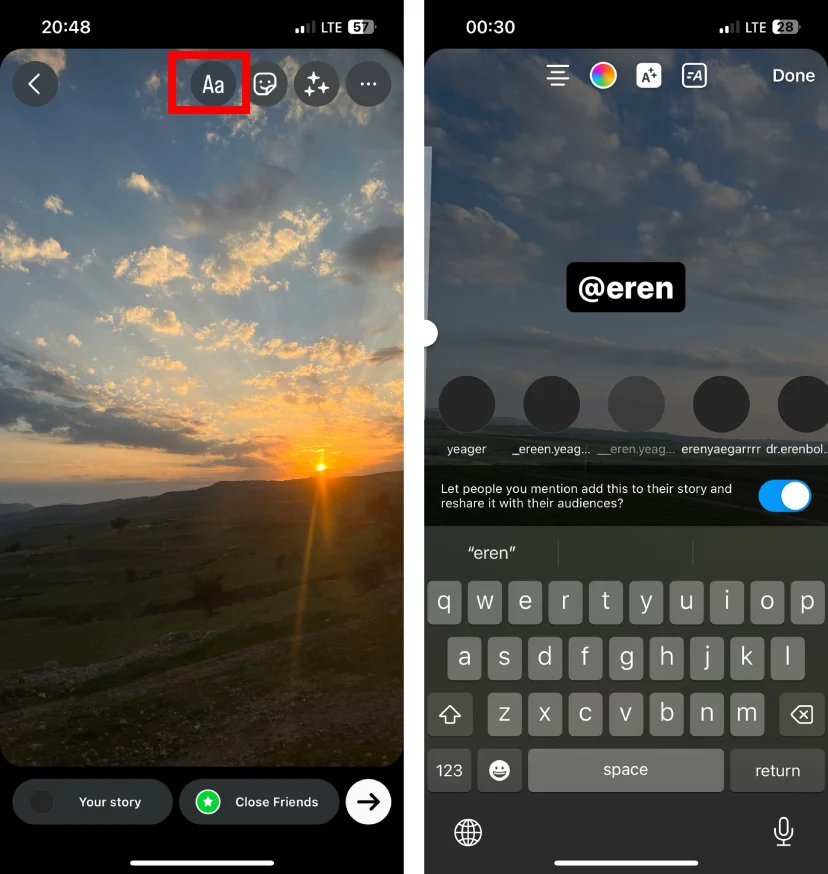
Tag someone on your stories: Give a shoutout or mention someone by tagging them directly in your Stories. Here is how to tag someone on IG stories:
- Tap on the ‘Aa’ sign on the top of the screen that means typing
- Type ‘@’ and write the username of the person you want to tag
- Tap done
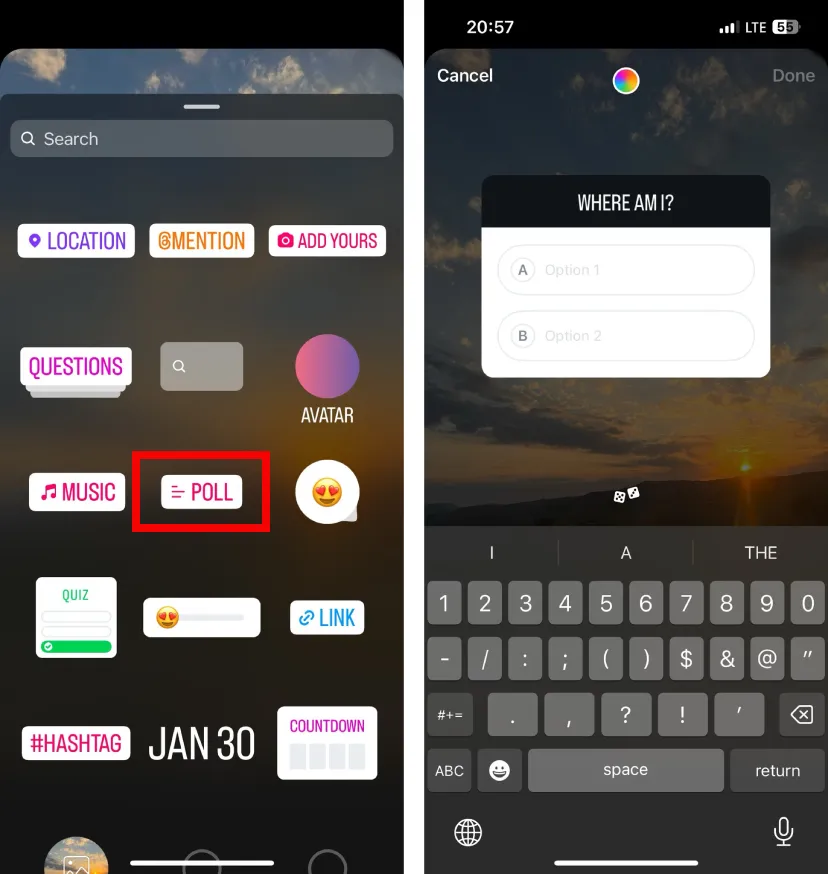
Question boxes: Encourage interaction by letting your followers ask you questions through interactive question boxes. To make a question box, tap on the sticker sign on the top of the screen and then tap on the question box.

Polls: Engage your audience with interactive polls to gather their opinions in your Stories. To make polls on Instagram stories, tap on the sticker sign on the top of the screen and then tap on polls.
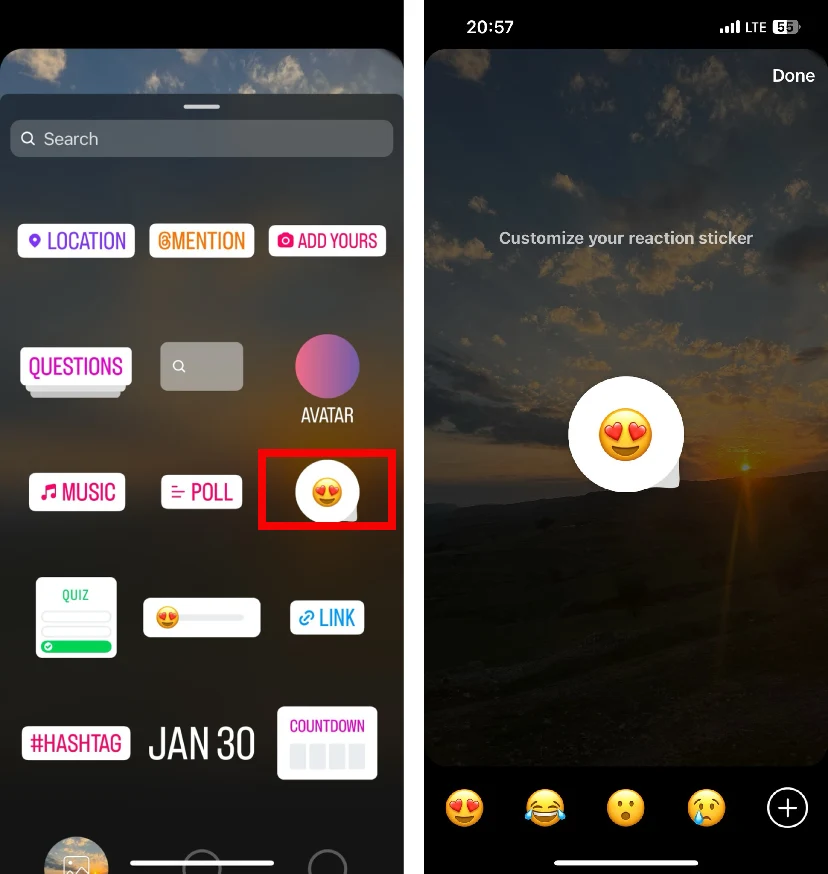
Reactions: Allow your followers to react to your Stories with a range of emotive reactions. To make reactions on Instagram stories, tap on the sticker sign on the top of the screen and then tap on reactions, choose the emoji that you want and place it on your story.
Story replies: Foster communication by enabling your followers to reply directly to your Stories.

Highlights: keep your favorite Stories by adding them to Highlights on your profile. To add a story to your highlights, follow these steps:
- Open your story
- Tap on the three dots on the bottom right of your story
- Tap add to highlight
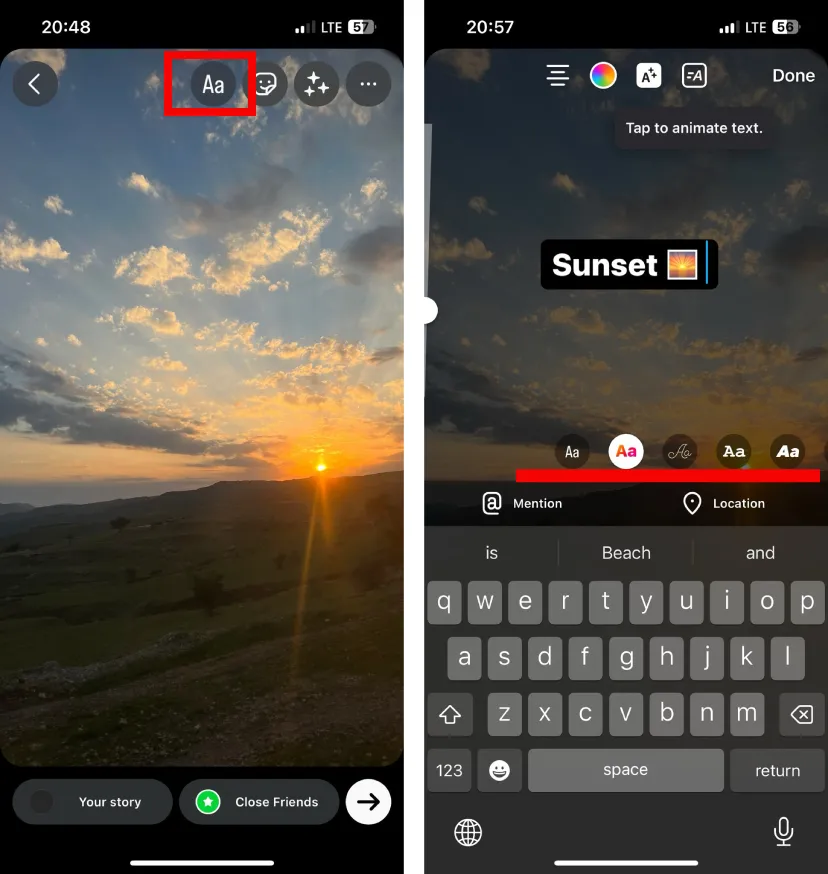
Different fonts for typing: Customize your text in Stories with a variety of fonts to match your style. When you’re adding to your story and you tap on the type sign (Aa), you can use different fonts for typing.
Add post or reels to story: Share your favorite posts or reels in your Stories to give them more visibility. To add reels to your story, follow these steps:
- Open the post or reel that you want to add to your story
- Tap on the share icon (looks like a paper plane)
- On the bottom left of the screen, tap on “add o story”
Add tagged story to your story: Share Stories you’ve been tagged in to your own Story for increased visibility. When someone tags you on their story, a sign appears on the bottom of the story that says ‘ Add to your story’ tap on that.
Instagram post features
Filters: Enhance the visual appeal of your photos with a variety of creative filters.

Edits: Fine-tune your images with editing tools to perfect your posts before sharing.

Carousels: Share multiple photos or videos in a single post to tell a more comprehensive story. To add carousels, when adding a post, tap on the carousel sign. You can choose up to 10 photos.
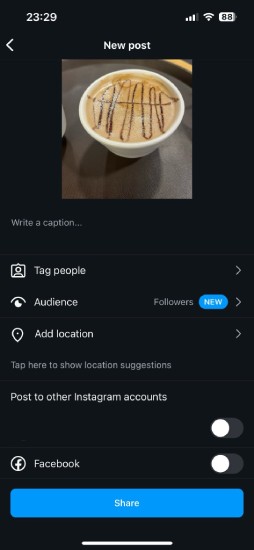
Preview of your posts: Review how your post will look before sharing it with your followers. To use this feature, before uploading your post, choose the option ‘Preview’.
Add music to your posts: Infuse your posts with a musical vibe by adding your favorite tunes. Before uploading your post, you can see the option ‘Add music to your post’.
Add location to your posts: Geotag your posts to let followers know where the content was captured. Before uploading your post, you can see the option ‘Add location’.
Tag someone in your posts: Give credit or connect with others by tagging them directly in your posts. Before uploading your post, you can see the option ‘Tag people’. Tap on that and then add the username that you want to tag.
Share on both of your profiles: Easily cross-promote content by sharing a post on multiple Instagram profiles. To do this, Before uploading your post, you can see the option ‘Post to other Instagram accounts’. Toggle that on.
Share on Facebook and etc.: Expand your post’s reach by sharing it on other social media platforms. Before uploading your post, you can see the option ‘Facebook’. Toggle that on.
Add caption and hashtags: Craft engaging captions and utilize hashtags to increase the discoverability of your posts.
Save posts: Bookmark posts you love to revisit them later in your saved collection. There is a save sign under every post. Tap on that to save a post.
Like posts: Show appreciation for content by liking posts that resonate with you. You can click on the heart under each post or double tap on the post to like it.
Comment: Engage with others by leaving comments on their posts. Under every post (except the ones that have disabled their comments, you can see the comment sign. Tap on that and write your comment. Then tap on the post.
Mentions: Mentioning other users in captions and comments using the ‘@’ symbol. Directly reference or involve other users in your captions and comments with the mention feature.
Share posts: Repost content you enjoy to your own feed or Stories. There is a share sign under every post that looks like a paper airplane. Tap on it and then choose the account that you want to share the post to, then tap on send.
Copy links and share to other platforms: Share post links on external platforms to broaden your content’s reach. When you tap on the share icon on posts, a list of your followers and people you interact with will appear, below that there is a sign that says ‘Copy link’, tap on it.
Hide, delete, or disable comments and likes on your posts: Manage the engagement on your posts by controlling comments and likes.

Reply to comments: Foster conversation by responding to comments on your posts. You can either tap on the little sign that says ‘reply’ under comments, or you can swipe left the comments to reply to them.
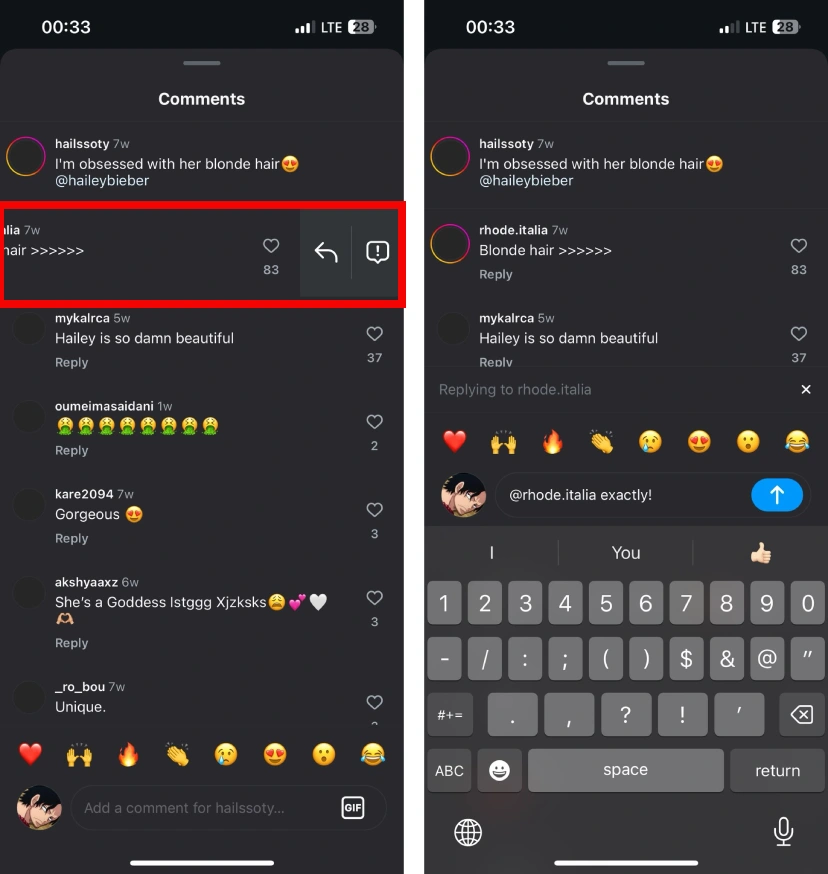
Comment gifs: Add a playful touch to your comments by incorporating animated gifs. Here is how to add gif in comments:
When you open the comments section, you’ll see a little square that says ‘GIF’ next to the section where you write your comments, tap on that and search the GIF that you’re looking for:
Comments photos: Share photos in comments to further enrich your interactions.
Categorize your saved posts: Organize your saved posts into categories for easy retrieval and reference. Here is how:
- Tap or your profile picture in the bottom right to go to your profile.
- Tap in the top right.
- Tap Saved.
- Tap in the top right.
- Tap any saved posts you’d like to add to your collection, then tap Next.
- Enter a name, then tap Add in the top right.
Collaborative Posts: Enables multiple users to contribute to a single Instagram post. Here is how to do it:
- Before you publish your post, tap Tag people.
- Tap Invite collaborator.
- Search for the account you want to add as a collaborator, then tap the account.
instagram business account features
Mass delete direct messages: Easily clear your Direct Message inbox by deleting messages in bulk. Here is how to do it:
Tap the three-dot icon at the top of your screen and choose “Select chats.” Now you have the option to select multiple conversations and delete them together.
Flag unread direct messages: Prioritize your interactions by flagging and identifying unread direct messages. Here is how to do it:
- Open direct messages
- Swipe left on the message that you want
- Tap on flag
Schedule posts: Plan your content strategy efficiently by scheduling posts for specific times in the future. Here is how to do it:
- Open the Instagram app, tap and tap Post or Reel.
- Select a photo or video and add a caption, effects and filters. Tap (Android) or Next (iOS).
- Tap Advanced settings.
- Tap Schedule.
- Select a date and time up to 75 days away.
- Tap Done.
- Tap the back button.
- Tap Schedule to schedule the post or Reel.
Special accounts for businesses and content creators with additional analytics: Unlock advanced analytics and features tailored for businesses and content creators with a special account type.
Swipe up feature: Drive traffic to external links by utilizing the swipe-up feature in Stories (commonly available for accounts with a certain follower threshold). Here is how to do it:
- When uploading to your Instagram story, click on the icon at the top right that looks like a chain
- Click ‘+URL’ to add a link to a web page
- Type the URL into the text box
- Click “Done” in the top right
Insights: Gain valuable data on your account’s performance, audience demographics, and content reach through the Insights feature. Here is how to see it:
- Go to your profile.
- Tap the Insights action button.
- Tap the metrics under the Overview section or specific content you’ve shared for a more detailed breakdown

Ads: Promote your brand or business with targeted advertisements to reach a broader audience. Here is how to use Instagram ads:
- Go to Business settings.
- Click Accounts.
- Click Instagram accounts.
- Select the Instagram account.
- Click Connected assets.
- Click Add assets.
- Select an ad account.
- Click Add.
Messaging and Interaction: Foster communication with your audience through direct messages, comments, and other interactive features.
Monetization Features: Additional tools for content creators, including affiliate marketing, Badges, and live donations.
instagram verified features
- Visual Cue: Verified accounts have a blue checkmark badge next to their username, indicating authenticity.
- Enhanced Discoverability: Verified accounts have a higher chance of appearing in search results and recommendations.
- Exclusive Access: Verified accounts get early access to new features and tools.
- Impersonation Protection: The checkmark badge prevents copycat accounts and protects reputation.
- Priority Support: Verified accounts receive faster and more personalized customer support.
- Special Stickers: Verified accounts have access to exclusive stickers for Stories and Reels.
- Monetization Potential: Verified accounts may have additional monetization options, like sponsored posts.
- Trust and Appeal: The check mark badge fosters trust and makes verified accounts more desirable.
- Brand Reputation: Verified status elevates brand recognition and prestige.
- Thorough Insights: Verified accounts have deeper access to audience data and analytics.
Instagram shopping features
Instagram Shops: Make a special shop on your profile. It’s like a store where people can see all your products in one place. Here is how to do it:
- Make your account a business account
- Connect to your facebook page
- Use commerce manager to set up a shop
- Upload your products
- Submit your account for review
- Turn on Instagram shopping

Product Stickers in Stories: Stick product stickers in your Instagram Stories. It helps people check out and buy what they like. Here is how to do it:
- Tap and select Story.
- Select a photo or video to upload to your story, then select the product sticker from the sticker tray.
- Select the collection, storefront or product(s) from your catalog that you want to feature.
- Tap Done.
- Move the sticker to where you want it to appear on your story.
Instagram Checkout: People can buy stuff without leaving Instagram. It’s like a quick way to shop.
Shop from Feed: People can see and buy your products right from their main feed. Easy, right?
Product Collections: Group your products into collections. It helps people find similar things easily.

Explore Shopping: There’s a special shopping section in the Explore tab. It shows products based on what people like.
Live Shopping: Show off your products in real-time during a live video. It’s like a virtual shopping event!
instagram live features
Instagram Live Rooms: Expands on the live video feature, enabling up to four users to go live together.
Use Instagram filters: Enhance the visual appeal of your live videos by applying various filters. To do so, tap the face icon in the bottom right corner before or during your broadcast.
Pin comments: Highlight important comments by pinning them during your live broadcasts. Easily tap on the comment and then tap on pin comment.
Invite people to your live: Boost engagement by inviting others to join your live video and participate in the conversation. Here is how to do it:
- Tap at the bottom or swipe right anywhere in Feed.
- Scroll to Live at the bottom.
- Tap.
- tap . Here you’ll find requests to join your room. …
- Tap the icon to invite your followers to your Live broadcast.
- Tap Send Request.
Save your live video: Preserve your live content by saving it for later viewing or repurposing. After you’ve ended a live broadcast on Instagram, you can tap Download Video to save the video to your phone’s camera roll.
instagram reels features
Add music: Infuse your Reels with popular tunes to add a musical element to your short videos. While you’re creating your reel, you can tap on the Audio button at the top of your screen. Browse the lists of music and original audio, or search for a specific track.
Reels Templates: Expedite your content creation process by using pre-made templates for your Reels.
Interested or not interested: Gather feedback from your audience by allowing them to express their interest or disinterest in your Reels. When you’re seeing a reel you’re not interested in, tap on the three dots on the bottom right of the screen and then tap on ‘Not interested’.
If you’re interested in the reel you’re seeing and you want to see more, tap on ‘Interested’.
Report: Maintain a safe and positive community by reporting inappropriate content or users in Reels. To report a reel, Tap in the bottom right of the reel you want to report. 2. Tap Report. then follow the on-screen instructions.
Reels Remix: Allows users to create reaction videos alongside other users’ Reels. Here is how to do it:
- Find a Reel to remix that is remixable.
- On the Reel, tap on the three horizontal dots button.
- Tap on the remix button.
- Select remix with original video or remix after original video.
- Record your remix video.
- Share your video on Instagram
Product Recommendations in Reels: Enables creators to tag and recommend products in their Reels.

Instagram explore features
Clear your Instagram search history: Maintain privacy by easily clearing your search history on Instagram. Here is how to clear your Instagram search history:
- Tap or your profile picture in the bottom right to go to your profile.
- Tap in the top right, then tap Your activity.
- Tap Recent searches.
- Tap Clear all, then tap Clear all to confirm.
Suggested accounts to follow: Discover new content by exploring suggested accounts tailored to your interests.
Search users, hashtags, top accounts, etc.: Navigate and find content efficiently by utilizing the search function for users, hashtags, and top accounts. Here is how to search on IG:
- Tap at the magnifier sign on bottom of the screen to go to Search & Explore.
- Tap Search in the search bar at the top.
- Type who or what you want to search for, then tap the search button in the bottom right of your keyboard.
- Tap For you, Accounts, Audio, Tags, Places or Reels below the search bar to filter your results.
Recommendations: Receive personalized content recommendations based on your interests and engagement history.

IGTV features
A platform for sharing longer-form videos.
IGTV Ads: Monetization through ads on IGTV for eligible accounts.
messenger features on instagram
Change DM background: Customize your Direct Message background for a more personalized chat experience. Here is how to do it:
- Tap or in the top right of Feed.
- Tap a conversation from your Chats list.
- Tap the chat name at the top, then tap Theme.
- Tap a chat theme. Your chat will automatically switch to your chosen theme.
Create a group chat: Foster group conversations by creating a chat group within Instagram Direct Messages. Here is how to do it:
- Tap or in the top right of Feed.
- Tap in the top right.
- Select 2 or more people from the list or search for their username at the top, then tap Chat.
- From here, you can: Type a message. Tap to select a photo or video from your library. Tap to take a new photo or video.
Send special messages: Enhance your messages with special effects, animations, and more. To do so, type your message and then tap on the magnifier that appears on the left. Then, choose the effect that you want.
Video call: Connect face-to-face with friends through video calls within Instagram. To make a voice call on IG, open the direct messages of the person that you want to make a call to, then on the top right of the screen, you’ll see a phone sign, click on that.
Voice call: Engage in voice calls directly through the Instagram platform. To make a video call on IG, open the direct messages of the person that you want to make a call to, then on the top right of the screen, you’ll see a video camera sign, click on that.
Notes: Share text-based messages with your followers through the Notes feature in Direct Messages. To make a note on IG, open direct messages. At the top left of the screen, you’ll see your profile picture with a little sign next to it that says ‘Add notes’. Tap on that and add your note.
Final Thoughts
And that’s a wrap! We’ve covered a lot in this journey through the world of Instagram features, from the basics to the nifty tricks that make your experience stand out.
Now that you’ve got the lowdown on managing your account, creating awesome content, and exploring all those fun features, it’s time to put your newfound knowledge into action.
