


Wondering how to schedule Instagram posts for optimal timing, saving time, and boosting engagement? You’re in the right place! This blog covers all methods—free or paid, with or without apps. We’ll also talk about the issues you might encounter when scheduling posts on Instagram. So, stay tuned!
Can we schedule Instagram posts?
Yes, with a professional Instagram account (business or creator), you can schedule up to 25 posts, including Reels, Stories, and feed posts, a whopping 75 days in advance.
You can also do it within the Instagram app or through third-party apps and tools. The best part? You can schedule your IG posts conveniently on both your desktop and your phone.
| Aspect | Details |
| Available Content | Feed Posts, Stories, Reels, Live, Carousels |
| Not available Content | product tagging, collaborative posts, cross-posting to Facebook, sponsored posts, and fundraiser |
| Post Limits | Up to 25 posts per day |
| Scheduling Window | Up to 75 days in advance (90 days for Lives) |
| Supported Devices | Mobile (iOS, Android), Desktop (3-party apps, Meta Business Suite) |
| Post Editing | Edit, delete, and reschedule |
| Story Scheduling | Limited to Meta Business Suite (Desktop) and third-party apps |
| Location Tagging | Possible in scheduled posts |
| Hashtag Limit | Up to 30 hashtags per post |
| Account Type | Business or Creator account |
A quick overview of Instagram scheduling
How to schedule Instagram posts (Without Third-party apps)
Now, let’s explore various methods for scheduling Instagram posts.
#1. How to schedule Instagram posts with the IG app
Fortunately, Instagram provides a built-in feature for scheduling posts and Reels (excluding Stories) in advance from your mobile (unfortunately, not from Desktop) for free.
Here are the simple steps to schedule Instagram posts on mobile (It’s the same for both Android and iPhone devices).
Step 1: Go to your feed, and tap the (+) to create a new post or Reel(I’ll show how to schedule an Instagram post, and FYI, scheduling a Reel follows the same steps).

Step 2: After selecting your image, feel free to edit, and add filters, or music. Once done, tap the arrow icon to go to the next step.
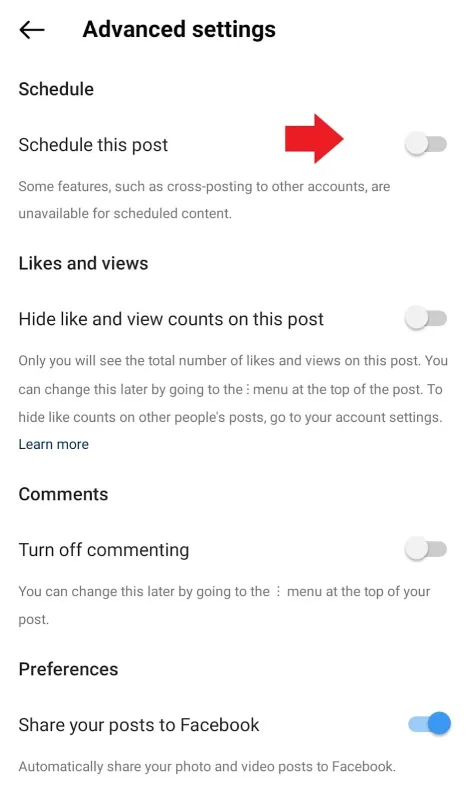
Step 3: Add your caption, location, or tag people. Then, head to the bottom and click on Advanced Settings.

Step 4: Next, simply toggle on “Schedule this post.”
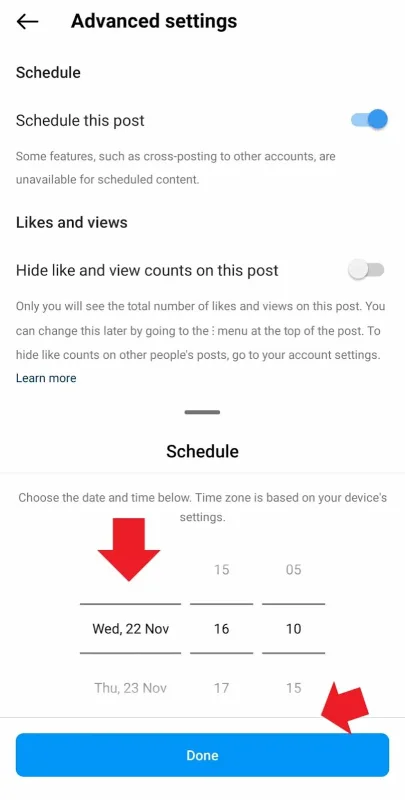
Step 5: Specify the precise time and date you wish to share your post, then tap “Done”. Find when is the best time to post on Instagram.
Step 6: Now, tap back and click on the “Continue Scheduling” popup message.

Step 7: Make any necessary edits, then tap “Share.” Your post will be automatically shared at the scheduled time.

Note: Some features like cross-posting are not available for scheduled content.
Want to know about top content creation services? click the link!
How to manage scheduled content on the Instagram app?
It’s possible to edit, reschedule, or delete your scheduled posts within the Instagram app. Just follow these steps:
- Go to your Instagram profile and tap the three-line icon at the top right corner.
- Tap on “Scheduled Content and go through the posts.
- Finally, click on the three dots next to the post and manage it.

#2. How to schedule Instagram posts with Meta Business Suite (Desktop)
Another free method to schedule your Instagram posts is by using Meta Business Suite. It’s a platform where you can conveniently manage both your Instagram and Facebook content in one spot.
The great thing about Meta Business Suite is that you can plan posts, Reels, and Stories from both desktop and mobile. Let’s learn how to schedule an Instagram post from the desktop with Meta Business Suite.
- Go to your home and tap “Create story” or select Photo/video or Reel.
- Choose where you want to post – Instagram, Facebook, or both.
- Select your photo or video, add text, emojis, or stickers, and check the preview.
- Navigate to Scheduling options and tap “Schedule.”
- Toggle on “Set time and date,” specify your desired time, and tap “Schedule.”
Source: Facebook
Schedule Instagram posts on the Meta Business Suite (App)
Happily, Meta Business Suite isn’t limited to desktop; you can easily download the app from the Google Play Store or The App Store, log in, and begin scheduling on the go. Let’s explore the steps below:
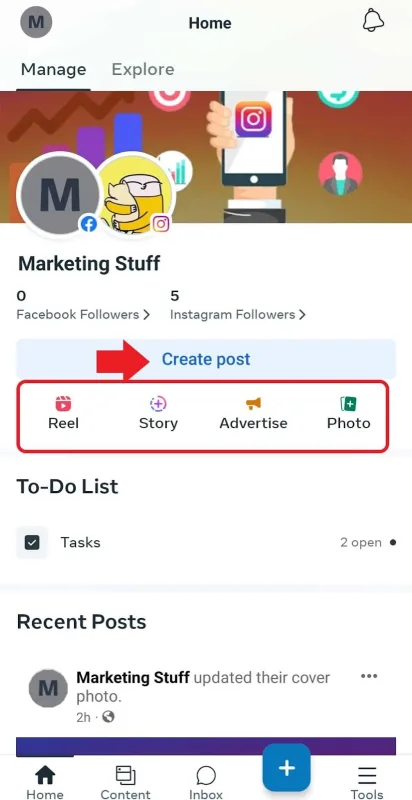
Step 1: Open the Meta Business app, go to your home, tap Create post, or click on Reel.
Note: You can’t plan stories ahead of time on the Meta Business app.
Step 2: Choose your video or image, and add text, stickers, location, tags, and more.

Step 3: From the top, specify whether you want to share the post on Instagram, Facebook, or both, and then tap “Next.”

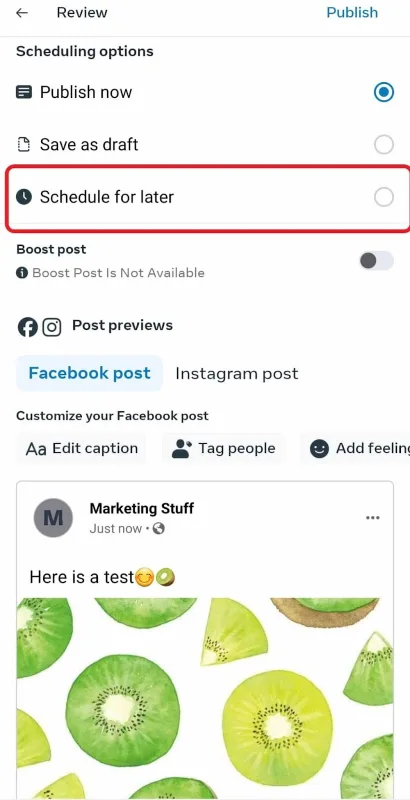
Step 4: Now, Toggle “Schedule for later” on. You can also preview your post on both Instagram and Facebook.
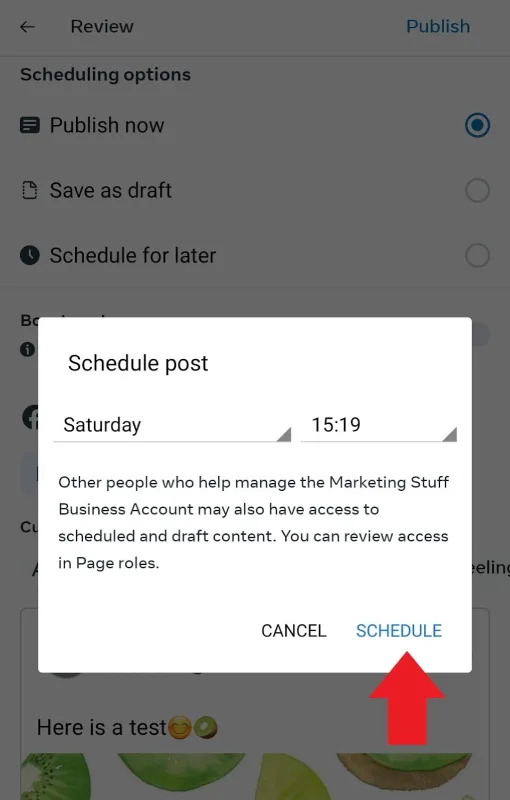
Step 5: Set your desired date and time and tap “Schedule”.
You will see your scheduled post in your Planner.
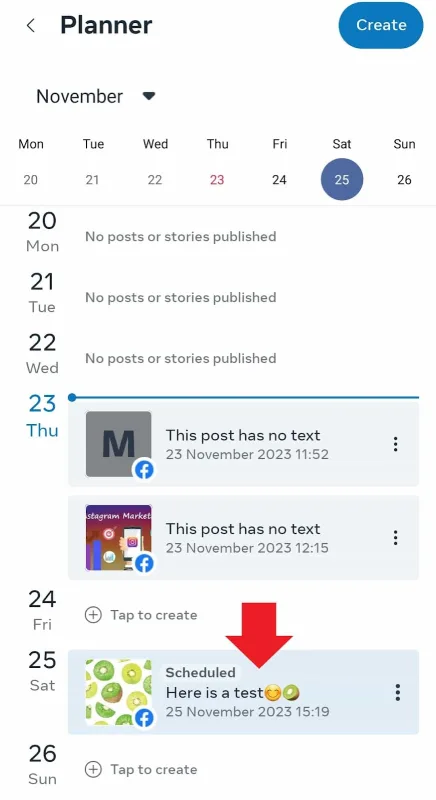
To manage your scheduled post, simply tap the three-dot icon on the right and choose one of the following options:

#3. How to schedule Instagram posts with third-party apps
Businesses and brands often opt for scheduling tools for Instagram posts. These tools provide optimal posting times, analytics, insights, and multi-account management.
The added convenience of scheduling from both desktop and phone makes them a valuable asset. Of all the tools, AiGrow takes the lead.
With AiGrow, you don’t need to plan your posts. An expert team crafts top-notch content for your audience, picks prime posting times for max engagement, and schedules it all effortlessly.
How Does Instagram post scheduling work on AiGrow?
In AiGrow, you can choose from one of the Content plans: Managed Starter, Managed Standard, or Managed Premium. Within these plans:
- Our expert team crafts an Instagram content calendar with diverse content aligned with your brand goals.
- We plan posts in advance for optimal timing
- We also provide in-depth analytics, captivating captions, and a strategic hashtag approach.
So, sign up for AiGrow now to delegate your content creation and post-scheduling to our expert team. Free up your time to concentrate on other business goals!
Top tips for scheduling Instagram posts
Now that you know how to schedule an Instagram post, boost the game with these essential tips:
Know your audience
Understand your audience’s active hours and preferences to schedule posts when they’re most likely to engage.
Utilize Analytics
Leverage Instagram analytics to identify peak engagement times and optimize your scheduling accordingly.

Get help from scheduling tools
Tools like AiGrow, Later, Buffer, and Sendible can provide you with additional features and save you time.
Don’t forget time zones
If your audience is global, factor in different time zones when scheduling to reach a wider audience.
Optimize captions and hashtags
It’s very important to create engaging captions and use relevant hashtags to increase the discoverability of your posts.
Also, read some effective Instagram SEO tips!
Experiment with Posting Times
Sometimes, you need to test different posting times to identify when your audience is most active and responsive.
Why Can’t I schedule Instagram posts?
Running into problems scheduling Instagram content? Whether the schedule option’s MIA or you can’t plan that special post, let’s troubleshoot the reasons.
- You’re not using an Instagram professional account. This feature is only available for Business and creator accounts.
- You’re using an outdated version of the app. So, update it quickly!
- If you’re using a third-party app, you may not have granted the necessary permissions to apps to schedule on your behalf.
- Some sort of content like product tagging, collaborative posts, cross-posting to Facebook, sponsored posts, and fundraisers can’t be scheduled on Instagram.
- Your Instagram account is Not linked to your Facebook account. This happens when you’re trying to schedule an Instagram post through Meta Business Suite.
- You’ve hit the limit for scheduling posts (25 posts a day).
- You’re attempting to schedule the post earlier than the permitted time (75 days ahead).
FAQs
let’s tackle some FAQs about this topic:
Q1: Does Instagram allow scheduled posts?
Yes, Instagram enables you to schedule a maximum of 25 posts per day, up to 75 days in advance.
Q2: Can I schedule Instagram stories and carousels?
Certainly! You can schedule stories exclusively through Meta Business Suite (desktop) and third-party apps. On the bright side, there are no limitations when it comes to scheduling carousels on any platform.
Q3: How can I see scheduled posts on Instagram?
To check scheduled content, head to your profile, tap the three-line icon at the top right, and select “Scheduled Content.”
