

Instagram offers various ways to share clickable links, including in your bio, Stories, and DMs, as well as using shortened links and shopping links in post feeds. It’s a powerful tool to drive traffic to your website from this popular platform.
But sometimes, you might encounter the issue of “Instagram links not working,” at all and that’s a big frustration. In this blog, I will first show you how links work on Instagram and figure out why links are not working on Instagram.
Ready to know the details? Let’s dig in!
How Do Links Work On Instagram?
When you click on a link on Instagram, it typically opens within the in-app browser if you’re using the mobile app on your iPhone or Android device.
However, you have the option to select a different browser, such as Chrome or Safari, to open these links.
Instagram recommends the following browsers for the best experience on the platform:
- Google Chrome
- Mozilla Firefox
- Safari
- Microsoft Edge

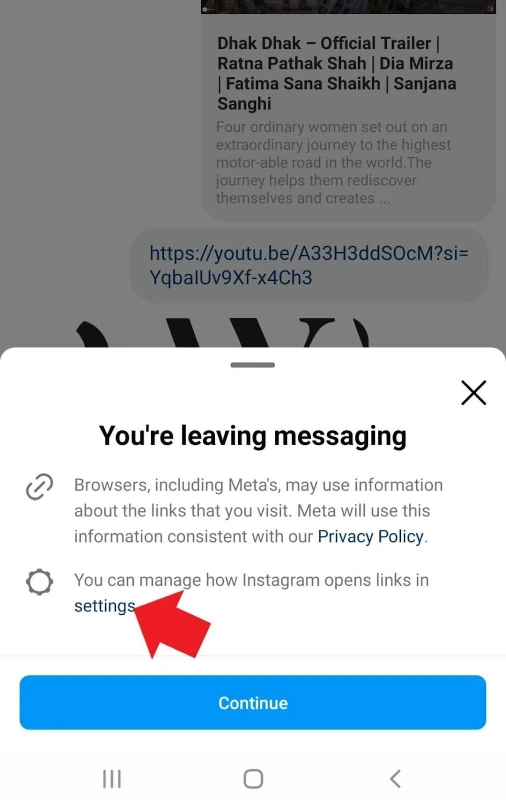
When it comes to links shared in DMs (Direct Messages), you have a choice before opening the link: You can either open the link in an external browser or use the in-app browser.
Why Are Instagram Links Not Working?
If you’re facing issues with any link on Instagram, it usually comes down to either a problem with your browser or the link itself. So, in case, Instagram links are not working in bio, stories, or messages, there might be several reasons:
- Broken Link: The link itself is damaged or doesn’t work (Page Not Found error).
- Link Removed: The link no longer exists or has been deleted.
- Link Reported: The link may have been reported by users.
- Typing Error: You might have mistyped or misspelled the URL.
- Third-Party Issue: If you’re using a third-party tool for your bio link, it could have technical problems.
- Blocked Link: Instagram may have blocked the link.
- Cache Overload: Instagram’s cache or your browser’s data storage might be overloaded.
- Outdated App: You’re using an old version of the Instagram app.
- Temporary Glitch: Instagram’s servers may be experiencing a temporary issue.
- Poor Internet: A weak internet connection can affect link loading.
- Improper Links: Certain links may be concealed spam links or redirect you to inappropriate websites.
- Instagram Cache and Data: Issues with Instagram’s cache or stored data might lead to links not working.
- VPN Interference: Having a VPN active may disrupt link functionality on Instagram.
How to Fix Instagram Links If They’re Not Working
Whether you’re having a problem with the links in your Instagram bio, stories, or direct messages, check out the following solutions:
#1. Check The Link URL Carefully
First things first, make sure you’ve got the right URL. Type it carefully and give it a test on another device or browser to be sure it’s working. And keep in mind that bio links should stay under 30 characters to work smoothly.
#2. Stay Away From These Links
Before sharing any links in your Instagram stories, bio, or messages, be aware that Instagram may block certain types of links. These Links Are Not Allowed on Instagram. Instagram links that are not allowed on the platform include:
- Malicious Websites: Links to harmful or fraudulent websites.
- Spammy Links: Links leading to low-quality or spam-filled sites.
- Copyright Infringement: Links to websites hosting copyrighted content without permission.
- Adult Content: Links to explicit adult content sites for a safer environment.

- Suspicious URLs: Links that seem suspicious, like those with random characters or unusual domains.
- Violations of Community Guidelines: Links to content violating Instagram’s rules, like hate speech or violence.
- Phishing Sites: Links attempting to steal personal information.
- Too Many Redirects: Links that overuse redirect to multiple websites.
- Selling Instagram followers: Instagram doesn’t even let you send these links in messages.

Note: Shortened links and links to social media like Telegram are allowed on Instagram.
#3. Clear In-App Browser Data
When you use Instagram’s in-app browser to open links, it collects data. If it gets too stuffed, it can stop new links from loading. So, now and then, clear that data to keep things running smoothly.
To clear in-app browser data, do as follows:
1: Open a link in your Instagram (story, bio, or DMs), tap the three dots, then choose “Browser Settings.”

2: Now, tap “Clear cookies and cache”.

3: Finally, delete your browsing data. Keep in mind that this makes the ads and content you see less relevant to your interests.

What If Instagram Links Are Not Working In Chrome Or Other Browsers?
If you’re using external browsers like Chrome, Safari, or Mozilla to open Instagram links and encountering issues, it might be your browser causing the trouble. Here are some simple solutions to consider.
#1. Clear The Browser’s Cache And Cookies
Go to your phone’s Settings<Apps<Chrome (or any other browser)< Storage< Clear Cache.

#2. Make Sure You’re Using The Latest Version Of The Browser
Whether you’re using Chrome, Safari, or Microsoft Edge on Android or iOS, updating them is simple. Just head over to the Google Play Store or the App Store and get those updates.

#3. Turn Off Extensions Or Add-Ons
This trick comes in handy when you’re using Instagram on your desktop. Sometimes, those extensions can create hiccups with websites. So, just switch them off one by one to pinpoint the troublemaker.

#5. Your Instagram Links Are Not Working In Safari? Change The Browser
If you encounter link problems because certain websites aren’t working well with Safari, you can fix them by using a different browser. Safari may not be the best match for these websites, so switching to browsers like Google Chrome or Mozilla Firefox can make the links work smoothly
#4. Stop Link-In-Bio Tools
Some people use third-party tools to add links to their Instagram bios. Occasionally, these tools can act up. Our advice? Start with reliable ones. If your Instagram bio links, or even story links, are not still working, consider switching to a different tool.
#5. Clear Instagram Cache
Occasionally, it’s not just browsing data causing the issue; it’s the excessive data stored within Instagram itself. In such cases, consider clearing Instagram’s cache on your iPhone or Android device.
To delete Instagram cache on Android:
Settings<Apps<Instagram<Storage<Clear Cache
To clear Instagram cache on iOS:
Settings<General<iPhone Storage<Instagram<Offload App
#6. Allow Instagram To Open Supported Links
Supported links in apps are URLs that, when you click on them, open directly within an app instead of a web browser. This makes using the app smoother and more integrated.
- To allow supported links, just tap and hold the Instagram app on your phone, then click on the (!) icon for app info.

- Now, open “Set as default” and select “Open supported links in this app”.

#7. Open The Link In An External Browser
As we’ve mentioned, you can decide to open a link within the Instagram app’s browser or an external one like Chrome or your phone’s default browser.
So, if Instagram links are not working on an in-app browser (Samsung or iPhone), here’s a simple fix:
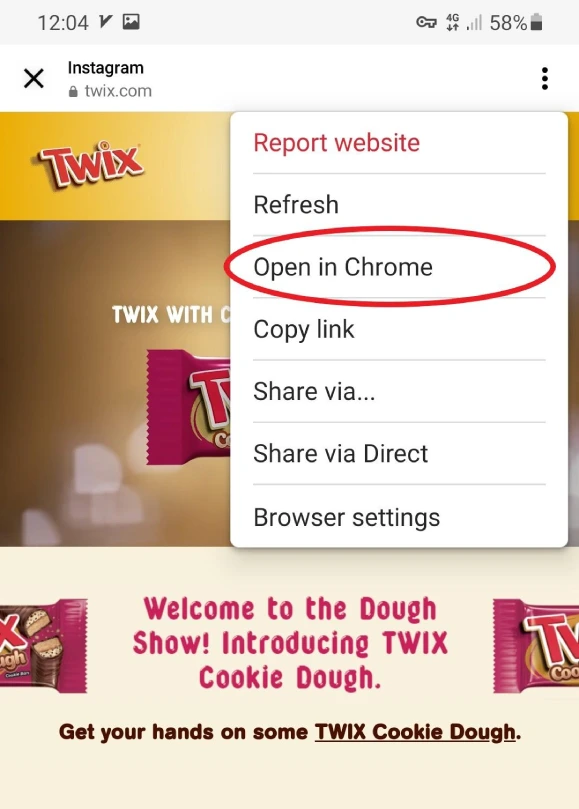
Try opening the link, tap the three dots in the top right corner, and select “Open in Chrome” (or your default browser).
#8. Update Instagram App
If you’re experiencing problems with links not loading, it might be because your Instagram app is outdated. To avoid the issue, simply make sure your app is updated to the latest version (Google Play Store or App Store).
#9. Reinstall The App
Sometimes, updating alone won’t do the trick, and you might have to go a step further by uninstalling and then reinstalling the app. It’s not too complicated, though.
Just tap and hold the app, select “Uninstall,” and then head to Google Play or the App Store to download it fresh.

#10. Log Out Of Your Account And Log In Again
Whether Instagram links are not working in messages or stories, sometimes, a simple log-out can do the trick. Here’s how to do it:
- Go to your profile.
- Tap the three-line icon to open Settings and Privacy.
- Scroll to the bottom and choose “Log Out.”
- To sign back in, simply enter your username and password.

#11. Disable Your VPN Or Proxy
If you’re using a VPN or proxy when opening links on Instagram, we suggest temporarily disabling it and giving it another shot. Sometimes, these tools can cause conflicts with certain websites.
#12. Switch The Internet Connection
For a smooth Instagram experience, you need a strong internet connection. So, if your Instagram profile links are not working or you can’t open a certain link in a story, consider switching your internet provider for better results.
Also Read: How to Add Links to an Instagram Story
#13. Try Another Device To Open The Link
Typically, the Instagram link problem can be resolved with the fixes we’ve mentioned. However, if the issue persists, try using another device. Sometimes, there could be a specific problem with your device that’s causing the link trouble.
#14. Check Out A Down Detector
When multiple people are experiencing the same issue with a link on Instagram, it could be due to a technical glitch in the app. To confirm, visit a down detector website, search for “Instagram,” and review the results.
If the website reports no current problems with Instagram, then you need to take the next step.

#15. Contact Instagram Support
If you’ve tried all the fixes and those Instagram links are still playing hard to get, don’t sweat it! Just snap a screenshot of the issue and hit Instagram for help. Shake your phone and you’ll find the option to report the problem.

#16. Restart the App or Phone
Restarting the Instagram app or your phone can be a helpful solution to ensure the proper functioning of links in Instagram stories, direct messages (DMs), and bio links.
When you restart the app or your device, it refreshes the application’s processes and clears any temporary glitches or issues that may be preventing link functionality.
This action essentially resets the Instagram app, allowing it to establish a new connection to the server and reinitialize its functions.
As a result, links in stories, DMs, and bio are more likely to work seamlessly after the restart, as any potential issues or conflicts in the app’s operation are addressed.
#17. Avoid Sharing Links That Get Redirected
Avoid sharing links that get redirected to enhance your ability to use links on Instagram.
By steering clear of redirected links, you improve the likelihood of successful link sharing on the platform.
Why Is My Instagram Bio Link Not Clickable?
In addition to the factors mentioned earlier for Instagram bio links not working, there could be a straightforward reason for the links not being clickable.
You must ensure that you place your link specifically in the ‘Add link’ section under ‘Edit profile.’ If the link is added to a different section of your profile, it won’t be clickable.
Why Instagram Shopping Links Are Not Working?
Instagram shopping links, which take you to product pages, might not be functioning properly for a few reasons:
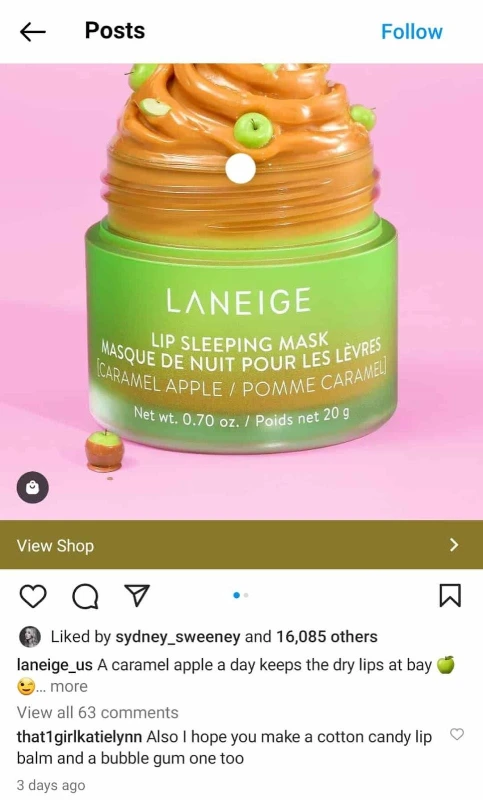
Incomplete Setup: If you’re a business trying to set up shopping links, you must meet Instagram’s eligibility criteria and complete the setup process.
Make sure you’ve connected your Instagram account to a Facebook Page, uploaded a product catalog, and been approved for Instagram Shopping. See our post to learn how to set up an Instagram shop.
Product Availability: If a specific product is no longer available or has been removed from your catalog, its associated shopping link may not work.
Tagging Errors: When creating a post, you must correctly tag the products you want to feature. Incorrect tagging or missing tags can result in non-functional shopping links.
Account Issues: If your Instagram account is facing issues, such as suspensions or restrictions, it can impact the functionality of shopping links.
Wrap-Up
In conclusion, addressing the issue of Instagram links not working involves a combination of considerations.
From ensuring a secure internet connection to navigating the intricacies of Instagram’s policies and correctly placing links in the ‘Add link’ section, these steps canenhance the functionality of links in various aspects.
To make sure your Instagram links work well, pay attention to any issues, follow the rules, and learn how Instagram works. This way, you can have a smoother experience and easily share links with your followers. 🙂
FAQs
Now that you know why Instagram links might not be working, it’s time to answer some frequently asked questions.
Q1. Is It Possible to Link From Instagram To Other Social Media Platforms?
Yes, you can link from Instagram to other social media platforms like Telegram, YouTube, TikTok, and more in your bio, stories, DMs, and Ads.
Q2. Why Are Instagram Links Opening In Safari And Not In The In-App Browser?
Here’s why Instagram links open in Safari and not in the in-app browser:
- Link Format: Some links are set up to work better with Safari for a consistent user experience.
- App Settings: Your Instagram app may be set to open certain links in external browsers by default. Check your app settings to change this.
- Device Settings: If Safari is your default browser on your device, it can override the in-app browser for specific links.
- Link Instructions: Some links have built-in instructions to open in Safari, especially deep links meant for specific apps.
Q3. Why Are My Instagram Links Not Clickable?
This issue can occur if you’re trying to add clickable links in captions or comments. Instagram doesn’t allow direct clickable links in these areas. The only clickable links are typically in your bio and stories if you meet certain criteria.
Also Read: How to Add a Link to Instagram Posts?
Q4. Why Do Instagram Links Sometimes Lead To Errors Or Broken Pages?
Instagram links may lead to errors if the linked website is down or experiencing technical issues. Check the website’s status and try the link again later. If it consistently leads to errors, it could be an issue with the link or the website’s compatibility with Instagram.
Q5. Why Do Instagram Links Open Slowly Or Take A Long Time To Load?
Slow-loading links on Instagram can be due to various factors, including your internet connection, the linked website’s server speed, or Instagram server load. Ensure you have a stable internet connection and try again later if the issue persists.
Q6. Why Is My Link Not Clickable on Instagram Post?
The reason your link may not be clickable in an Instagram post is because Instagram doesn’t allow direct hyperlinks in captions or comments. To share a clickable link, consider adding it to your bio or using the “Link” feature in Instagram Stories, or add clickable links in your bio.
Q7. Why Is Instagram Link in Bio Not Working?
The Instagram bio tag might not be working for several reasons. First, ensure that you have correctly added the link in the ‘Add link’ section in ‘Edit profile’ section. Double-check for any typos or errors in the URL.
If the link is correct, consider the following issues:
1. Link Format: Ensure that you’re using a valid and complete URL, including “https://” or “http://.”
2. Link Violations: Instagram may block certain links if they violate community guidelines or terms of service. Check if your link adheres to Instagram’s policies.
3. Link Removal: If you recently edited your profile, the link might have been removed inadvertently. Confirm that the link is still present in the ‘Add link’ section.
4. Account Restrictions: If your account has violated Instagram’s terms, it might face restrictions, affecting link functionality. Review Instagram’s guidelines to ensure compliance.
