

![How to Delete Instagram Messages [Mass Delete DMs]](https://aigrow.me/wp-content/uploads/2023/08/How-to-Delete-Instagram-Messages-Mass-Delete-DMs.jpg)
Even though the Instagram app is primarily designed for sharing photos and videos, it also provides an in-app messaging tool to communicate with your followers and friends. Instagram DM is one of the most popular features that over 500 million users try every month. But have you ever wanted to delete a conversation on your DMs or all your IG messages at once? In this article, I will show you how to delete Instagram messages on both desktop and mobile apps.
So, are you ready to know more? Let’s get started then.
How To Delete All Messages On Instagram?
Instagram allows business and creator accounts to delete multiple conversations at once. However, for personal accounts, you need to look for a better solution. In the next sections, I’ll show you how to delete multiple Instagram DMs for both personal and professional accounts.
How To Mass Delete Instagram DMs?
If you are using business accounts, Instagram allows you to mass delete your DMs in three simple steps.
Here’s how to delete all direct messages on Instagram using the official app on business accounts:
- Open your DM inbox from your feed page.
- Tap the three-line icon at the top right corner of your screen. [For some users, first, they must tap the three horizontal dots to find the three-line icon.]
- Select the conversations and select “Delete.”
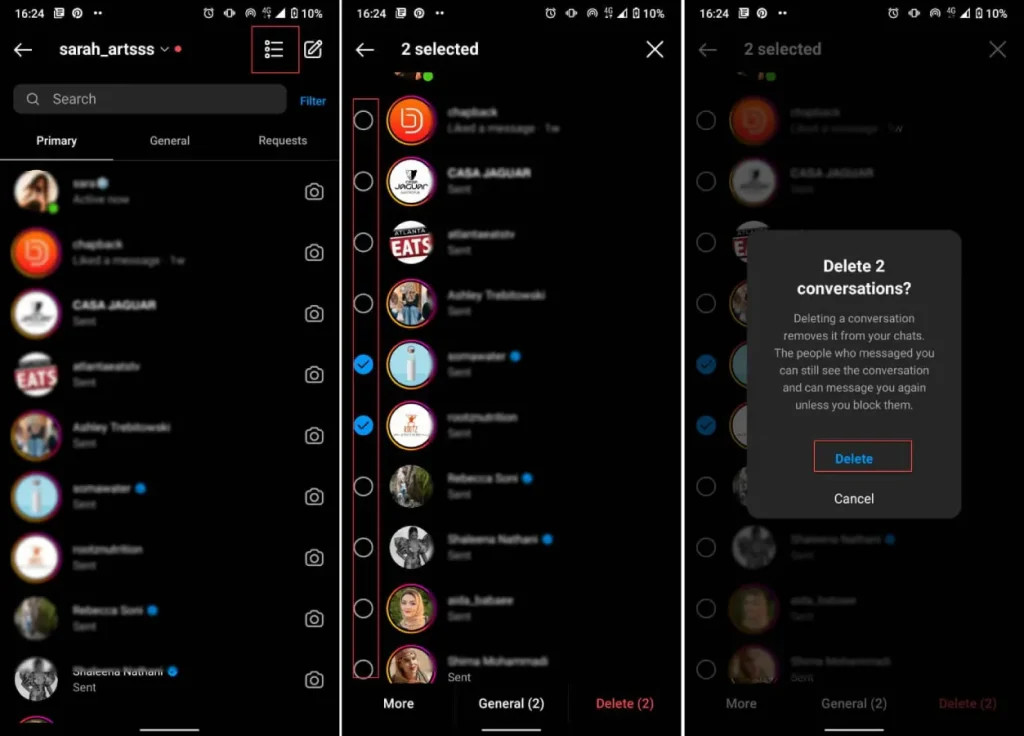
Unfortunately, this feature is only available for professional accounts. So, if you have a personal page, you need to delete the conversations one by one, which can be time-consuming.
How To Delete Instagram Messages?
You can use the official app to delete your chats, but this method takes more time. However, let’s explore how to delete messages on Instagram iPhone, and Android.
#1 How to Delete Instagram Messages On iPhone?
If you are using Instagram on iOS devices, you can easily delete entire chats. Here’s how to delete Instagram messages on iPhones:
1- Deleting The Entire Conversation
Want to know how to delete Instagram messages all at once on your iPhone? Here is how to delete a conversation on iPhone:
- Log into your Instagram account and go to your feed page.
- Tap on the DM Inbox at the top-right of your screen.
- Tap on the conversation you want to delete and drag it to the left or long-press it to bring up the message options.
- Select “Delete” and then confirm.
If you permanently delete a chat on Instagram, the conversation will not appear in your inbox anymore in any case. But keep in mind that the other person still has access to them.
2- Deleting An Individual Message
Now, you may ask, “How to delete selected messages on Instagram on iPhone?”
Unfortunately, there is no solution; but you can choose the messages you’ve sent and delete, or better to say, unsend them one by one. Here is how to do it:
- Log into your Instagram account and go to your feed page.
- Tap on the DM icon to access your Inbox.
- Open the conversation containing the messages you want to delete and tap on the specific message.
- Select “Unsend.”
#2 How To Delete Instagram Messages On Android?
Want to know how to delete Instagram messages on Android? Then, you’re in the right place.
So, let’s be quick and check how to delete single messages and entire chats on Android devices.
Also Read: How to Delete an Instagram Comment?
1- Deleting The Entire Conversation
To delete a conversation on Android phones, follow these steps:
- Open your Inbox by tapping on the DM icon at the top-right corner of your feed page.
- Tap on the conversation that you want to delete and hold it till it brings up the message options.
- Select “Delete.”

2- Deleting An Individual Message
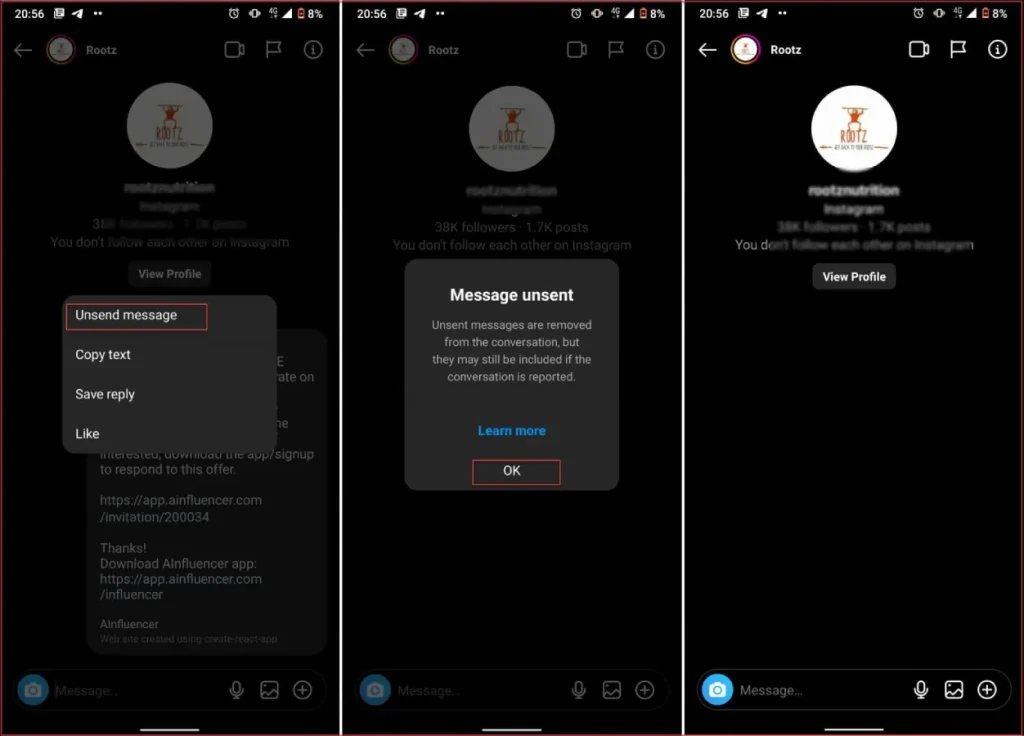
Deleting individual messages on Android phones is similar to iOS devices that we mentioned above. Here is How to delete individual messages on Android:
- Open your DM conversation from your Inbox.
- Tap and Hold the unwanted message.
- Select “Unsend” or “Unsend Message.”
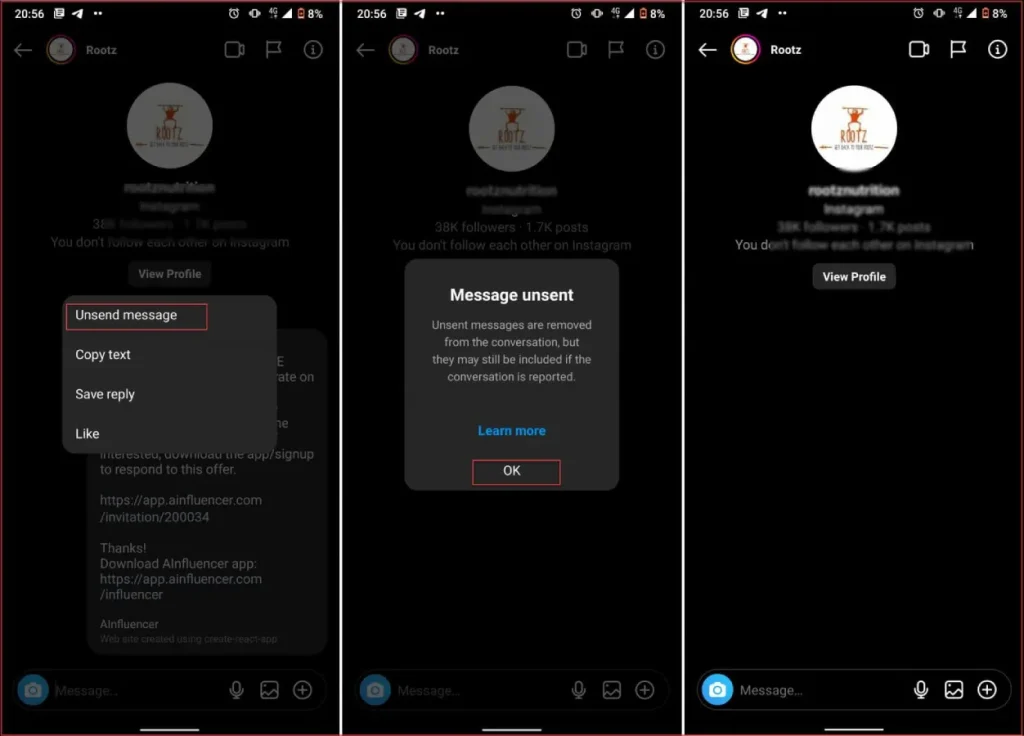
Following these steps will delete the message on both ends, effectively erasing it as if you never sent it.
To learn more on how to unsend individual messages, feel free to check out our article on unsending messages.
How To Delete All Messages On Instagram From Both Sides?
This is one of the most asked questions by Instagram users. Unfortunately, you can only delete the messages YOU have sent.
Also Read: What Is Vanish Mode on Instagram?
For the received messages, there is no way to delete them on both sides. However, you may wonder, “If I delete a direct message on Instagram, can the other person still see it?”
The answer is No! if you unsend one single message, it will be removed for both sides. However, if you delete the whole conversation, the messages will be removed only on your side.
Another question many users ask is, “Can someone see if you delete a message on Instagram?”
Well, it depends! If you unsend your message, they can notice that in the chat; but if you delete the entire chat, they won’t know.
Also Read: How to Read Instagram Messages Without Being Seen?
Can You Delete Messages On Instagram Desktop?
Yes, you can. Up to here, we showed you how to delete DMs on Instagram on both Android and iOS devices. Now, let’s see how to do it on Instagram desktop.
How To Delete A Direct Message On Instagram On PC?
As we mentioned, you can delete the messages you have sent on the Instagram desktop. Here is how to delete Instagram messages on your desktop.
- Open the Instagram website on your browser and log into your account.
- Click on the DM icon on the left to open your inbox.
- Open the conversation and click on the three-dot icon in front of the message you want to delete.
- Choose “Unsend.”
How to Delete a Whole Conversation on Instagram on PC?
To delete all the messages of a conversation, do as follows:
1. Click the DM icon on the left.

2. Select the conversation.
3. Click the ‘i’ icon in the top right.
4. Click “Delete Chat” and confirm.

How Do I Leave A Group Conversation On Instagram Direct?
Select the group chat you wish to exit. Tap the icon next to the group name at the upper right corner. Scroll down and choose “Leave chat,” then tap “Leave” to confirm your decision.
How To Delete Selected Messages On Instagram?
Deleting multiple messages or the other person’s individual messages isn’t directly possible on Instagram. To clear out multiple selected messages, consider deleting the entire conversation, or you may unsend your own messages one by one.
Also Read: Are Instagram Messages Really Deleted Forever?
Conclusion
In summary, effectively handling your Instagram messages on different devices is important for keeping your online space organized. Whether you’re using Android, iOS, or desktop, being able to delete messages helps tidy up your conversations, giving you more control over your privacy and communication.
By following the steps in this guide, you can easily manage and delete Instagram messages, making your messaging experience smoother and more organized.
FAQs
Now that you know how to delete Instagram messages, it’s time for some frequently asked questions.
1. How Do You Delete Messages On Instagram?
To delete messages on Instagram, you have two options; you can either unsend your messages one by one or delete the entire chat.
2. When You Delete A Conversation On Instagram Does The Other Person Know?
When you delete a conversation on IG DMs, it will no longer be available on your device. Plus, the other person will not be notified about the deletion of the conversation on your side. To know more about details, read our article ‘If I Delete a Chat on Instagram Will They Know?’.
3. Can I Unsend Old Messages On Instagram?
Yes indeed. No matter how old your messages are, you can delete or unsend them anytime. But you can only delete your messages, not the other person’s.
4. Why Can’t I Delete Messages On Instagram?
The inability to delete messages on Instagram can occur due to several reasons, including:
1. Limited Options: Instagram provides limited options for deleting messages. You can only delete messages on your end of the conversation, and both parties will see that you’ve deleted a message.
2. Technical Issues: Sometimes, technical glitches or issues with the Instagram app or website might prevent you from accessing certain features, including message deletion.
3. Message Type: Instagram might have limitations on the types of messages you can delete. For instance, some messages, like those sent by the other party, might not be deletable by you.
4. App Version: Make sure you have the latest version of the Instagram app installed, as newer versions often come with bug fixes and feature updates.
5. Account Type: If you have a personal account, the options for deleting messages might be different compared to a business or creator account.
6. Network Connection: A poor or unstable internet connection could hinder the proper functioning of the app, including the ability to delete messages.
7. Privacy Settings: Your account’s privacy settings can affect various features, including message deletion. Check your settings to ensure they’re not restricting this functionality.
8. Temporary Issue: Sometimes, issues can be temporary and might be resolved by waiting or trying again later.
If you’re facing consistent issues with message deletion on Instagram, consider reaching out to Instagram’s support or checking online communities for potential solutions.
5. How Can I Delete a Message Someone Else Has Sent Me?
Instagram does not provide a feature that allows you to delete messages sent by someone else in a direct conversation. You can only delete the messages that you have sent.
6. Can I Delete Other People’s Individual Messages or Only Multiple Messages?
You can’t delete the other person’s individual messages or only multiple messages; consider deleting the entire conversation for a cleaner inbox.
7. How to Permanently Delete Instagram Messages from Server?
Once you delete a message, it’s no longer visible to you, but it might still appear for others in the conversation. Unfortunately, Instagram doesn’t provide an option to permanently delete messages from the server. It’s crucial to keep this in mind while managing your conversations.
8. How to Delete Messages on Instagram Permanently?
Instagram doesn’t provide an option to permanently delete messages from the server.
