

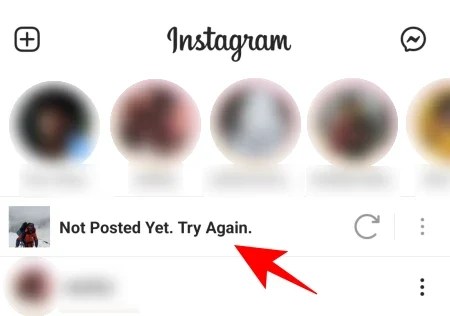
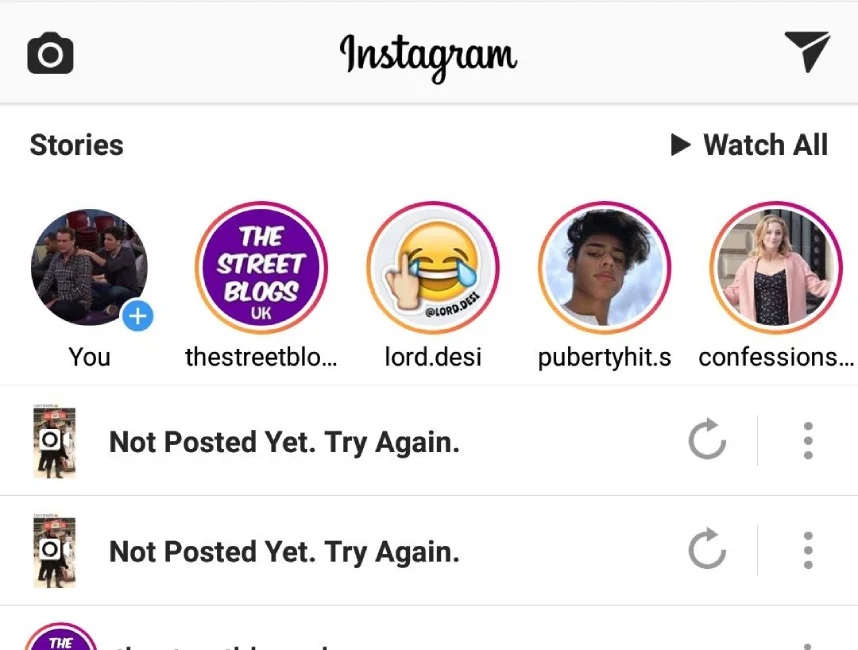
Even with its immense popularity, Instagram isn’t without its glitches. One of the most frustrating errors that users encounter is the “Not Posted Yet. Try Again” message.
This message appears when Instagram fails to upload your post, leaving your carefully crafted content stuck in limbo.
While this error can be discouraging, it’s important to remember that it’s often a temporary issue that can be resolved with a few simple troubleshooting steps.
But if you want to know what this error is and how to fix it, stay with me through this blog.
What is the “not posted yet try again” error on Instagram?
The error message “Not posted yet. Try again” on Instagram indicates that the app was unable to successfully upload your post. This can be caused by a variety of factors, including:
- Internet Connection: A weak or unstable internet connection is the most common cause of this error. Make sure you have a strong Wi-Fi or cellular data connection.
- Large File Size: If your post exceeds Instagram’s file size limits, it may not upload successfully. The maximum file size for photos is 2MB and for videos is 1GB. Try compressing your post and choosing the best post size before uploading it again.
- Cache Issues: Sometimes, cached data on your device can interfere with Instagram’s functionality. Clearing the app’s cache can help resolve upload problems. To do this, go to your phone’s Settings > Apps > Instagram > Storage and tap on “Clear Cache.”
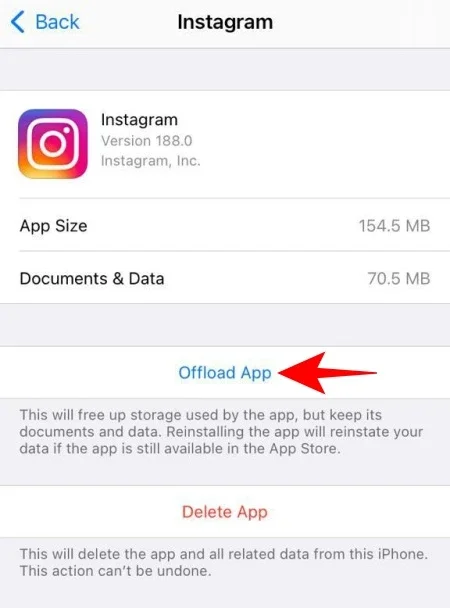
- App Updates: Outdated apps can sometimes have bugs that prevent them from working properly. Make sure your Instagram app is up to date by checking the App Store or Google Play Store.
- Account Restrictions: If your account has been restricted due to violating community guidelines or excessive spam, you may not be able to upload posts. Check your account for any restrictions or notifications from Instagram.
- Server Issues: On rare occasions, Instagram’s servers may experience temporary glitches that affect uploading posts. If the issue is widespread and affecting multiple users, it’s likely a server-side problem. Wait for Instagram to resolve the issue on their end.
If you’ve tried all of these solutions and the error persists, contact Instagram support directly. They may be able to provide further assistance and diagnose the specific cause of the issue.
How to fix instagram not posted yet try again?
The error message “Not posted yet. Try again” on Instagram can be frustrating, but there are several troubleshooting steps you can take to resolve the issue. Here’s a comprehensive guide on how to fix the “Not posted yet. Try again” error on Instagram:
1. Check Your Internet Connection
A stable and consistent internet connection is essential for uploading posts on Instagram. Ensure your Wi-Fi or mobile data connection is strong and reliable. Try switching between different connections to see if that resolves the issue.
2. Reduce File Size
If you’re uploading a large file, such as a high-resolution photo or an extended video, it might be exceeding Instagram’s file size limits.
The maximum file size for photos is 2MB and for videos is 1GB. Try compressing your post to a smaller size before uploading it again.
3. Clear Instagram’s Cache
Cached data can sometimes cause glitches and interfere with the app’s functionality. Clearing the cache of the Instagram app can sometimes resolve upload problems.
To clear the cache, go to your phone’s Settings > Apps > Instagram > Storage. Tap on “Clear Cache” and then try uploading your post again.

4. Update Instagram App
Outdated apps can sometimes have bugs or glitches that prevent them from working properly. Make sure your Instagram app is up to date by checking for updates in the app store or Play Store. Installing the latest version can often fix known issues.
5. Restart Your Phone
Sometimes, temporary glitches or software conflicts on your device can cause problems with Instagram. Restarting your phone can refresh the system and clear any temporary issues.
6. Try Uploading from a Different Device or Network
To rule out device-specific or network-related issues, try uploading your post from a different device or using a different Wi-Fi network or cellular data connection.
If the error persists on a different device or network, it’s likely an issue with your account or Instagram’s servers.
7. Disable Extensions or Ad Blockers
Sometimes, extensions or ad blockers can interfere with Instagram’s functionality. Try disabling any extensions or ad blockers that you might have installed.
Read more: 9 Tried & Tested Ways to Fix Instagram Couldn’t Refresh Feed
8. Check for Account Restrictions
If you’ve received any notifications from Instagram about violating community guidelines or engaging in spammy behavior, your account might be temporarily restricted from posting. Wait for the restriction period to expire before trying to upload again.
9. Contact Instagram Support
If none of the above solutions work, contact Instagram support directly. They may be able to provide more specific diagnosis and guidance, and they may be able to identify any underlying issues with your account.
Additional Tips
- Avoid uploading multiple posts at the same time.
- Use high-quality images and videos that meet Instagram’s guidelines.
- Be mindful of the time you’re trying to upload, as peak hours might experience higher traffic and server load.
By following these troubleshooting steps, you can effectively resolve the “Not posted yet. Try again” error on Instagram and ensure smooth posting of your content.
Why Are Scheduled Instagram posts not posting?
Another glitch that you might face is an Instagram schedule post error.
Scheduled Instagram posts not posting can be frustrating, as it can disrupt your content strategy and overall social media presence.
There are several reasons why scheduled posts might not appear on Instagram, and the specific cause can vary depending on the situation.
Here are some common reasons why scheduled Instagram posts might not be posting:
- Internet Connection: A stable and consistent internet connection is crucial for scheduling posts. If your internet connection is weak or unstable, the scheduled post might not be able to connect to Instagram’s servers to publish it at the scheduled time.
- Post Contents: Make sure your scheduled post adheres to Instagram’s community guidelines and doesn’t contain any inappropriate or offensive content. If your post violates any guidelines, it might not be published by Instagram’s automated systems.
- Schedule Overlap: If you’re using an Instagram scheduling tool, ensure that you haven’t accidentally scheduled the same post multiple times. If the same post is scheduled multiple times, the earlier scheduled post might overwrite the later one, causing it to not appear.
- Tool Issues: If you’re using a third-party Instagram scheduling tool, there might be a temporary issue with the tool itself. Check the tool’s support page or forums for any known issues or updates. Consider trying a different scheduling tool if the issue persists.
- Instagram App Issues: Outdated Instagram apps can sometimes cause scheduling issues. Ensure your Instagram app is up to date by checking for updates in the app store or Play Store.
- Instagram Server Issues: Occasionally, Instagram itself might experience server-side issues that affect scheduled posts. If the issue is widespread and affecting multiple users, it’s likely a server-side problem. Wait for Instagram to resolve the issue on their end.

How to troubleshoot scheduled Instagram posts not posting
try the following steps:
- Check your internet connection and ensure it’s stable.
- Review the scheduled post for any content that might violate Instagram’s community guidelines.
- Verify that the scheduled post isn’t already published or scheduled multiple times.
- Check the status of the Instagram scheduling tool you’re using.
- Update your Instagram app to the latest version.
- If the issue persists, wait for Instagram to resolve any server-side problems.
If the issue continues even after trying these steps, consider contacting Instagram support directly for further assistance. They may be able to provide more specific diagnosis and guidance.
FAQs
Now let’s answer some frequently asked questions on this subject:
Why does my Instagram post keep saying try again later?
This error typically occurs due to issues with your internet connection, file size, cache, app updates, account restrictions, or server problems.
Why is Instagram not posting my post?
Similar to the previous question, various factors can prevent your post from uploading, including network issues, file size limitations, cached data, outdated apps, account limitations, or server glitches.
How do you get rid of the not posted on Instagram?
To address the “Not Posted” error, try troubleshooting steps like checking your internet connection, reducing file size, clearing cache, updating apps, restarting your device, uploading from a different device or network, disabling extensions, checking account restrictions, and contacting Instagram support if necessary.
Final Thoughts
I myself have encountered the dreaded “Not Posted Yet. Try Again” before.
While it’s initially disheartening to see your carefully crafted content stuck in limbo, it’s important to remember that this error is often a temporary glitch rather than a reflection of your content’s quality.
Through trial and error, I’ve developed a toolkit of troubleshooting techniques that have proven effective in conquering this uploading hurdle.
Checking my internet connection, ensuring my file size falls within Instagram’s limits, and clearing the app’s cache are my go-to strategies. When these measures fail, a quick restart of my device often does the trick.
Occasionally, server-side issues arise, and the error persists despite my efforts. In these cases, patience is key. I simply wait for Instagram to resolve the technical hiccups, and my posts eventually materialize on my feed.
If you too find yourself grappling with the “Not Posted Yet” error, don’t despair. With a bit of determination and the troubleshooting tips shared in this blog, you’ll conquer this upload obstacle and continue sharing your unique voice on Instagram.
