


Ever felt the need to separate your cat photos from your travel blog? Or maybe you’re a social media manager juggling multiple brands. Whatever the reason, having a second Instagram account can be a great way to compartmentalize your online presence.
The good news? Creating a second Instagram account is surprisingly quick and easy. In fact, you can probably do it in under 20 seconds!
How to Create a New Instagram Account
First things first, let’s see how can you create and grow a new Instagram account from scratch, and then we’ll see how to make a second one. Here are the steps for both methods:
Using the Mobile App:
- Download the Instagram app: If you haven’t already, install the Instagram app on your iPhone or Android device. You can find it in the App Store (iOS) or Google Play Store (Android).
- Open the app: Launch the Instagram app. The icon looks like a white camera on a colorful background.
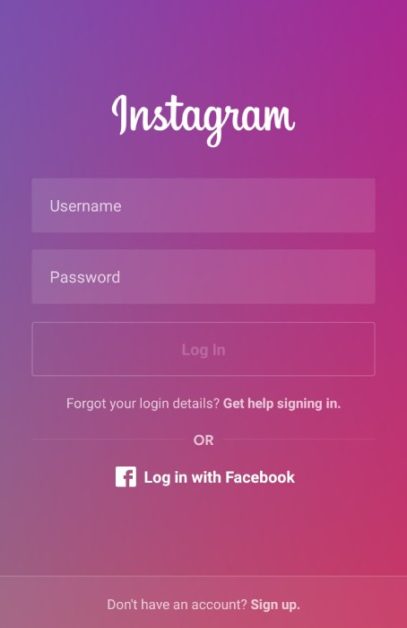
- Sign Up: Tap the “Sign Up” button at the bottom of the screen. If you’re already logged into another account, tap your profile picture in the bottom-right corner, then select “Add account” and “Create new account.”
- Provide your information:
- Enter a valid phone number or email address.
- Instagram will send a confirmation code to your phone number or email. Input the code.
- Enter your name, create a secure password, and provide your birthday.
- Create a username (you can change it later if needed).
- Tap Next to complete the setup.
Using a Web Browser:
- Visit the Instagram website: Go to the Instagram website using your computer’s web browser.
- Click “Sign up”: You’ll find this option on the homepage.
- Enter your information:
- Provide a valid phone number or email address.
- Verify your account using the confirmation code sent to your phone or email.
- Enter your name, create a password, and input your birthday.
- Choose a username (you can change it later).
- Click “Next” to finish setting up your account.
How to Create a Second Instagram Account With the Same Email
Creating a second Instagram account with the same email address is not directly supported by Instagram, but there are workarounds you can use. Here are a few methods to do this:
- Switching Between Accounts on Instagram:
- You can handle multiple accounts directly within the Instagram app:
- Open the Instagram app on your Android or iOS device.
- Go to your profile.
- Tap the three-dot icon at the top right corner.
- Scroll down and choose “Add account.”
- You can handle multiple accounts directly within the Instagram app:
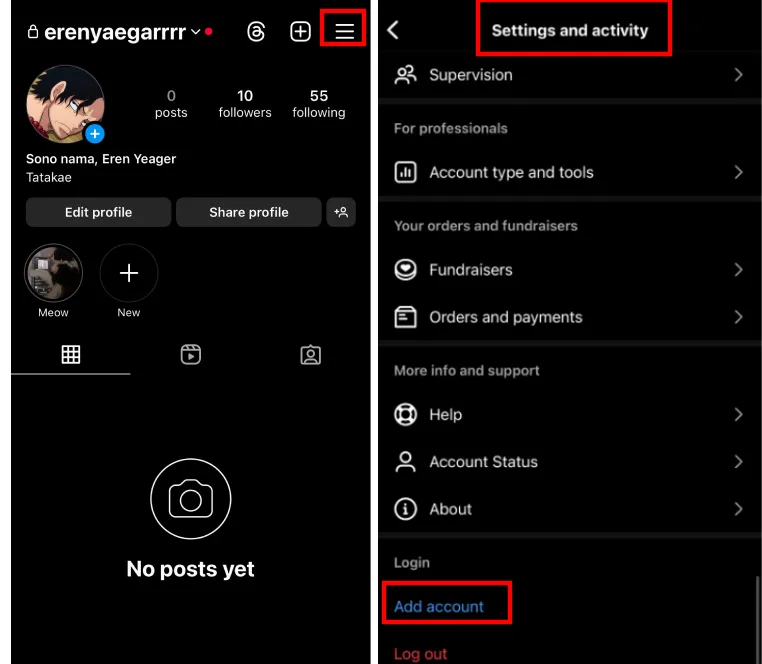
- Select “Create new account” and follow the prompts.
- Gmail Trick:
- If you’re using a Gmail address for your Instagram account, you can create multiple accounts by adding a plus sign (+) and a unique identifier to your email address. For example:
- Original email: username@gmail.com
- New account 1: username+instagram@gmail.com
- New account 2: username+instagram2@gmail.com
- Notifications for all accounts will still be sent to the primary email address (username@gmail.com).
- If you’re using a Gmail address for your Instagram account, you can create multiple accounts by adding a plus sign (+) and a unique identifier to your email address. For example:
- Third-Party Apps:
- While Instagram itself doesn’t allow multiple accounts with the same email, some third-party apps can help you manage your Instagram accounts from a single platform. These apps often provide features for switching between accounts seamlessly.
How to Create a New Instagram Account With a Different Email
Follow these steps to make a new account with a different account:
Using the Instagram Mobile App:
- Download the Instagram App: If you haven’t already, install the Instagram app on your Android or iOS device.
- Open the App: Launch the Instagram app by tapping the icon (a white camera on a colorful background).
- Sign Up:
- Tap the “Sign Up” button at the bottom of the screen.
- Enter your email address or phone number.
- Instagram will send a confirmation code to your email or phone. Input the code.
- Provide your name, create a secure password, and enter your birthday.
- Choose a unique username (you can change it later if needed).
- Tap Next to complete the setup.
Using a Web Browser:
- Visit the Instagram Website: Go to the Instagram website using your computer’s web browser.
- Click “Sign Up”: You’ll find this option on the homepage.
- Enter Your Information:
- Provide a valid email address or phone number.
- Verify your account using the confirmation code sent to your email or phone.
- Enter your name, create a password, and input your birthday.
- Choose a username (you can change it later).
- Click “Next” to finish setting up your account.
Remember that each Instagram account must have a unique email address or phone number associated with it. If you want to create additional accounts, consider using the Gmail trick mentioned earlier in the conversation. By adding a plus sign (+) and a unique identifier to your Gmail address, you can create multiple accounts that still receive notifications to your primary email address. For example:
- Original email: username@gmail.com
- New account 1: username+instagram@gmail.com
- New account 2: username+instagram2@gmail.com
Bonus tip: here is the perfect guide for learning how to manage multiple accounts on Instagram.
How to Add Another Instagram Account to Your Phone?
Follow these steps:
- Open Instagram
- Go to Your Profile
- Tap the three horizontal lines (the hamburger menu) in the top-right corner, then select “Settings.”
- Add an Account:
- Tap “Add Account.”
- Choose whether you want to sign in to an existing account or create a new one.
- If signing in to an existing account, enter your username and password.
- If creating a new account, follow the prompts to set up a unique username and password.
- Complete the Setup: Add a profile photo if desired.
Switching Between Accounts:
Once you’ve added multiple Instagram accounts, switching among them is simple:
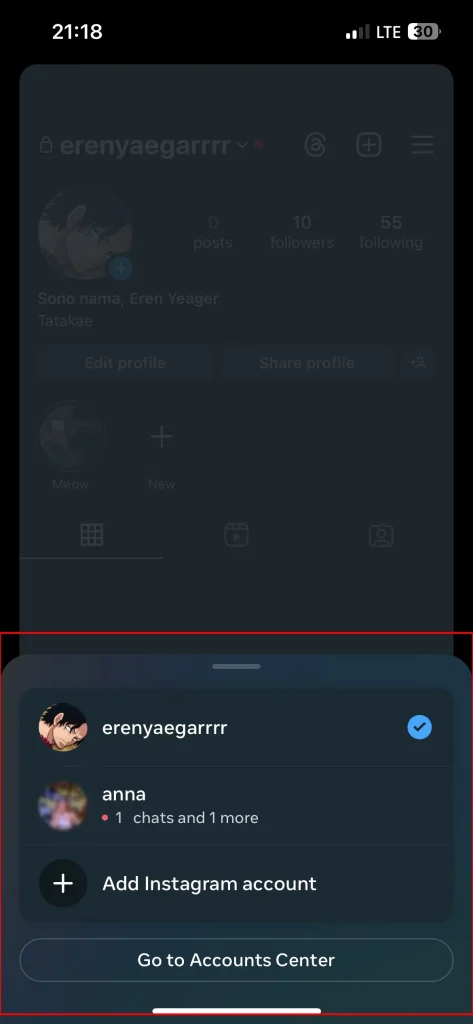
- Tap your account name at the top of the profile page.
- Select the account you want to use.
How To Create A Second Instagram for Business?
you have two options for this:
- Convert your existing personal account: If you already have an Instagram account, you can switch it to a business profile within the app settings. This unlocks features like audience insights and contact information display. You can always switch back to a personal account.
- Create a new business account: You can also create a completely new account specifically for your business:
- tap on the three lines on the top of the screen
- Scroll down to see “add new account”, tap on it
- Create your new account and enter the wanted information
- Once you made your new account, switch it to a business account
FAQs
Now let’s answer some frequently asked questions on this subject:
If I Make a Second Instagram Account Will My Contacts Know?
No, your phone contacts won’t automatically be notified when you create a new Instagram account. Instagram doesn’t inherently sync with your phone’s contact list.
Can I Have Two Instagram Accounts on the Same Phone?
Of course you can! You can switch between your accounts.
How Many Instagram Accounts Can You Have With One Phone Number?
Instagram allows you to have up to five accounts connected to a single phone number.
Final Thoughts
And there you have it! With just a few taps, you’ve got a brand new Instagram account ready to roll. Now go forth and conquer the ‘gram, one profile at a time. Remember, Instagram allows up to five accounts per phone number, so you can create a haven for all your online interests. Happy Instagramming!
