


Adding links to Instagram posts used to be a real challenge for users who wanted to drive traffic to their websites. However, Instagram has introduced some new features that make it easier to add link to Instagram post.
In this blog post, we’ll dive into the details of how to add link to Instagram post and where you can add a link in Instagram. So, stay with us to learn the ropes!
How To Add A Clickable Link On Instagram Post 2023
Let’s tackle this question: Can you add a link to an Instagram post? Nope, sorry, you can’t! Whether it’s a snazzy photo or a cool video(Reels), clickable links are a no-go in regular Instagram posts.
But, don’t fret! You’ve got a couple of workarounds-IGTVs and a few sneaky tricks, too. Let’s dig into how to add a link to an Instagram post using these tricks.
New ways to add link to Instagram post
Before we show you how to add a hyperlink to an Instagram post, let’s talk about the variety of links you can work with. There are a bunch of them, such as website links, YouTube URLs, and more.
Each type of link has its own unique role and a little twist when it comes to adding them to your Instagram posts. We’ll spill the beans on how to tackle these different link types in the upcoming sections. So, hang tight!
#1. Add link to Instagram post: IGTV
One possible spot to put links in Instagram posts is in the IGTV description. Instagram videos are all the rage, and adding your website link to them can send a flood of traffic your way. Here’s how to share a link on IGTVs.
- Open the Instagram app and go to your profile.
- Tap the “+” icon in the top right corner to create a new IGTV video.
- Upload your video and fill out the title and description fields.
- In the description field, include the URL you want to link to. For example, “Visit our website at www.example.com.”
- Highlight the URL and tap the “link” icon.
- Enter the URL again in the “Add URL” field and tap “Done.”
Now, when users view your IGTV video, they can tap the link in the description to go directly to your website or social media page.
#2. Add A Clickable YouTube URL Link To An Instagram Post
Are you looking to promote your YouTube video on Instagram and drive more traffic to your channel? Adding a clickable YouTube URL link to your Instagram post can help you achieve this goal. Follow these steps to add a clickable YouTube URL link to an Instagram post:
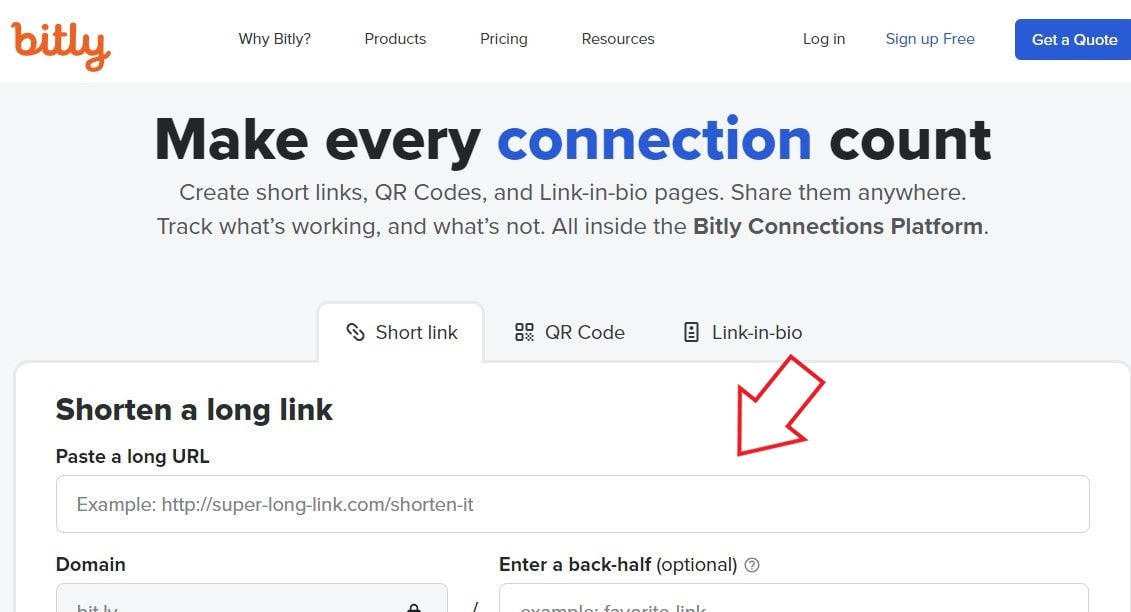
Step 1: Shorten The YouTube URL
- Go to a link-shortening service website such as Bitly or TinyURL.
- Paste the YouTube URL into the link shortening service website.
- Click on the “Shorten” or “Generate” button.
- Copy the shortened URL that is generated by the link shortening service.
Step 2: Add The Shortened URL To Your Instagram Post
There are two ways to add the shortened URL to your Instagram post:
Option 1: “Link In Bio” Feature
This is the most effective way of adding links to Instagram. To know how to put a link in Instagram bio, do as follows.
- Go to your Instagram profile, click on “Edit Profile”, and tap “Add Link”.

- Paste the shortened YouTube URL into the “Add external link” field.
- Click on the Check icon.

- Create a new Instagram post promoting your YouTube video and include a call-to-action to visit the link in your Instagram bio.
- In the caption of the Instagram post, add a message such as “Click the link in my bio to watch the full video.”
- When someone clicks on the link in your bio, they will be directed to your YouTube video.
Option 2: “Swipe-Up” Feature
- To use the Swipe-Up feature, you need to have a business or creator account and at least 10,000 followers.
- Create a new Instagram story promoting your YouTube video.
- Click on the “Link” button at the top of the screen.
- Paste the shortened YouTube URL into the “Add Link” field.
- Click on the “Done” button.
- Add a call-to-action such as “Swipe up to watch the full video.”
- When someone swipes up on your Instagram story, they will be directed to your YouTube video.
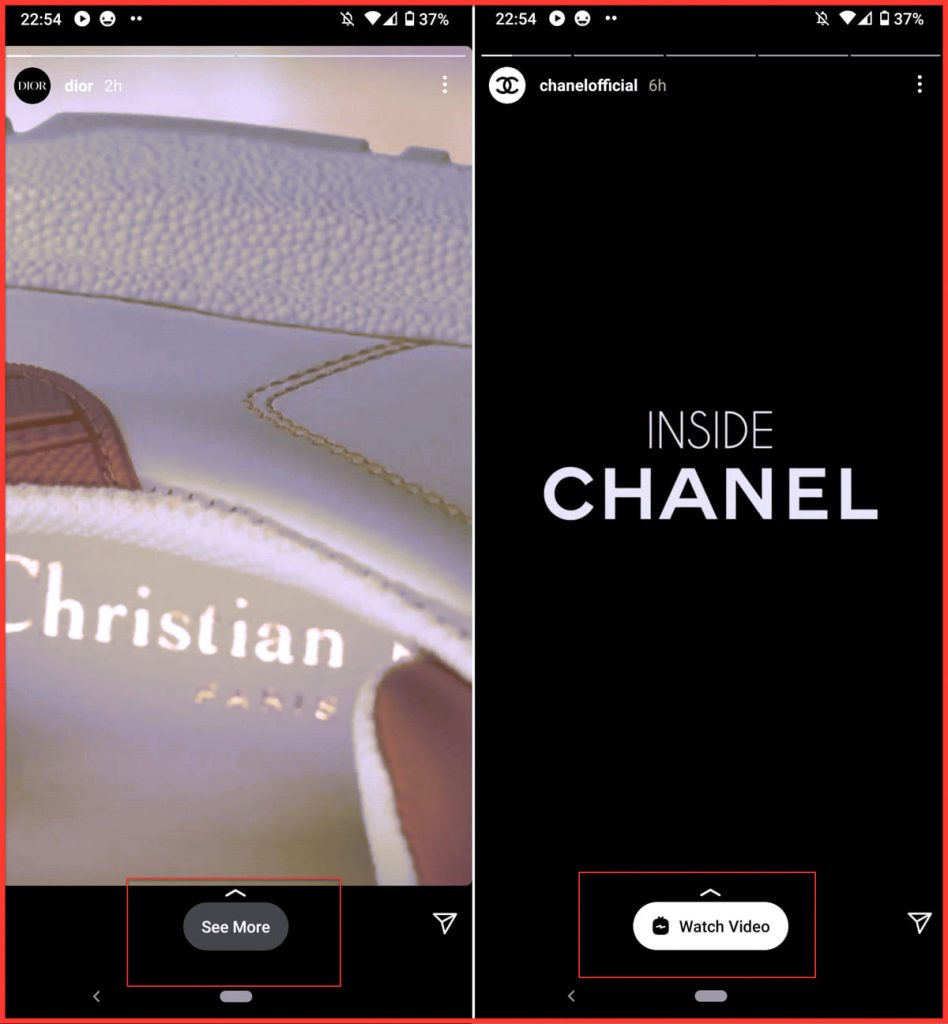
#3. How To Add A Link To Instagram Post: Shopping Links
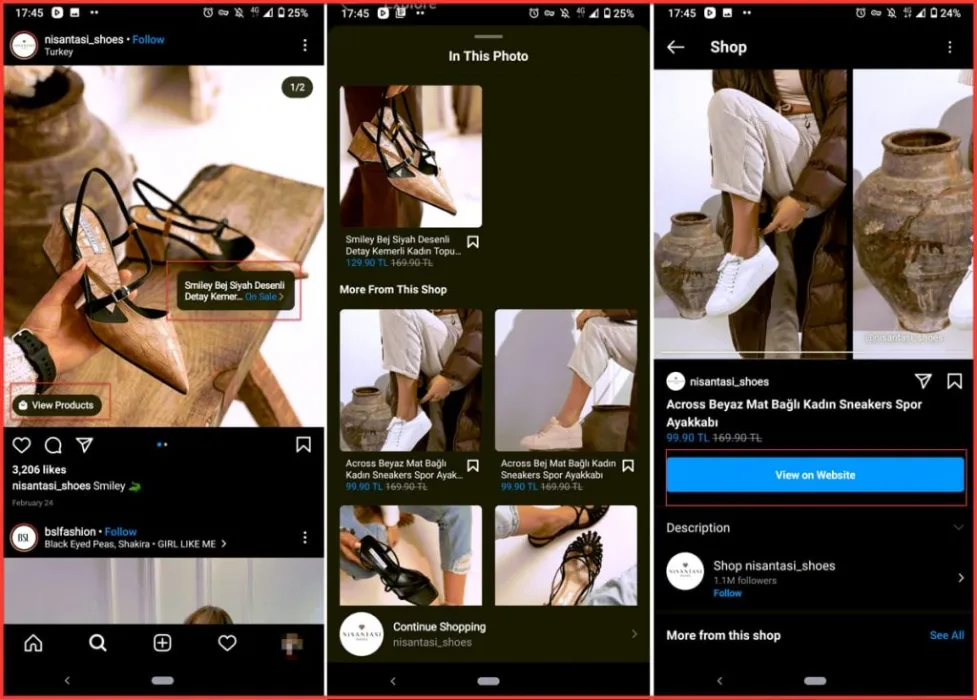
Here’s a step-by-step guide on how to add a shopping link to your Instagram post:
- Set Up Instagram Shopping
Before you can add a shopping link to your post, you need to set up Instagram shopping. Let’s see how:
- Go to your Instagram profile and tap the three horizontal lines in the top right corner.
- Tap Settings, then Business, and then Shopping.
- Tap Continue and then select the product catalog you want to use for your shop.
- Select Done.
2. Create A Post
Once you’ve set up Instagram shopping, you can create a post. Here’s how:
- Open the Instagram app and tap the + icon in the bottom center of the screen.
- Select the photo or video you want to post.
- Tap Next.
- Add filters, captions, and tags to your post.
- Tap Tag Products.
- Select the products you want to tag in your post.
- Type in the URL of the product page on your website where customers can purchase the product.
- Tap Done.
What are the benefits of Instagram shopping links?
It’s worth noting that adding a shopping link to your Instagram post has many benefits, including:
- Providing a seamless shopping experience for your customers by allowing them to purchase products directly from your post.
- Improving sales and revenue by simplifying product purchases for your customers.
- Boosting engagement and driving traffic to your website by encouraging customers to visit your site for more information or products.
Read how to edit an Instagram post.
#4. Pay for a sponsored post
If you have a business account, you may have heard of Instagram boost post. It allows you to transform a regular post into an advertisement. During this process, you get to pick your objective and attach a corresponding call-to-action to your post, such as encouraging profile visits or website clicks.
#5. Add Link Stickers to Instagram stories
Recently, Instagram has introduced link stickers for Stories, which allows users to add clickable links to their Stories. However, these stickers are only available for users with a business account, and not everyone. Wondering how to add a link to your Instagram Story? Follow these steps:
- Open your Instagram account and go to your profile.
- Tap the plus icon to create a new Instagram Story post.
- Add your photo or video content to your Story.
- Tap the smiley face icon at the top of the screen.
- Choose the “Link” sticker.
- Enter the URL you want to link to and tap “Done.”
- Your link will now be added to your Instagram Story post.
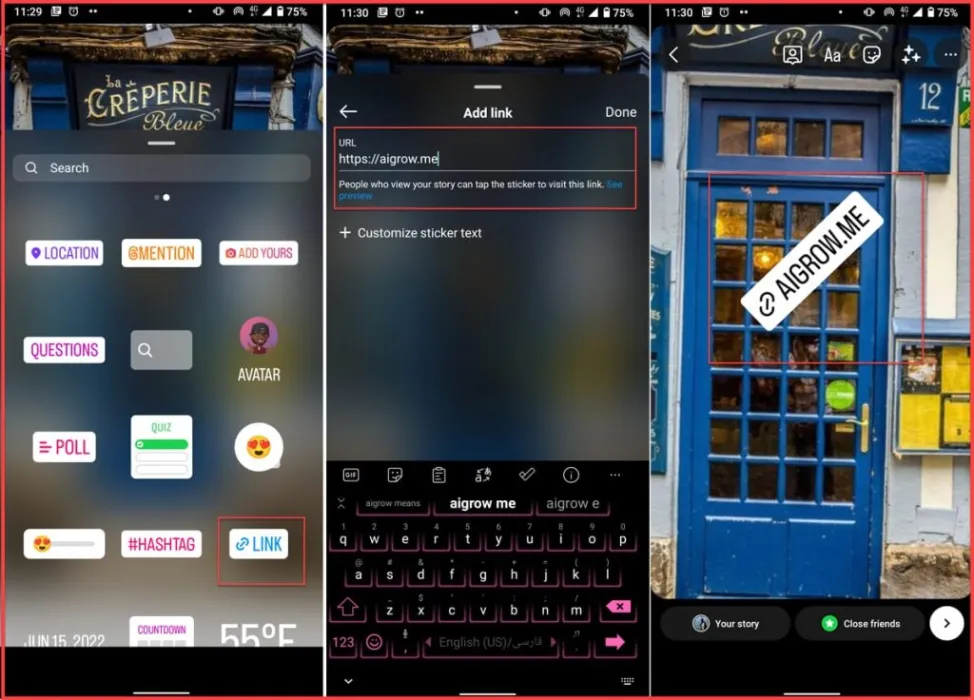
Note: You need a verified Instagram account or at least 10,000 followers to add links to your Instagram Story posts. there are some ways to get Instagram verified badge for free if you’re not famous and well known yet,
The Benefits Of Clickable Links On Instagram Posts
Adding links to your Instagram posts comes with several benefits:
- Drive Traffic: Links in your posts can direct users to your website, blog, or specific landing pages, increasing website traffic.
- Promote Products and Services: You can link directly to products or services you’re promoting, making it easier for followers to make purchases.
- Enhance Engagement: By providing valuable external content, you can keep your audience engaged and informed.
- Expand Reach: Links can help you reach a wider audience by sharing valuable resources or collaborations.
- Track Performance: Instagram provides insights on link clicks, allowing you to measure the effectiveness of your posts.
Tips For Adding Links To Your Instagram Post
Now that you know how to add link in Instagram post, here are some handy tips:
- Use the “link in bio” strategy.
- Utilize Instagram Stories with the “swipe up” feature.
- Try Instagram Reels or IGTV.
- Consider using link tools.
- Keep your captions engaging.
- Track link performance with UTM parameters.
- Promote your post in Stories.
- Utilize shoppable posts for e-commerce.
- Collaborate with influencers for link sharing.
- Don’t forget to comply with Instagram’s policies.
The Limitations Of Adding Links To Instagram Posts
After discussing the new ways of adding links to your Instagram posts, it’s important to understand the platform’s limitations.
Link In Bio
The most common way to add a link to an Instagram post is through the “link in bio” feature. This feature allows you to add a clickable link to your Instagram profile, which users can click on to access external content.
However, this method has its limitations. You can’t have multiple links in your bio, which means you’ll have to change it if you want to promote different content constantly.
Swipe Up Feature
The “Swipe Up” feature is another popular way to add links to Instagram Stories. However, this feature is only available to accounts with over 10,000 followers or verified accounts. This means that smaller accounts are unable to use this feature to promote their content.
Why Can’t I Add Link To Instagram Post?
If you’re having trouble adding a link to your Instagram post, don’t worry, you’re not alone. There are several reasons why you might not be able to add a link, but fortunately, there are also solutions to fix the issue.
Possible Reasons For This Issue:
- You don’t have a business account: Instagram only allows business accounts to add links to their IGTV posts. If you have a personal account, you won’t be able to include clickable links in your IGTV posts’ description.
- Your account is new: Instagram may restrict certain features for new accounts, including the ability to add links to your posts. If your account is new, you may need to wait a few days or weeks before this feature becomes available.
- You’ve been flagged for spam: If you’ve been reported for spamming or violating Instagram’s terms of service, you may have lost the ability to add links to your posts.
- Technical issues: Occasionally, Instagram may experience technical issues that prevent users from adding links to their posts.
Solutions To Fix It:
- Switch to a business account: If you don’t already have a business account, you can switch to one by going to your profile settings and selecting “Switch to Business Account.” This will give you access to additional features, including the ability to add links to your posts.
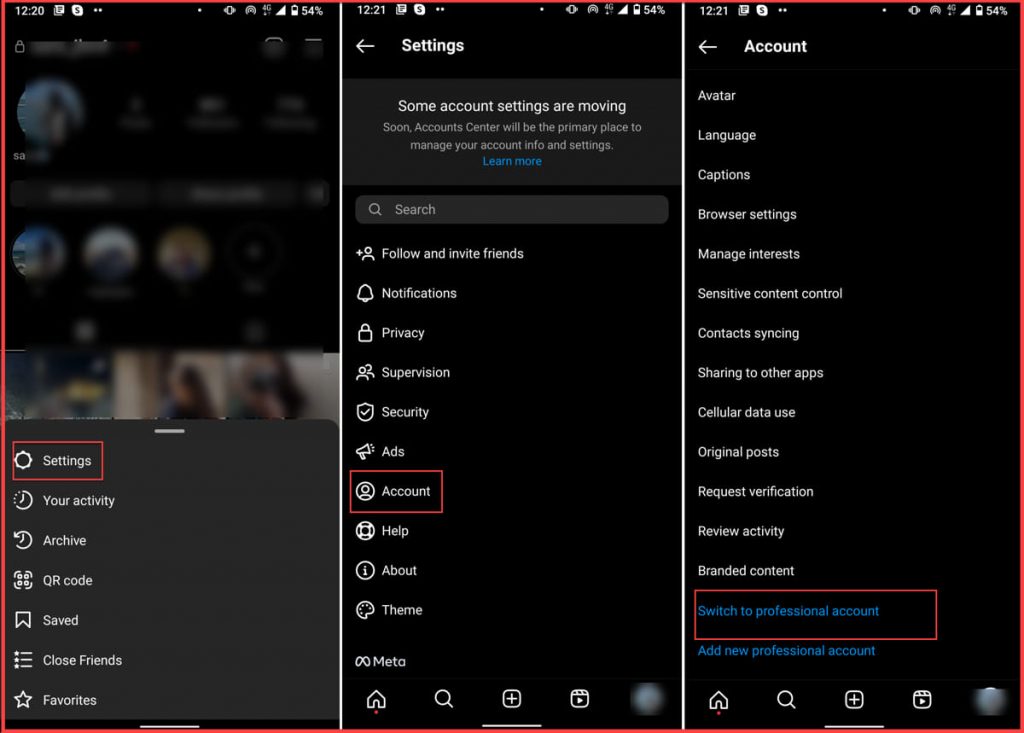
- Wait a few days or weeks: If your account is new, you may need to wait a few days or weeks before the ability to add links becomes available.
- Review Instagram’s community guidelines: If you’ve been flagged for spamming, take some time to review Instagram’s community guidelines and make sure you’re not violating any of their policies. Once you’ve corrected any issues, you may regain the ability to add links to your posts.
- Contact Instagram support: If you’re experiencing technical issues, contact Instagram support for assistance.
FAQs On Add Link To Instagram Post
By now, you’ve learned how to add link on Instagram post. Let’s take a look at a few frequently asked questions on the topic.
Can you add a link to an Instagram comment?
Looking to know how to add clickable link in Instagram comment? Sorry, but this is not possible. In fact, Instagram doesn’t even allow you to share a clickable link through the comments. The only thing you can do is to put a shortened link in your comments.
How Much Is It To Add A Link To An Instagram Post?
Adding a link to an Instagram post is completely free. However, you need to have a business account to be able to add links to your posts. If you don’t have a business account yet, you can easily switch to one for free.
How To Add A Facebook Page Link To An Instagram Story Post
To add a Facebook Page link to your Instagram Story post, follow these steps:
- Open your Facebook Page and click on the “Settings” option.
- Select “Instagram” from the menu on the left.
- Connect your Instagram account by entering your username and password.
- Once your Instagram account is connected, go to your Instagram Story and add a new post.
- Tap the chain icon at the top of the screen.
- Enter the URL of your Facebook Page and tap “Done.”
- Your Facebook Page link will now be added to your Instagram Story post.
Also read: How to link Instagram to Facebook page?
Why Is My Link Not Clickable On Instagram Post?
If you’re experiencing issues with your links not being clickable on your Instagram post, there could be a few reasons for this. Here are some of the possible reasons and solutions to fix the issue:
Possible reasons for this issue:
- Instagram doesn’t allow clickable links in captions: If you’ve added a link to your post’s caption, it won’t be clickable. Instagram only allows clickable links in certain areas of the app, such as the bio section or Instagram Stories.
- Broken or incorrect link: If your link is broken or incorrect, it won’t be clickable. Make sure you’re using the correct URL and that the page you’re linking to is active and accessible.
- Account not verified: Instagram may only allow clickable links for verified accounts or those with a large following. If you don’t have a verified account or a large following, you may be unable to include clickable links in your post.
- Technical issues: Instagram may experience technical issues that prevent users from adding clickable links to their posts. This is a rare occurrence, but it’s worth checking Instagram’s status page to make sure there are no known issues.
Can you add a link in the bio after posting on Instagram?
Certainly! You can add a link to your Instagram bio at any time, whether before or after posting.
Can I use third-party tools to add links to Instagram posts?
Yes, there are tools like Linktree and bio link services that help you manage and customize the links you share in your Instagram bio, making it easier to direct your followers to various destinations.
Can I send a clickable link Through DMs?
Yes. You can easily share a link through Instagram Direct messages by following these steps:
- Open the Instagram app and go to your Direct Messages.
- Select the conversation or recipient you want to send the link to.
- In the chatbox, paste the link you want to share. You can do this by long-pressing the chatbox and selecting “Paste.”
- Once you’ve pasted the link, you can add any accompanying message or context if you wish.
- Hit the “Send” button to share the link with the recipient.
