


In today’s digital age, social media platforms have become an essential part of businesses’ advertising strategies. Instagram, one of the most popular social media platforms, offers businesses the opportunity to advertise their products and services to a vast audience. However, there are times when Instagram ad account-related issues arise, causing frustration and potentially impacting businesses’ advertising goals. In this article, we will discuss some of the most common ad account not found on Instagram errors and provide tips on how to resolve them. We will also explain the different types of ad account not found Instagram errors and what causes them. So, if you’re a business owner looking to advertise on Instagram or an individual struggling with ad account-related issues, keep reading to learn more.
How to Add an Ad Account on Instagram
If you want to run ads on Instagram, you will need to have an ad account but how to add ad account on Instagram?
. An ad account is a set of permissions that allows you to create, manage, and track your ads on the platform. If you haven’t created an ad account yet, don’t worry, it’s a quick and easy process.
Here’s how you can add an ad account on Instagram:
- Log in to your Facebook account: To create an ad account on Instagram, you will need to have a Facebook account. If you don’t have one, you can create one easily.
- Navigate to the Ads Manager: Once you have logged in to your Facebook account, go to the Ads Manager. You can find the Ads Manager by clicking on the drop-down arrow in the top-right corner of your Facebook homepage and selecting “Ads Manager” from the dropdown menu.
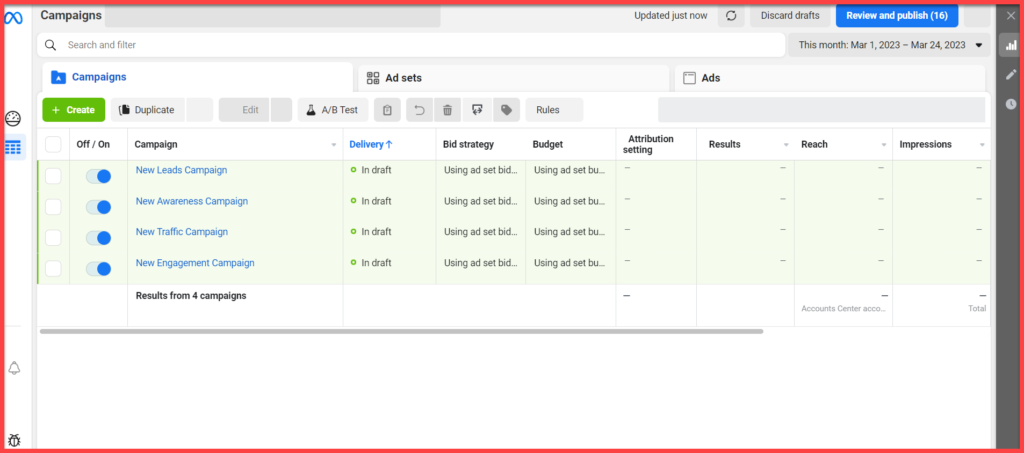
- Create a new ad account: Once you are in the Ads Manager, click on the “Create” button in the top-left corner of the screen and select “Ad Account” from the dropdown menu.
- Enter your ad account details: In the pop-up window, enter the name of your ad account and select the time zone for your ads. Then click on the “Create Ad Account” button.
- Link your ad account to your Instagram account: To link your ad account to your Instagram account, go to your Instagram profile and click on the three horizontal lines in the top-right corner. From the dropdown menu, select “Settings” and then “Account.” Scroll down and select “Linked Accounts,” then click on “Facebook.” Enter your Facebook login information and follow the prompts to link your Instagram account to your ad account.
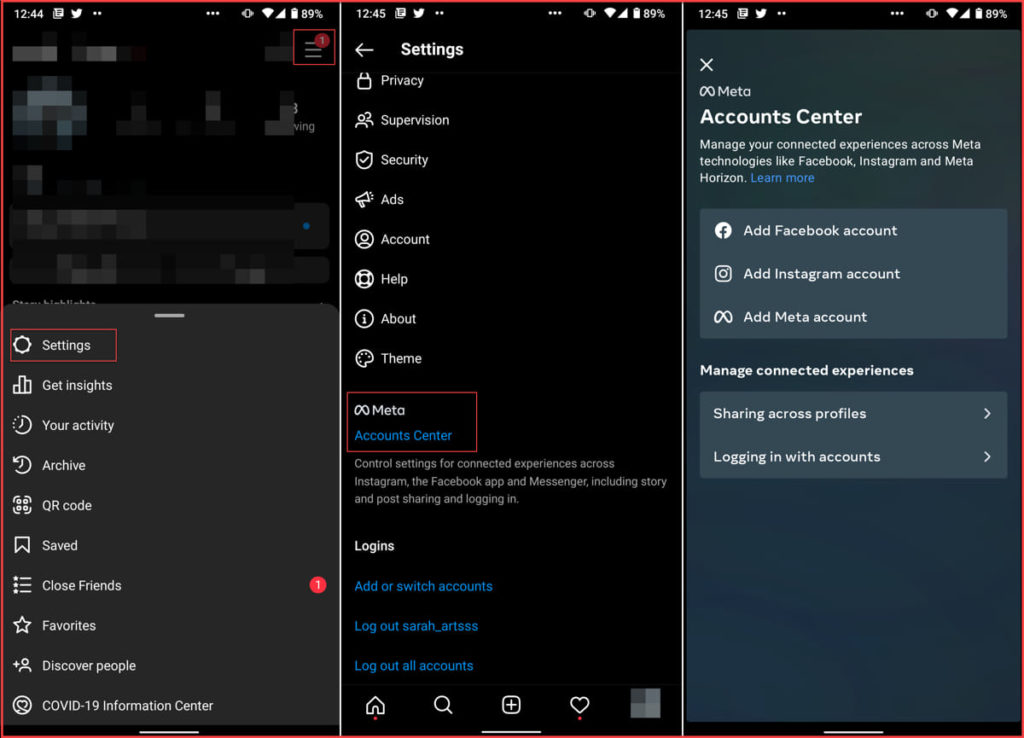
Congratulations! You have now added an ad account on Instagram. You can now create ads and start reaching out to your target audience.
Ad Account Not Found on Instagram
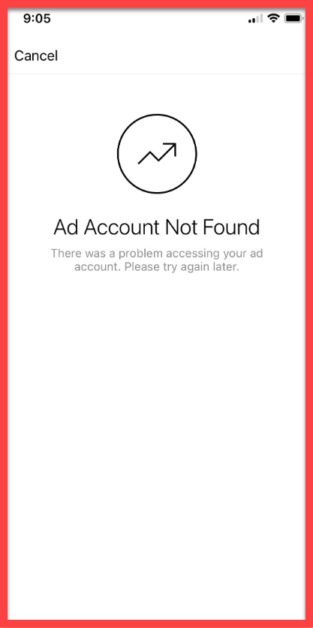
Before talking about what does ad account not found mean on Instagram, let’s see the possible reasons it happens.If you are encountering an ad account not found Instagram error, there could be a number of reasons why. Some of the most common reasons include:
- The ad account has been disabled or deleted
- The ad account has not been created yet
- There is an issue with your login credentials
- There is an issue with the Facebook Business Manager account associated with your ad account
Instagram error messages related to ad account not found
When you encounter an ad account not found error on Instagram, you may see one of several error messages. These Instagram says ad account not found errors can include:
- “Invalid Account”: This means that the ad account you are trying to access does not exist
- “Ad Account Not Found”: This means that the ad account you are trying to access cannot be located
- “You Don’t Have an Ad Account Yet”: This means that you have not yet created an ad account for Instagram
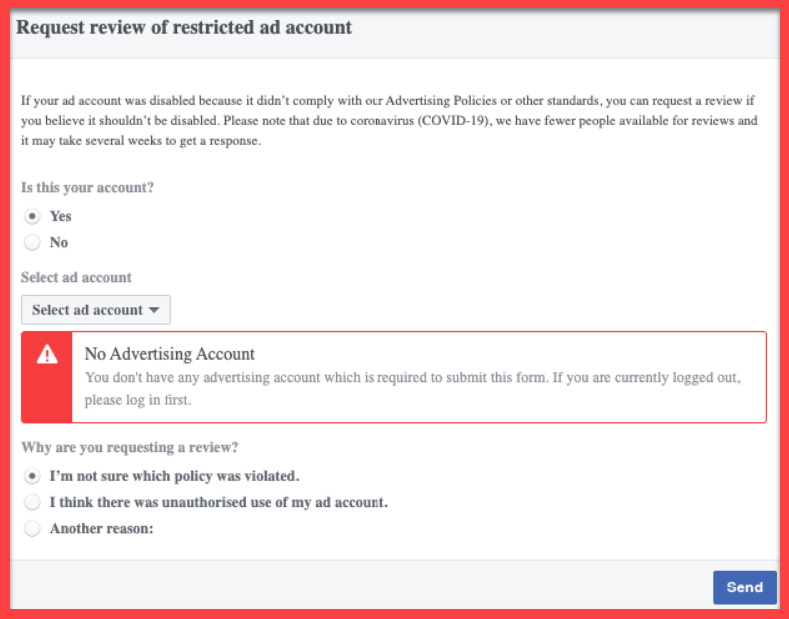
- “You Have Been Removed as an Ad Account Advertiser”: This means that you no longer have access to the ad account
In the following we will show you how to fix instagram boost post ad account not found errors.
Fixing Ad Account Not Found on Instagram
Now that you know where is the Instagram ad account let’s check the possible solutions to fix it. If you encounter an error message that says “Ad account not found” on Instagram, you may need to take the following steps to fix the Instagram boost ad account not found issue:
- Check your ad account status: Go to the Facebook Ads Manager and make sure that your ad account is active and has no issues.
- Verify your account information: Make sure that your Instagram account is connected to your Facebook account and that your Facebook page is linked to your ad account.
- Clear app cache: Clearing your Instagram app cache may help fix the issue. On an Android device, go to Settings > Apps > Instagram > Storage > Clear Cache. On an iPhone, go to Settings > General > iPhone Storage > Instagram > Offload App.
- Reinstall the app: Uninstalling and reinstalling the Instagram app can help clear any app-related issues that may be causing the error message and make you wonder why is my ad not working on Instagram.
How to Fix an Instagram Ad Account Not Found Error on Android
If you are using an Android device and are getting the “Ad account not found” error on Instagram, you can try the following steps. Here’s how to fix ad account not found on Instagram on android and where is the Instagram ad account:
- Update the Instagram app: Make sure that you are running the latest version of the Instagram app on your Android device. You can check for updates in the Google Play Store.

- Re-login to Instagram: Log out of your Instagram account and then log back in again. This may help refresh your account information and fix the issue.
- Disconnect and reconnect your Facebook account: Go to Settings > Account > Linked accounts and disconnect your Facebook account. Then, reconnect it and try running your ad again.
How To Fix ad account not found Instagram iPhone?
If you are using an iPhone and are getting the “Ad account not found” error on Instagram, you can try the following steps. So if you are asking yourself why is my ad account not found on Instagram, here’s how to fix Instagram promote ad account not found error:
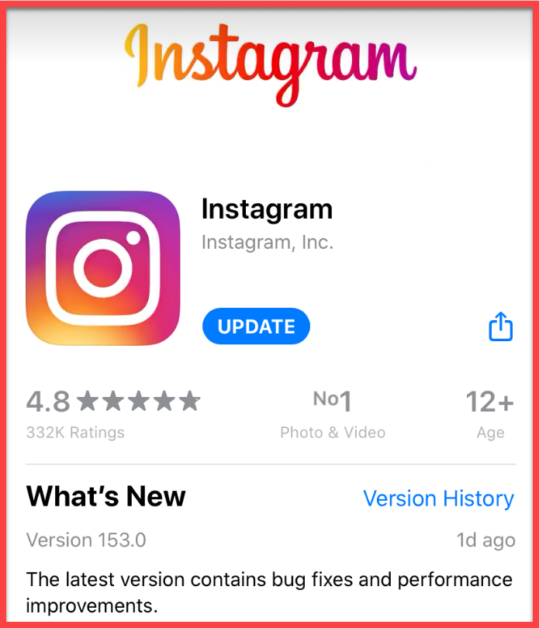
- Update the Instagram app: Make sure that you are running the latest version of the Instagram app on your iPhone. You can check for updates in the App Store.
- Re-login to Instagram: Log out of your Instagram account and then log back in again. This may help refresh your account information and fix the issue.
- Disconnect and reconnect your Facebook account: Go to Settings > Account > Linked accounts and disconnect your Facebook account. Then, reconnect it and try running your ad again.
Troubleshooting tips for resolving the issue
If the above steps do not fix the issue, you can try the following troubleshooting tips:
- Contact Instagram support: If you are still unable to fix the issue, you can contact Instagram support for further assistance.
- Check your ad account settings: Make sure that your ad account settings are correctly configured and that there are no restrictions or limitations that may be causing the issue.
How To Enable A Disabled Ad Account?
If your ad account has been disabled, you can try the following steps to enable it and fix ad account not found Instagram promotion error. Here is how do I enable an ad account on Instagram:
- Log in to your Facebook Ads Manager account.
- Go to the Ad Account Settings page.
- Click on the “Account Status” tab.
- If your ad account is disabled, you will see a “Enable Ad Account” button. Click on this button to enable your ad account.
- Follow the instructions provided by Facebook to verify your account information and enable your ad account.
Instagram Ad Account Disabled
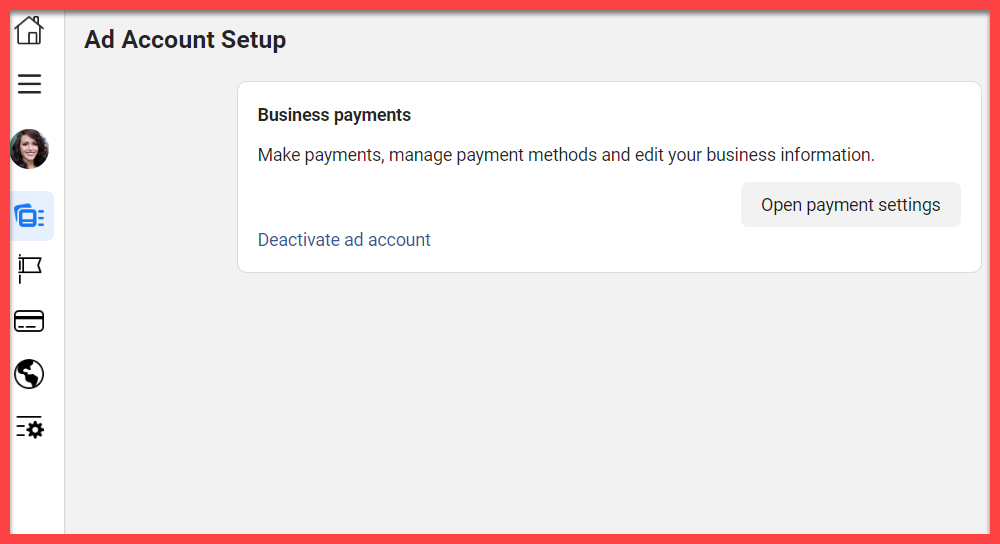
Sometimes, users may encounter an error message stating that their ad account has been disabled. This can occur due to various reasons, including violating Instagram’s ad policies or terms of use. If your ad account has been disabled, you can follow these steps to re-enable it:
- Go to the Ads Manager and click on “Account Quality”
- Click “Request Review” and follow the prompts to submit a review
- Wait for Facebook to review the account and re-enable it if it meets their guidelines
In the last part we showed you how do I enable an ad account on Instagram. So if your account is disabled, make sure to follow the mentioned steps to enable it.
Invalid Advertiser Account Unknown Error on Instagram
Sometimes, users may encounter an “Invalid Advertiser Account” or “Unknown Error” message when trying to create or manage an ad on Instagram. This error message can occur due to various reasons, including:
- The ad account has been flagged for policy violations
- The payment method on file has been declined
- There is a technical issue with the Facebook platform
Also Read: Unlock the Potential of Instagram Advertising for Small Businesses
Troubleshooting Instagram Ad Issues
If you’re running an ad on Instagram and encounter issues, it can be frustrating. However, there are various reasons why an Instagram ad may not be working correctly. Here are some of the most common reasons why Instagram ads may not work as expected:
- Technical issues with the ad account or platform: Instagram may have technical difficulties that affect the ads’ delivery.
- Violation of Instagram’s advertising policies: If your ad doesn’t follow Instagram’s advertising policies, it may not be approved or could be disapproved.
- Ad disapproval: If Instagram disapproves your ad, it means it doesn’t meet their advertising policies, and it won’t be visible to your target audience.
- Budget or bid issues: Your ad may not show up due to budget or bid issues. If your budget is too low or bid too low, the ad may not be displayed to your target audience.
- Target audience issues: If your targeting is too narrow or too broad, the ad may not perform as expected.
Tips for resolving ad issues
If you encounter any of these issues, here are some tips to help you resolve them:
- Check your ad account and payment information: Make sure your ad account is set up correctly, and your payment information is valid.
- Review your ad’s creative and copy: Make sure your ad follows Instagram’s advertising policies, is high quality, and appeals to your target audience.
- Check your targeting settings: Review your ad’s targeting settings and make sure they’re optimized for your target audience.
- Increase your budget or bid: If your budget or bid is too low, consider increasing it to increase the ad’s visibility.
- Contact Instagram support: If you’ve tried everything and are still experiencing issues, contact Instagram support for further assistance.
Instagram Ad Account Pricing
Now that you know everything about Instagram ads, you might ask yourself how much is an Instagram account ad. If you want to advertise on Instagram, you need to have an active ad account. But how much does an Instagram ad account cost?
The good news is that it’s free to create an ad account on Instagram. However, you will need to set a budget for your ad campaigns. The cost of your Instagram ads will depend on several factors, including your bid amount, targeting options, and ad format.
Also Read: How To Use Facebook Ads For Instagram Followers Growth In 2023
Differences in pricing for various ad types
Here are the different types of ads you can run on Instagram and their pricing models:
- Cost per click (CPC): You will pay each time someone clicks on your ad. The cost per click can range from $0.20 to $2.00 or more, depending on the competition for the target audience.
- Cost per impression (CPM): You will pay each time your ad is displayed to someone. The cost per impression can range from $2 to $20 or more, depending on the competition for the target audience.
- Cost per action (CPA): You will pay each time someone takes a specific action on your ad, such as filling out a form or purchasing. The cost per action can vary widely depending on the desired action and the competition for the target audience.
It’s important to note that Instagram uses an auction system to determine the cost of your ads. This means that the cost of your ad will depend on how much competition there is for the target audience and how much other advertisers are willing to bid.
Overall, Instagram ads can be cost-effective to reach a large and engaged audience. However, it’s important to set a budget and track your results to ensure that you’re getting a positive return on investment.
Finding Your Instagram Ad Account
If you’re looking to create or manage an Instagram ad, the first step is to locate your Instagram ad account. Here are the steps to follow:
- Log in to your Facebook account and navigate to the Ads Manager.
- Click on the three horizontal lines in the top left corner of the screen and select “All Tools”.
- From the drop-down menu, select “Ad Accounts”.
- You should see your ad account listed here. If you have more than one ad account, select the correct one.
- Once you’ve located your ad account, you can start creating and managing your Instagram ads.
Also Read: The Complete Guide to Advertising on Instagram
Boost Post vs Ad Manager on Instagram
Boost Post and Ad Manager are two different tools available on Instagram for promoting content. Here are what is the difference between boost post and ad manager on Instagram:
Boost Post:
- Boost Post is a quick and easy way to promote your content on Instagram. It allows you to create an ad directly from an existing post on your Instagram account.
- With Boost Post, you can target your audience by location, interests, and demographics.
- The ad will appear in the Instagram feed of users who meet your targeting criteria.
Ad Manager:
- Ad Manager is a more advanced tool that allows you to create and manage multiple ad campaigns on Instagram (and Facebook).
- With Ad Manager, you can access more advanced targeting options, including custom and lookalike audiences.
- You can also choose from various ad formats, including video ads, carousel ads, and more.
- Ad Manager allows you to set a budget and schedule for your ad campaigns and track their performance with detailed analytics.
When to use each option:
Boost Post is a good option to quickly promote an existing post to a targeted audience. It’s ideal for small businesses or individuals who don’t have much time or resources to devote to advertising.
Ad Manager, on the other hand, is a better option if you’re looking to create and manage more complex ad campaigns. It’s ideal for larger businesses or organizations with a dedicated advertising budget and team. With Ad Manager, you can create highly targeted campaigns and track their performance over time to optimize your advertising strategy.
Can I have multiple Ad Accounts on Instagram?
Yes, it is possible to have multiple ad accounts on Instagram. It can be useful for businesses or individuals who manage multiple brands or ad campaigns. Having multiple ad accounts allows you to organize and manage each campaign separately, making it easier to track performance and adjust strategies as needed.
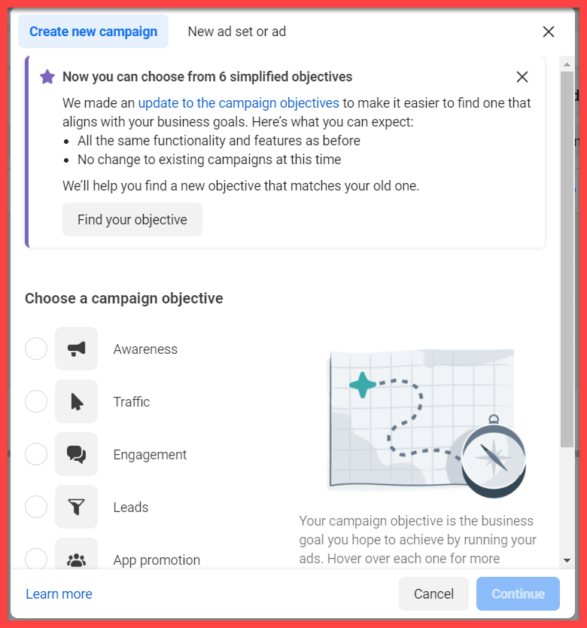
To create multiple ad accounts on Instagram, simply follow these steps:
- Log in to your Facebook Ads Manager account.
- Click on the “Create” dropdown menu and select “Ad Account.”
- Choose the “Create new ad account” option.
- Fill out the necessary information, including the ad account name and time zone.
- Click “Create Ad Account.”
You can repeat these steps to create additional ad accounts as needed. However, it’s important to keep in mind that each ad account is associated with a specific payment method, so you’ll need to have a separate payment method for each ad account.
Conclusion
In conclusion, an “Ad Account Not Found Instagram” error can be frustrating and may hinder your advertising efforts on the platform. However, understanding the possible causes of the error and the steps to resolve it can help you get back on track. From troubleshooting tips to fixing the issue on Android and iPhone, we hope this article has provided you with the information you need to overcome this error and make the most of your Instagram advertising experience. Remember to keep your ad account active, check your billing information, and monitor your ad performance regularly to avoid any future errors. With the right strategies, you can create successful Instagram ad campaigns and effectively reach your target audience.
