

Have you ever felt overwhelmed by the constant stream of content or fed up with portraying a perfect picture of yourself? Perhaps you’re tired of endless exploring and notifications on Instagram. Whatever the reason, sometimes you need a simple break to get some fresh air without saying goodbye to Instagram forever.
Luckily, Instagram provides a great option for this called “Instagram deactivating.” So, if you’re wondering how to deactivate your Instagram account or what happens when you disable it, this blog will answer your questions. Let’s get started!
How to Temporarily Deactivate Instagram Account on Phone?
We all use Instagram on different platforms, like our phones or website. However, most people hop on Instagram through mobiles. But no worries, whether you have an iPhone or Android, we’ll show you how to freeze Instagram account in the blink of an eye!
How to Deactivate Instagram Account Android?
If you’re on Android and want to know how to deactivate an Instagram account from the app, here’s the lowdown.
- Log in to your account from the app
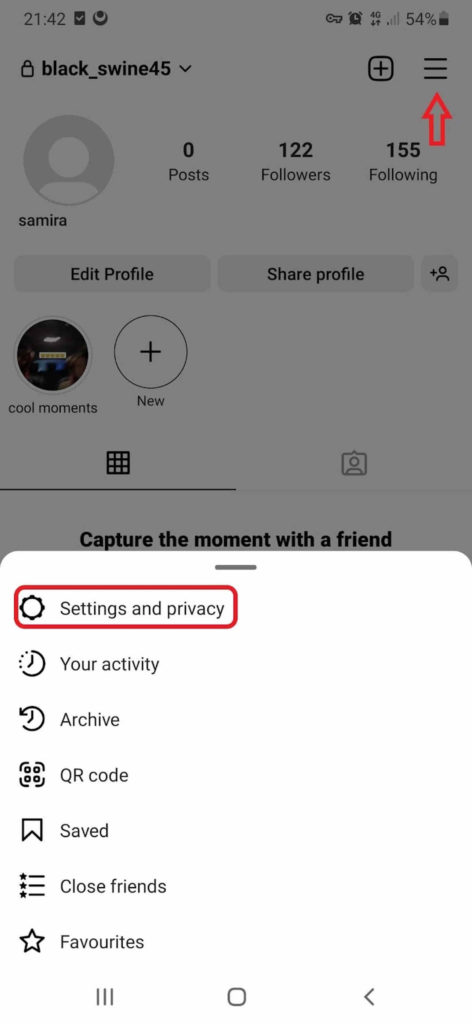
- Tap the three-line icon in the top right corner
- Now go to Settings and Privacy
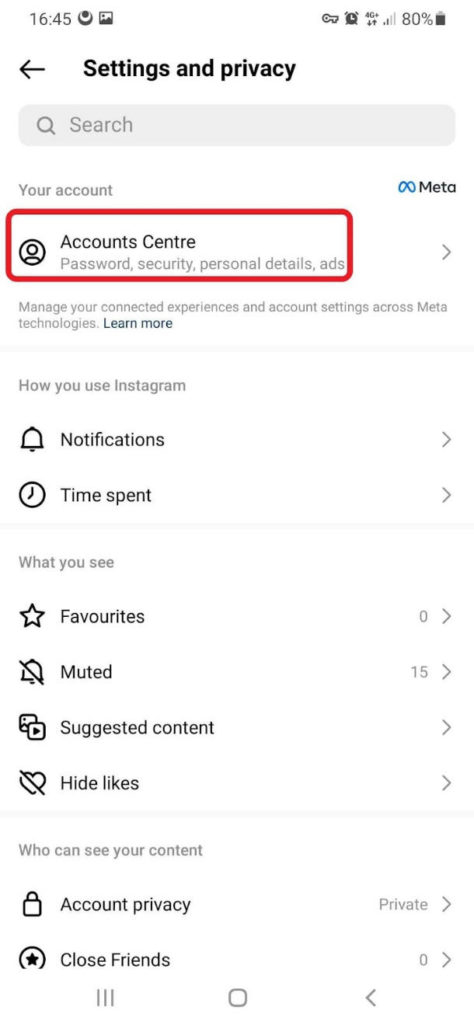
- Select Accounts Centre
- Go to “Personal Details” and choose “Accounts Ownerships and Control”
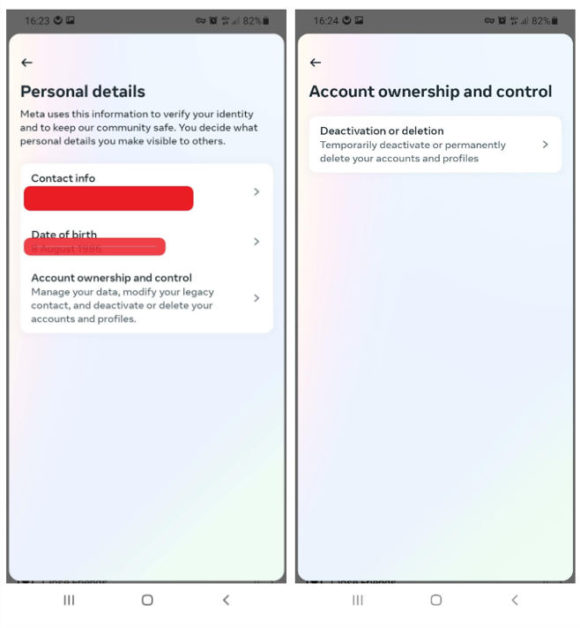
- Select the account you want to deactivate
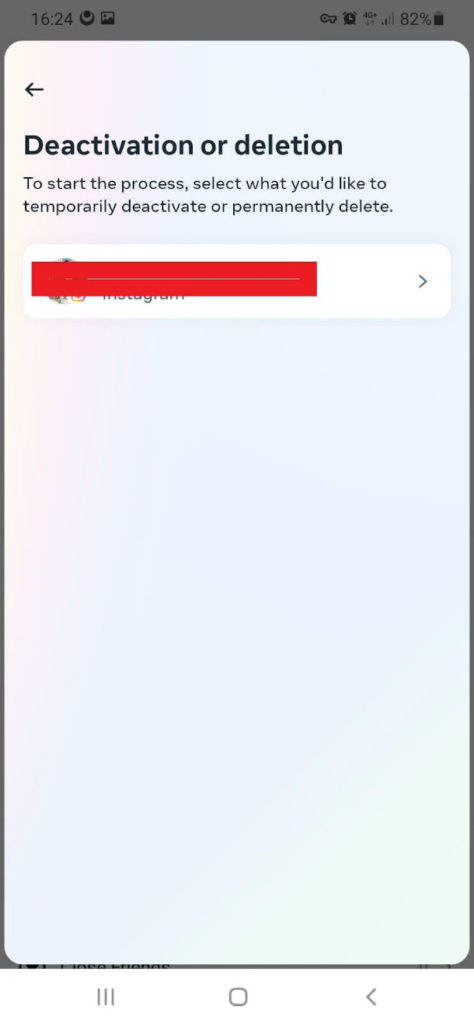
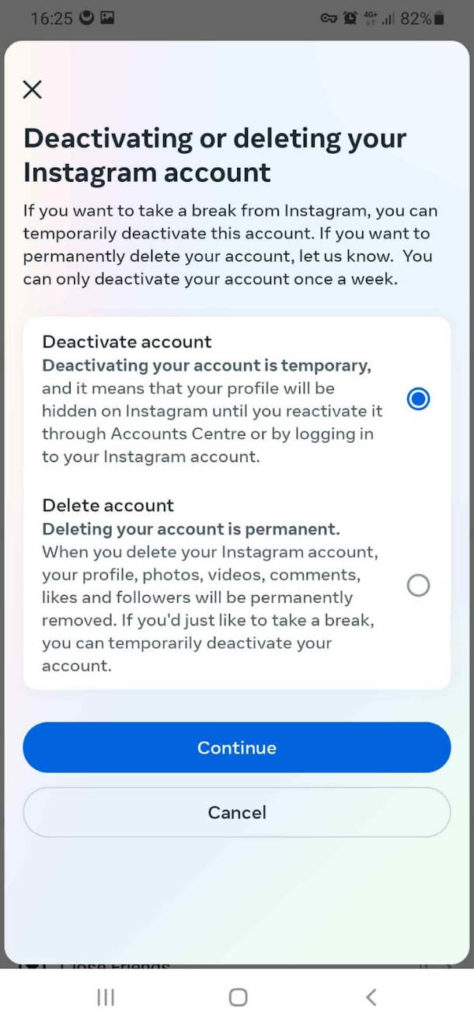
- Pick up “Deactivate Account” and go ahead
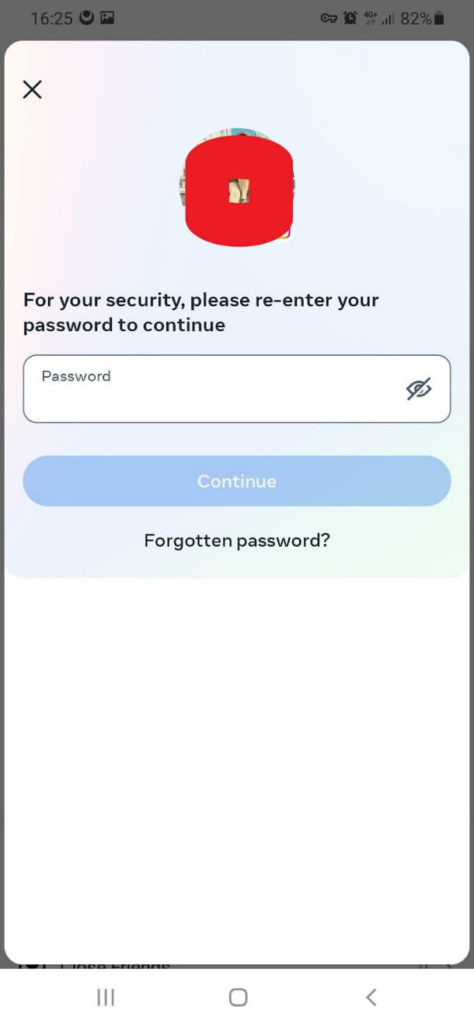
- Lastly, you need to enter your password and tap continue.
It is over! Now you’re out of your account. your profile will be hidden until you come back from your short journey! However, by reactivating your Instagram account, everything will get back to normal.
Keep in mind that you can only deactivate your account once a week.
How to Deactivate Instagram on iPhone?
Pausing an Instagram account on Android and iPhone is pretty similar, as you see here:
- First, go to your profile, and at the top right corner, tap on three horizontal lines
- Now select Settings and enter “Accounts”
- In the account section at the bottom of the page, go for the “Delete Account” option
- Among two choices, head straight for “Deactivate Account”
- Choose the reason behind deactivation and re-enter your password
- Confirm your choice and enjoy your break!
What If You Don’t Remember Your Password?
Forgetting Instagram password happens to forgetful folks like me! No need to stress. Just take these simple steps to bring it back.
- Tap “Forgotten Password” and enter the email or phone number associated with your account.
- Then, Instagram will send you a reset link or verification code.
- Check your email or messages for that magic link or code.
- Follow the instructions provided and create a new password.
- Once you’ve successfully reset your password, you’re good to go!
How to Deactivate Instagram Page Using Web Browser?
The good news is that you can suspend your Instagram account right from your mobile or computer’s web browser. To do so:
- Open Instagram.com and log in to your account.
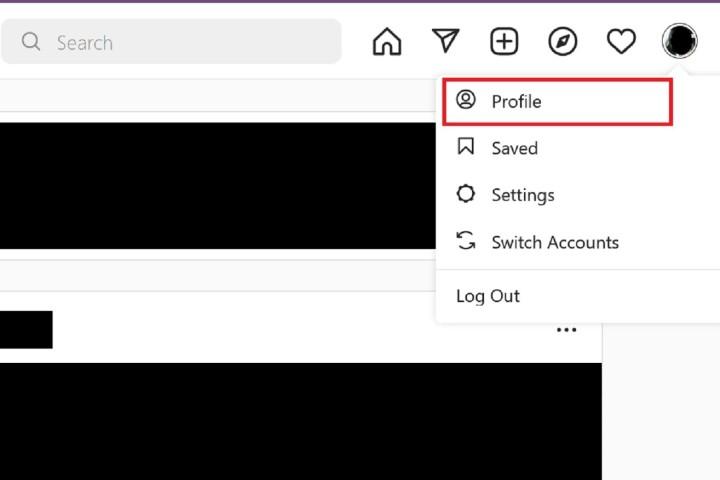
- Click on your profile photo in the top-right corner and choose “Profile.”
- On the profile page, click the “Edit profile” button.
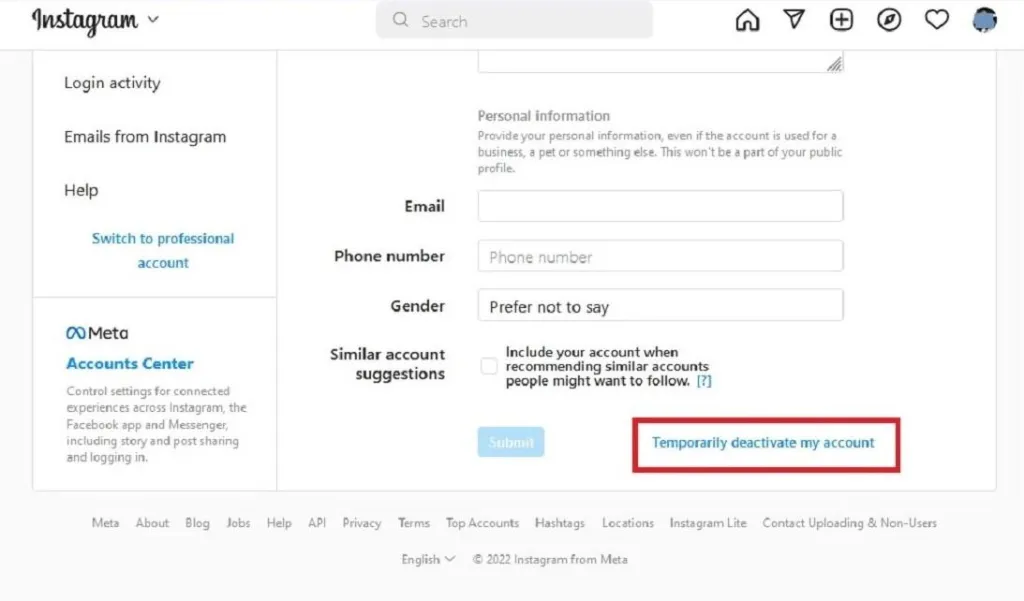
- Scroll down to the bottom and click “Temporarily deactivate my account.”
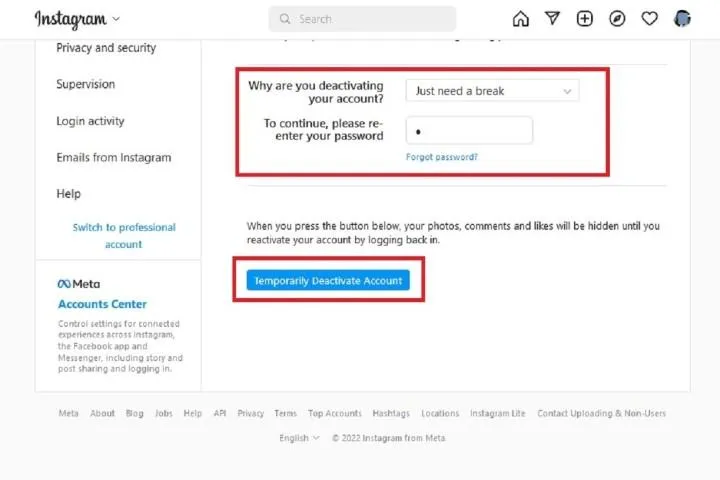
- Instagram will ask for the reason you’re deactivating. Select a reason from the drop-down menu and enter your password.
- Click “Temporarily deactivate account,” then confirm by selecting “Yes.”
- These steps are suitable for anyone with a PC, internet connection, and web browser.
What Happens When You Disable Your Instagram Account?
Forget the rumors! When you temporarily delete your Instagram, nothing freaky happens to your page. It’s all simple changes like the following:
Your Profile and Stuff: Your profile, photos, videos, comments, and likes become invisible to other Instagram users. They can’t see any of it, and they won’t find your account or what you’ve posted. Guess what? with this trick, you can even hide your followers on Instagram.
No Notifications or Interaction: Right! There won’t be any notifications, like likes, comments, or messages, while your account is deactivated. And nobody can interact with your profile or stuff either.
Reactivating Your Account: Feel free to come back whenever you want. Just log back into your deactivated account using your old login info. Your profile and stuff will be back, and you’ll have full access to Instagram again.
Privacy and Data: When you switch off your account, your data doesn’t vanish. In other words, your account info, followers, messages, and settings stick around, just out of view until you log back in.
Deactivating vs. Archiving vs. Deleting
These three get mixed up constantly, but they solve different problems:
- Deactivating hides your entire profile, including every post, until you log back in. Use this for a full break from the platform.
- Archiving hides individual posts from your grid while keeping your profile itself fully active and visible. If you only want to clean up your feed rather than disappear entirely, archiving posts in bulk is the better fit.
- Deleting is permanent. Once the removal window passes, there’s no reactivating it, unlike a deactivated account which comes back the moment you log in.
Common Mistakes to Avoid
- Confusing deactivation with deletion. They use similar-looking menus, but only one of them is reversible.
- Trying to deactivate more than once a week. Instagram limits how often you can toggle this, so repeated attempts in a short window will just fail.
- Expecting an instant password reset. If you’ve forgotten your password, budget a few minutes for the reset email or code before you can even reach the deactivation option.
- Assuming a business account behaves the same way. A professional account linked to ads or a Facebook Page can have extra prompts about what happens to that connection during deactivation.
FAQs
How Long Can I Keep My Instagram Deactivated?
You can keep your Instagram account deactivated for as long as you fancy. There’s no clock ticking or time constraints here
How Long Does It Take to Deactivate Instagram?
Deactivating Instagram account is a quick and straightforward process. Once you follow the necessary steps, it’ll be typically instant.
If I Deactivate My Instagram, Will It Be Deleted?
No, when you deactivate your Instagram account, your data and content don’t disappear forever. They’re actually saved and protected. Your photos, videos, comments, followers, and settings stay safe but become hidden from others
Can I still Use Other Facebook Services If I Deactivate My Account?
Yes, don’t worry. Freezing your Instagram account will only impact your profile and content. It will not affect your access to other Facebook services, such as Facebook itself or Messenger.
Final Thoughts
In summary, deactivating Instagram account is a piece of cake. It lets you take a breather without kissing your data goodbye forever. Just follow the steps. Your profile and posts get invisible for a while, giving you the freedom to escape the Instagram madness. So go ahead, take control, and enjoy a much-needed break from the ‘gram.
