


Have you ever loved and admired a photo so much, just to post it on your Instagram stories and see it has turned out to be blurry? And you’re just asking yourself, Why are my instagram stories blurry? I know, it’s frustrating.
But don’t worry, because I have troubleshooted this problem for all of us! Stay with me throughout this blog to find out about every possible reason why your Instagram stories are blurry. Let’s start!
Why are My Instagram Stories Blurry?
There are many reasons that could make your Instagram stories blurry. Here are a list of possible reasons and solutions:
Disable data saving features
By default, Instagram has a data saver feature that is designed to reduce the amount of data used when uploading photos and videos.
This can sometimes cause your stories to appear blurry, as Instagram is compressing the media to fit within a smaller file size.
You can easily disable the data saver feature, especially if you’re an influencer or blogger who needs to post high quality content.
To disable the data saver feature, go to your Instagram settings and tap on “Data Saver”. Toggle the switch to the “Off” position.

Check your internet connection
Sometimes you might think that stories and posts are blurry, but in fact it’s just a slow internet connection.
A slow or unstable internet connection can also cause your Instagram Stories to appear blurry. This is because Instagram needs a stable connection to upload high-quality media files that your stories require.
Try restarting your router, or connecting to a different Wi-Fi network if possible.
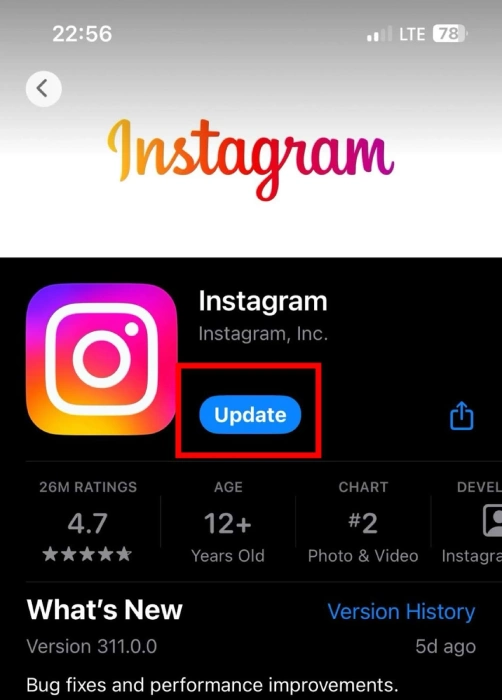
Update Instagram
Updating Instagram can never harm you. If you tried everything but stories are still blurry, you can update Instagram. Sometimes, blurry stories can be caused by an outdated version of the Instagram app.
Instagram glitches
Like any other software, Instagram can sometimes experience glitches that cause problems with the quality of stories.
If you’ve tried all of the other solutions and your stories are still blurry, try reinstalling the app. This will force Instagram to download a fresh copy of the software, which may fix any glitches that are causing your problems.
Use the Instagram camera
Using the Instagram camera for your stories will ensure that the media is up to the correct specifications for Instagram. This will help to prevent blurry stories caused by using a different camera app.
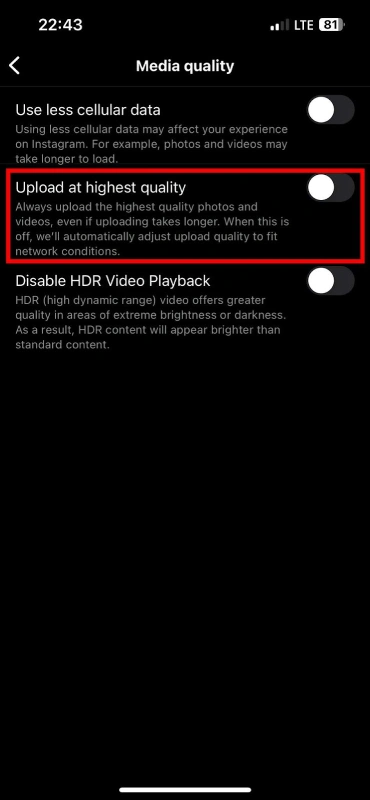
Enable high quality uploads
By default, Instagram uploads your stories in a lower quality format to save data. To make sure that your stories are uploaded in the highest possible quality, go to your Instagram settings and tap on “Story settings”. Under “Video quality”, select the “High quality” option.
Adjust camera settings
Check your camera app’s settings to make sure that it is set to the highest possible resolution. You may also want to adjust the image quality settings to ensure that your photos are sharp and clear.
Adjusting video resolution settings
Instagram has specific video resolution requirements for stories. To ensure that your videos are up to these requirements, go to your Instagram settings and tap on “Story settings”. Under “Video quality”, make sure that the “Resolution” option is set to “High”, this way, you can upload high quality videos.
Adjust instagram mobile data setting
If you are using mobile data to upload your stories, you may want to adjust your Instagram settings to ensure that photos and videos are uploaded in the highest possible quality.
To do this, go to your Instagram settings and tap on “Mobile data usage”. Under “Upload quality”, make sure that the “Photos” and “Videos” options are both set to “High”.
Reinstall Instagram
Sometimes, glitches happen in applications and they will only go away if you delete and reinstall the application.

Photos over 1MB
Instagram has a file size limit for stories of 1MB. If your photos are larger than 1MB, they may appear blurry when you upload them. Try reducing the file size of your photos before uploading them to Instagram.
Switch camera apps
If you are still experiencing blurry stories after trying all of the other solutions, you may want to try using a different camera app. Some camera apps offer more advanced settings that can help to produce sharper photos and videos.
Adjust instagram settings
Check your Instagram settings to make sure that there are no settings that are causing your stories to appear blurry.
For example, you may want to check the “Story settings” and make sure that the “Auto enhance” option is not turned on.
Check your camera
Make sure that your camera lens is clean and free of debris. If your camera is damaged, you may need to have it repaired.
Clear app cache
Sometimes, a cluttered app cache can cause problems with the quality of your stories. To clear the app cache, go to your device’s Settings app and tap on “Apps”. Scroll down and find the Instagram app. Tap on it and then tap on “Storage”.
Read more: Why Can’t I Post Multiple Pictures on Instagram
Fix your image format
Instagram requires images for stories to be in JPEG or PNG format. If your images are in a different format, they may appear blurry when you upload them. Try converting your images to JPEG or PNG format before uploading them to Instagram.
Follow the photo requirements
Instagram has specific photo requirements for stories, including a maximum file size of 1MB and a maximum resolution of 1080 x 1920 pixels.
If your photos do not meet these requirements, they may appear blurry when you upload them. Try resizing your photos to meet these requirements before uploading them to Instagram.
Incorrect resolution
If your stories are blurry, it may be because the resolution of your photos or videos is too low. Instagram recommends that photos for stories be at least 720 x 1280 pixels in resolution. Videos should be at least 1080 x 1920 pixels in resolution.
Read more: Top Tools to Increase Image Size Without Quality Loss
Try different videos and images
Sometimes, the issue may be with the specific videos or images you are using. Try uploading different videos and images to see if the problem persists.
Use photo editing apps
If you are using photo editing apps to enhance your photos before uploading them to Instagram, make sure that the apps are not degrading the quality of your photos.
Some photo editing apps may apply excessive compression or sharpening that can make your photos appear blurry.
Experiment with different photo editing apps or try using Instagram’s built-in photo editing tools.
FAQs
Now let’s answer some frequently asked questions on this subject:
How do you fix a blurry story on Instagram?
- Disable data saver features
- Check your internet connection
- Update Instagram
- Enable high-quality uploads
How do you get clear quality on Instagram stories?
- Upload photos and videos in the highest resolution possible
- Use a stable internet connection
- Keep your Instagram app up-to-date
- Avoid using image or video editing apps that can degrade quality
Why is my IG story low quality?
- You are using a slow or unstable internet connection
- Your Instagram app is out of date
- Your photo or video is too large
- You are using a camera app that is not optimized for Instagram
Why is my Instagram story viewer blurry?
- Your viewer’s internet connection is slow or unstable
- Your viewer’s Instagram app is out of date
- Your story is too large for the viewer’s device to handle
Final Thoughts
As an avid Instagram user, I’ve experienced the frustration of blurry stories firsthand.
It’s disheartening to put effort into creating engaging content only to have it appear hazy and pixelated on my followers’ screens.
But after searching through Instagram’s settings and troubleshooting strategies, I’ve discovered a path to clear, crisp stories that capture attention and showcase my creativity.
By disabling data saver features, ensuring a stable internet connection, and keeping my Instagram app updated, I’ve eliminated the most common causes of blurriness.
I Hope this blog helped you and right now you’re posting a high quality story on IG!
