

Looking for a way to break the digital ties between your Instagram and Facebook accounts? Whether it’s for privacy reasons or a change in social media strategy, the process of unlinking these two platforms is straightforward. In this guide, we’ll walk you through the steps to disentangle your Instagram account from Facebook and vice versa. So, follow along as we explore the process of how to unlink Instagram from Facebook.
Ready now? Let’s get started.
Why Unlink Instagram and Facebook?
People disconnect the two accounts for a few common reasons: keeping personal Facebook friends separate from an Instagram audience, stopping every post from auto-sharing to a Facebook timeline they rarely check, tightening privacy after using a shared or work computer to log in, or simply switching which account manages ads and Insights. None of these require deleting either account, just breaking the link between them. None of these situations mean something has gone wrong with either account; unlinking is a routine setting change, not a repair.
How to Unlink Instagram from Facebook?
If you’re considering unlinking these two platforms, there are essentially two ways to go about it: one from Instagram and the other from Facebook.
Here’s how to disconnect Facebook from Instagram through Instagram platform:
1. Log in to Instagram: Begin by logging in to the Instagram account that is currently linked to your Facebook account.
2. Navigate to Settings and Privacy: Once logged in, access your profile and tap the hamburger menu located at the top right of the screen. From the dropdown menu, select ‘Settings and Privacy.’
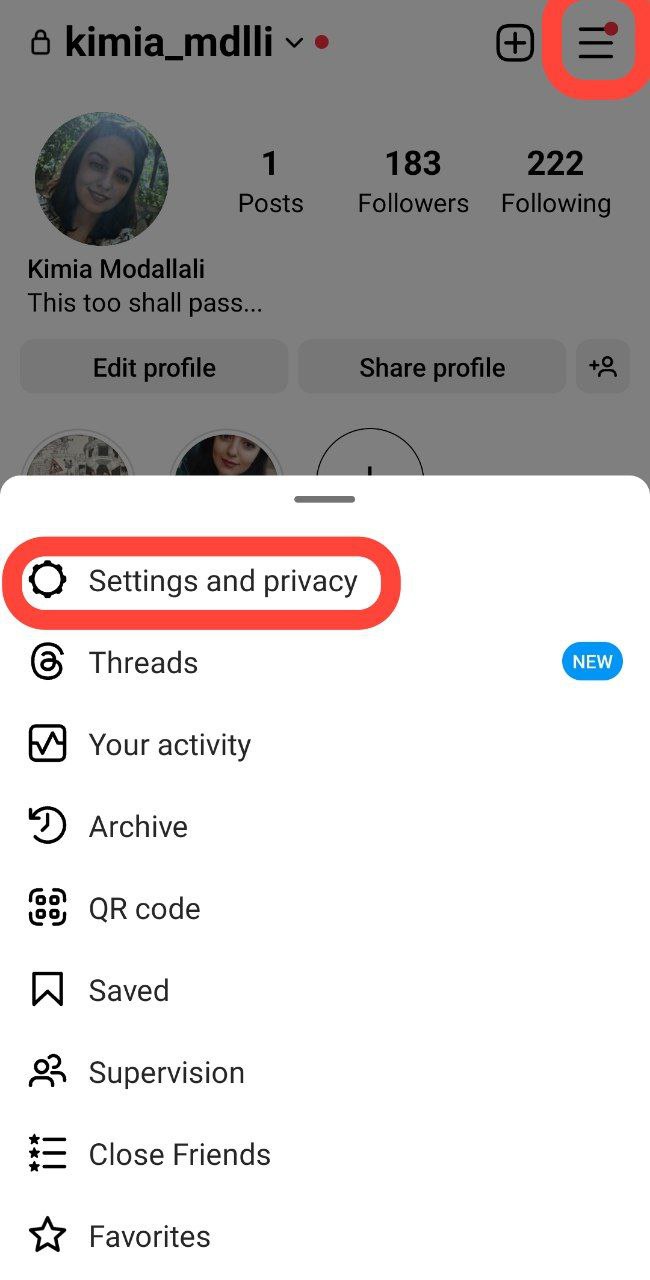
3. Access Accounts Center: Within the settings, look for the ‘Accounts Center’ option. Note that the location of ‘Accounts Center’ option may vary slightly depending on your Instagram version.

4. Select Accounts: Under ‘Accounts Center,’ tap on ‘Accounts.’ Here, you will find the Facebook account linked to your Instagram.

5. Initiate Unlinking: Locate the linked Facebook account and tap ‘Remove.’

6. Confirm Your Decision: Select ‘Remove account.’

7. Confirmation Steps: Follow the prompts by tapping ‘Continue.’

8. Final Step: Confirm the unlinking process with a final ‘Yes, remove…’

Also read: How to Link Instagram to Your Facebook Page?
Unlinking Through Facebook
Now, if you’re aiming to unlink Instagram and Facebook, you’ll need to follow a different procedure. Here’s how to unsync Facebook and Instagram within the Facebook platform:
1. Log in to Facebook: Access your Facebook account through the linked Instagram profile. On the Facebook homepage, tap the hamburger menu at the top right of the screen.

2. Navigate to Account Settings: Scroll down and find ‘Settings and Privacy,’ then further navigate to ‘Settings.’
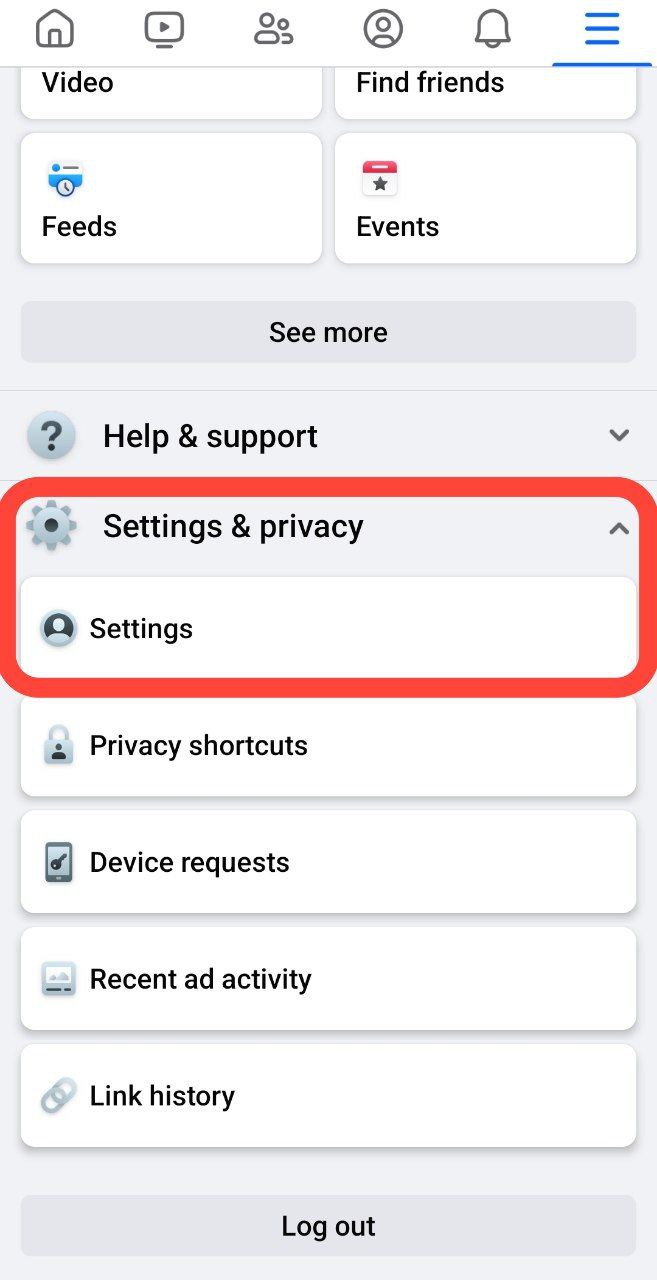
3. Access Accounts Center: In the ‘Settings’ section, tap ‘Accounts Center,’ mirroring the steps taken on Instagram.

4. Select Accounts: Under ‘Accounts Center,’ tap ‘Accounts,’ similar to the Instagram procedure.
5. Initiate Unlinking: Locate the linked Instagram account and tap ‘Remove.’ Confirm your decision by selecting ‘Remove account.’
6. Confirmation Steps: Follow the prompts by tapping ‘Continue’ and then confirming the unlinking process with a final ‘Yes, remove…’
Can’t Find the Remove Option?
If Accounts Center doesn’t show a Remove option for the linked account, try these before assuming it’s broken:
- Update the app. Accounts Center’s layout has shifted between Instagram versions, and an outdated app can hide or move the option.
- Check who set up the link. If a business or workplace admin originally connected the accounts through Business Manager, only that admin may be able to remove the connection.
- Try the other platform. If Instagram’s Accounts Center isn’t cooperating, the Facebook-side removal steps below often work even when the Instagram-side ones don’t.
Unlinking a Business or Creator Account
Business and Creator accounts often connect to a Facebook Page rather than a personal profile, which is a slightly different link than the personal-to-personal connection covered above. That connection lives under your Instagram profile’s Settings, in the Page section rather than Accounts Center. Open Settings and Privacy, look for the option showing your currently linked Facebook Page, and select it to disconnect. If your account was set up through Meta Business Suite originally, you may need to remove the connection from there instead, since that’s where the underlying Page-to-Instagram link is actually managed.
Wrap Up
Being in control of your online presence is pretty handy, right? Knowing how to disconnect Facebook from Instagram is like having an extra tool in your digital toolbox. It also means you decide exactly how much of your activity crosses over between the two platforms, rather than leaving that connection on by default.
So, following the steps we’ve provided in this blog puts you in the driver’s seat of your social media connections.
Remember, you can always link your accounts back together if you change your mind.
The freedom to customize your connections is yours. Thus, enjoy managing your social media without any strings attached! 🙂
One more thing worth knowing: unlinking only breaks the account-to-account connection Meta manages through Accounts Center. It doesn’t delete either account, doesn’t remove content you’ve already cross-posted in the past, and doesn’t affect followers on either platform. Think of it as disconnecting two apps rather than closing either one, which is exactly why you can always reconnect them later if your needs change again.
FAQs
Now that you know how to unsync Facebook and Instagram, it’s time for some frequently asked questions.
1. What Happens If I Unlink My Instagram from Facebook?
Unlinking your Instagram from Facebook means:
1. No Automatic Sharing: Your Instagram posts won’t automatically appear on your Facebook timeline.
2. Separate Logins: You can still log in to Instagram without Facebook, but the direct connection is severed.
3. Profile Disconnect: Mutual followers won’t see your Instagram activity on Facebook, and vice versa.
4. App Permissions: Any permissions or data syncing between the two platforms will be cut.
5. Ads and Insights: Integration for ads and analytics between Instagram and Facebook may be affected.
Remember, you can always reconnect them if you change your mind.
2. Will My Instagram Posts Still Appear on Facebook after Unlinking?
No, unlinking stops the automatic sharing of Instagram posts on Facebook. You’ll need to manually share content if you want it to appear on both platforms.
3. Can I Still Log in to Instagram Using My Facebook Credentials after Unlinking?
Yes, unlinking won’t affect your ability to log in using Facebook credentials. However, the direct sharing options will no longer be available.
4. Does Unlinking Affect My Facebook Ads or Business Manager?
If your Instagram account is connected to ad accounts through Meta Business Manager rather than a personal Facebook profile, unlinking the personal connection usually doesn’t touch that business-level setup. Business Manager access is managed separately, so check there directly if ads suddenly stop running after an unlink.
5. Can I Relink Instagram and Facebook Later?
Yes. Unlinking isn’t permanent. You can connect the same two accounts again at any time through Accounts Center on either platform, using the same steps you’d use for a first-time link.
