


With more than 900 million users engaging in Instagram Stories each day, the Instagram camera has become the go-to tool for capturing photos. To keep the photo-taking journey thrilling, Instagram has rolled out an array of creative options. What are these options and how can you take advantage? Keep reading to find out.
Where Is Instagram Camera, How Does It Work?
Instagram camera is a built-in feature within the Instagram app that lets you take photos and videos and share them in your feed, stories, and Reels.
To use the Instagram camera, just head to your feed and swipe right. Then you can choose between Post, Story, Reel, and Live. In addition to taking photos and videos, you can also apply effects, filters, and stickers.
How to Take a Photo on Instagram?
As we’ve mentioned before, you can capture photos or videos for your stories, posts, Reels, or Live sessions. Let’s start with how to take a picture on Instagram for your stories.
- Open the Instagram app on your phone.
- Then, go to your Homepage.
- Swipe right from anywhere in the feed.
- At the bottom, tap Story. You can take a simple shot by tapping the white circle or holding it to take a video.

What Are Instagram Camera Tools?
Instagram offers a lot of creative tools, not only for improving your photos and videos but also for adding a touch of fun to your shots. They are located on the left side of the screen. Here are some of them.
- Text
- Filters
- Effects
- AR filters
- Layout
- Stickers, Gifs, and Emojis
- Boomerang
- Music
How To Find And Use Effects On Instagram?
There are lots of Instagram camera filters- built-in and independent, for spicing up your photos in stories and posts. To use an Instagram filter for your story, swipe right to explore the options, pick the filter you fancy, and hit share.
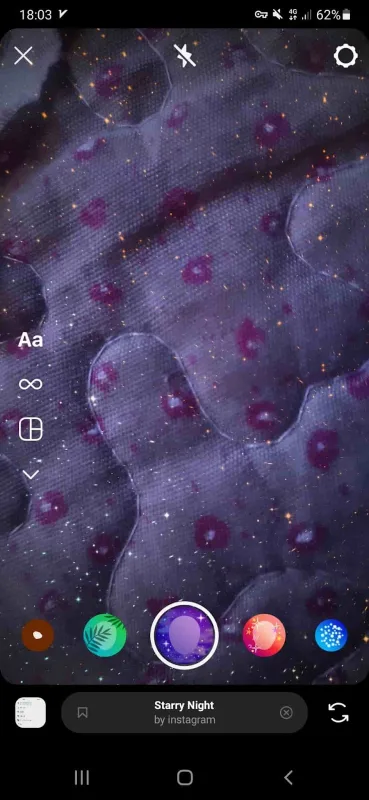
Luckily, you have the option to search filters by sliding to the left and tapping the search icon.

And the exciting part is that you can discover even more cool filters from various sources. Let’s explore where to find them.
Instagram camera filters apps
In the world of Instagram filters, you’ll come across plenty of third-party apps. But among the sea of options, which one is the best filter app free? Let’s discover.
VSCO (iPhone)

The features VSCO offers include:
- Creative Editing: Access 16 free presets to enhance your photos.
- RAW Photo Editing: Import and edit RAW images.
- Editing Tools: Adjust contrast, saturation, grain, and more.
- Film Looks: Recreate vintage film aesthetics with Film X presets.
- Video Editing: Apply VSCO presets and tools to videos.
- Montage Feature: Craft dynamic video collages with layered media.
- Community Engagement: Connect with a creative community, explore Discover, and participate in photo Challenges.
Snapseed (Android and iOS)
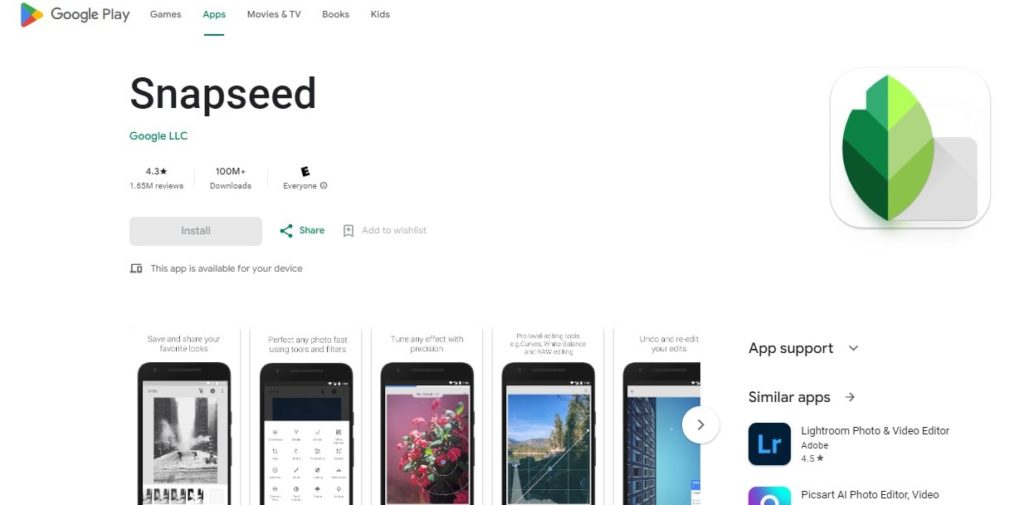
Snapseed lets you experience 29 distinct Tools and Filters, such as Healing, Brush, Structure, HDR, and Perspective (details below):
- Supports JPG and RAW file formats
- Store and apply custom looks to future photos
- Utilize a selective filter brush
- Adjust all styles with meticulous precision
Afterlight (Android and iOS)

If you download Afterlignt, you’ll have the option to:
- Access to an expanding library of filters for the perfect photo pairing.
- Utilize over 20 advanced tools for precise edits using touch gestures.
- Adjustments include Advanced Curves, Selective Hue/Saturation/Lightness, Gradients, and more.
- Enhance photos with over 60 textures and overlays, including genuine Light Leaks and Dust textures.
- Apply film emulation techniques like Color Shift and Chroma effects.
- Add borders or Instant Film frames before exporting your final edit.
- Explore a selection of 120+ Fonts and 150+ original Designs for customized text and artwork.
- Personalize each layer with options like drop shadows, unlimited color choices, and masking.
Camera+ (Android and iOS)

Camera+ is a top-tier app for capturing and editing photos. Its features include:
- Capture Presets
- Magic ML Enhancement
- UltraRes Preset: AI-powered upscaling for impressive image quality.
- Shooting Assist Options
- Editing Tools
- RAW Image Editing
- Photo Library Integration
Follow Creators
You can search for independent creators whose effects match your preferences. When you browse their account, you’ll notice a small face filter icon on their profile. Tapping this icon leads you to their filter feed dedicated to Instagram effects. From this filter feed, you can see, try or even save any IG effects that the creator has made.
What Are Instagram Camera Settings?
let’s clear things up. Camera settings and camera tools are two different things. Camera settings can’t change your photo or video quality.
To get to the settings- when you’re in your feed, swipe right. Look in the top right (or left) corner for a gear icon. Tap it, and you’re in the settings zone.

Once you tap the icon, you’ll see the options and you can change the settings as you want.

In the camera settings, you can decide whether to start with the front camera by default and choose where to place the camera toolbar – on the left or right side.
What is the Instagram camera roll?
The Instagram Camera Roll refers to the gallery of photos and videos stored on your device that you can access directly within the Instagram app.
When you’re creating a post or story, you can tap into your Camera Roll to select and share content from your device’s local storage. You can also save your stories, Reels, and videos to your camera roll.
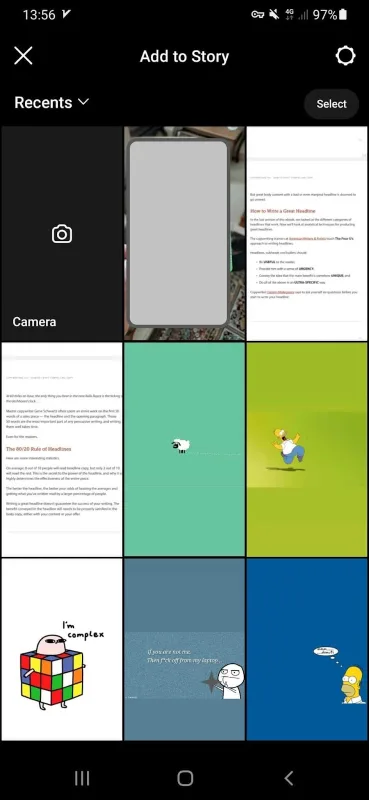
How To Add Camera Roll Photos To Instagram Story?
Now, you know how to take a picture using Instagram camera. But what if you want to pick one from the camera roll and share it? Here’s how to do it.
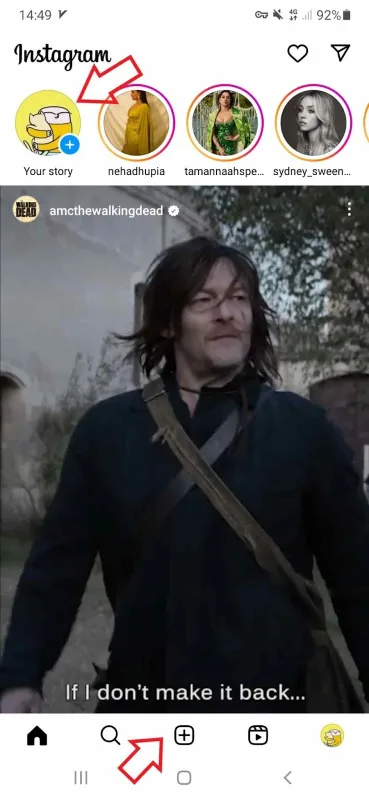
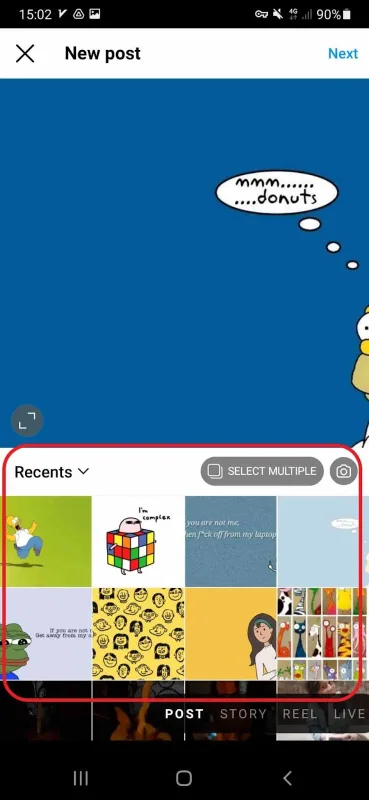
- Just go to your feed and tap the plus icon (+) at the top left or in the middle bottom to add a story or post.
- Here, you can select a picture you want to share and tap Next.
How to Save Instagram Videos to Camera Roll?
Just took a video, shared it on your story, and now want to add it to your camera roll? It’s a piece of cake!
Tap More in the bottom right corner and click on Save Video so it’s added to the camera roll.
Note: You can go the same way to save a photo to your camera roll.


How to save an instagram reel to camera roll?
To save your own Reels to the camera roll, follow these steps:
- Open your Instagram and tap the three-dot icon next to the reel,

- Now, select Download to save your reel in the camera roll.

Why My Instagram Camera Not Working, How to Fix It?
Have you ever been stuck with an Instagram black screen or found your camera stopped working? It’s nerve-wracking, especially considering Instagram is all about snapping and sharing photos. Check these simple fixes out.
Check your Internet connection
Before you get into any complicated fixes, just give your connection a quick look. If it seems a bit shaky, try turning it off and then back on again. If you’re using your mobile data, consider switching over to Wi-Fi.
Clear Instagram cache
At times, too much stored data can get your Instagram camera stopped.
To clear your Instagram cache on iOS devices, you have to uninstall the app. But for Android devices, follow these simple steps:
- Open your device’s Settings and scroll down to “Apps.”
- Locate Instagram from the list and tap on it.
- Click on “Storage” and then tap “Clear cache” at the bottom right corner.


Update the app
An outdated Instagram could cause bugs, too. So, if you’re still having trouble using Instagram camera, you can simply head over to the google play store or the app store and update it.
Reinstall the Instagram app
If the problem continues, give uninstalling and reinstalling the app a shot. Just tap and hold the app icon to uninstall it. Then, head over to the Google Play Store or App Store to reinstall it. This often helps to shake off any persistent issues with the Instagram camera.
Turn off the power-saving mode
While the power-saving mode is great for conserving battery life, it might also disable certain features. To check if it’s causing the camera issue, simply swipe down your screen and tap on “Power saving mode” to turn it off.

Reactivate the camera permission
You might have accidentally deactivated your camera permission. So, reactivate the permission in your device settings to fix this issue.
How to enable camera access on Instagram on iPhone
To allow camera access on your iOS device, follow these steps:
- Open Setting on your device,
- Navigate for Instagram and tap it,

Source: howtoisolve
- Now, find Instagram and turn the Camera toggle on.

Source: howtoisolve
How To Enable Camera Access On Instagram (Android)
Here’s how to allow Instagram to access the camera on Android devices.
- Go to your phone’s Settings and select Apps,
- Move down to find Instagram and click on it,
- Choose Permissions and tap on Camera,
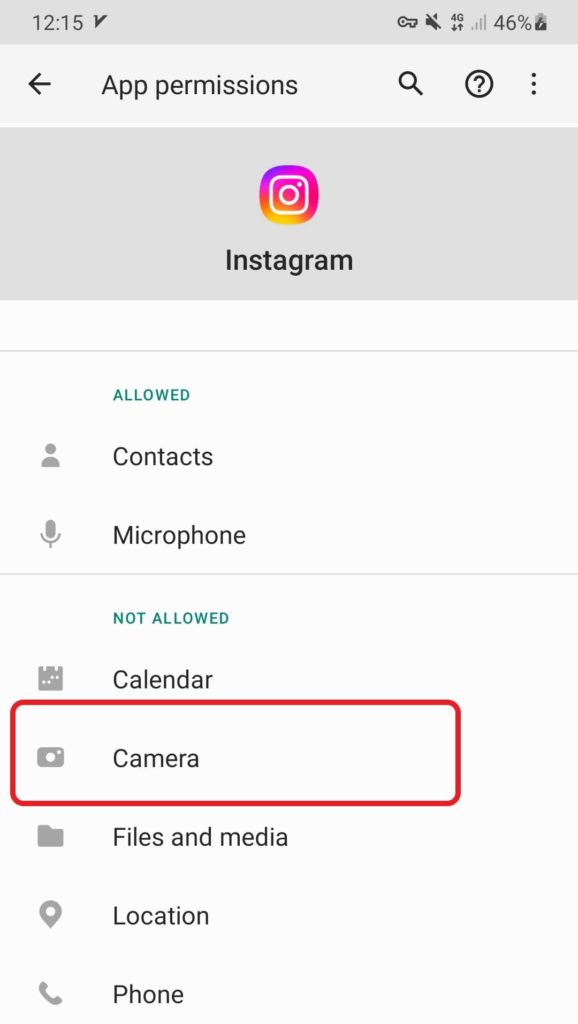
- Then, choose the first or second option that suits your best.

What are best cameras for Instagram?
While the Instagram camera offers a fun way to capture moments and enhance them with filters, it’s just part of the picture.
These days, businesses, Instagrammers, and influencers are all about rocking professional cameras to promote their products and create killer content.
Check out these options with their price to help you pick the best camera for Instagram.
#1. Nikon Z 50

Specifications
- Type: Mirrorless
- Sensor: APS-C CMOS
- Megapixels: 20.9MP
- Monitor: 3.2-inch tilting, 1.04m dots
- Continuous shooting speed: 11fpsViewfinder: EVF, 2.36m dots
- Max video resolution: 4K UHD at 30p
- User level: Beginner/enthusiast
#2. Canon T6i

Specifications
- 242 Megapixel CMOS (APS-C) sensor, ISO 100–12800 (expandable to H: 25600)
- EOS Full HD Movie mode helps capture brilliant results in MP4 format
- High-speed continuous shooting up to 50 fps allows you to capture fast action
#3. Sony ZV-1

Specifications
- Type: CompactSensor: 1inMegapixels: 20.1MP
- Lens: 24-70mm f/1.8-2.8
- Screen: 3in vari-angle touchscreen, 921k dots
- Max video resolution: 4K
- Mic port: Yes
- User level: Enthusiast
#4. Fujifilm X-T30

Specifications
- Type: Mirrorless
- Sensor: APS-C
- Megapixels: 26.1MP
- Lens mount: Fujifilm X
- Screen: 3-inch vari-angle touchscreen, 1.04m dots
- Viewfinder: EVF, 2,360k dots
- Max continuous shooting speed: 30/8fps
- Max video resolution: 4K
- User level: Intermediate/Expert
#5. Olympus PEN E-PL10

Specifications
- Sensor: 16.1MP Four Thirds Live MOS
- Lens Mount: Micro Four Thirds
- Video: 4K
- Connectivity: Bluetooth & Wi-Fi
- Screen: 180° tilting three-inch 1040k-dot touchscreen
- USB charging: No
Instagram Camera FAQs
Q1. What is the best photo editing app for Instagram?
Beyond the apps we’ve discussed, there are more options to edit your Instagram posts. Here are some others you can consider:
- Canva (It has thousands of Instagram feed design templates)
- FaceTune (a beauty filter app for selfies)
- Foodie (edit your food images)
- A Color Story
Q2. Why my instagram won’t let me post pictures from my camera roll?
Having difficulties with posting pictures? There could be several reasons, such as:
- The file you’re posting is too big. Learn Instagram post size to avoid the issue,
- Your Instagram is banned and you can’t post until it’s gone,
- You are new to Instagram and you’re not allowed to share more than a certain number of posts,
- You’re using a banned hashtag, word, or type of image,
- The Instagram app is outdated and needs to be upgraded,
- It’s just a temporary bug and is going to disappear soon.
Q3. Can I take photo with laptop camera on Instagram?
Wondering if you could use Instagram camera on pc? Sadly, no. While you can post photos and videos on Instagram from a PC, you can’t share stories, ads, IGTV posts, or Reels from a computer.
Live videos also can’t be started from a PC. The desktop version of Instagram only supports photos and videos.
Q4. How to fix Instagram camera quality?
Instagram doesn’t have built-in camera enhancements, but you can explore these options:
- Clean Your Camera Lens: Dust and fingerprints on your camera lens can affect the image quality. Gently wipe the lens with a clean, soft cloth.
- Update the App: Ensure you have the latest version of the Instagram app installed, as updates often include performance improvements.
- Check Your Phone’s Storage: Running out of storage space can impact camera performance. Delete unnecessary files and apps to free up space.
- Restart Your Phone: Sometimes a simple restart can help resolve camera issues by refreshing the device’s settings.
- Adjust Camera Settings: In your phone’s settings, navigate to the camera settings and adjust the resolution and quality settings if available.
- Disable Power-Saving Modethe : Power-saving modes may reduce camera performance. Turn off the power-saving mode while using the Instagram camera.
- Check for App Permissions: Ensure the Instagram app has access to your phone’s camera and storage in the app permissions settings.
- Clear App Cache: Clear the app’s cache to remove temporary files that might affect camera performance.
- Try Different Lighting: Good lighting can greatly improve image quality. Experiment with natural and artificial lighting conditions.
