

Have you ever posted on Instagram and noticed a mistake in your caption or wanted to make changes after posting? Well, I’ve been there, and I bet you have too since you’re reading this. So, I looked into how to edit an Instagram post, and now I want to share what I found with you.
Ready to know more? Let’s get started.
How To Edit An Instagram Post?
Editing an Instagram post after sharing is pretty simple. It’s a useful skill that allows you to refine your content and maintain a polished online presence. Now, let’s delve into the process of how to edit a post on Instagram after posting it in just a few simple steps:
- Open the Instagram app on your mobile device and go to your profile page.
- Find the post you want to edit and tap on it to open it.
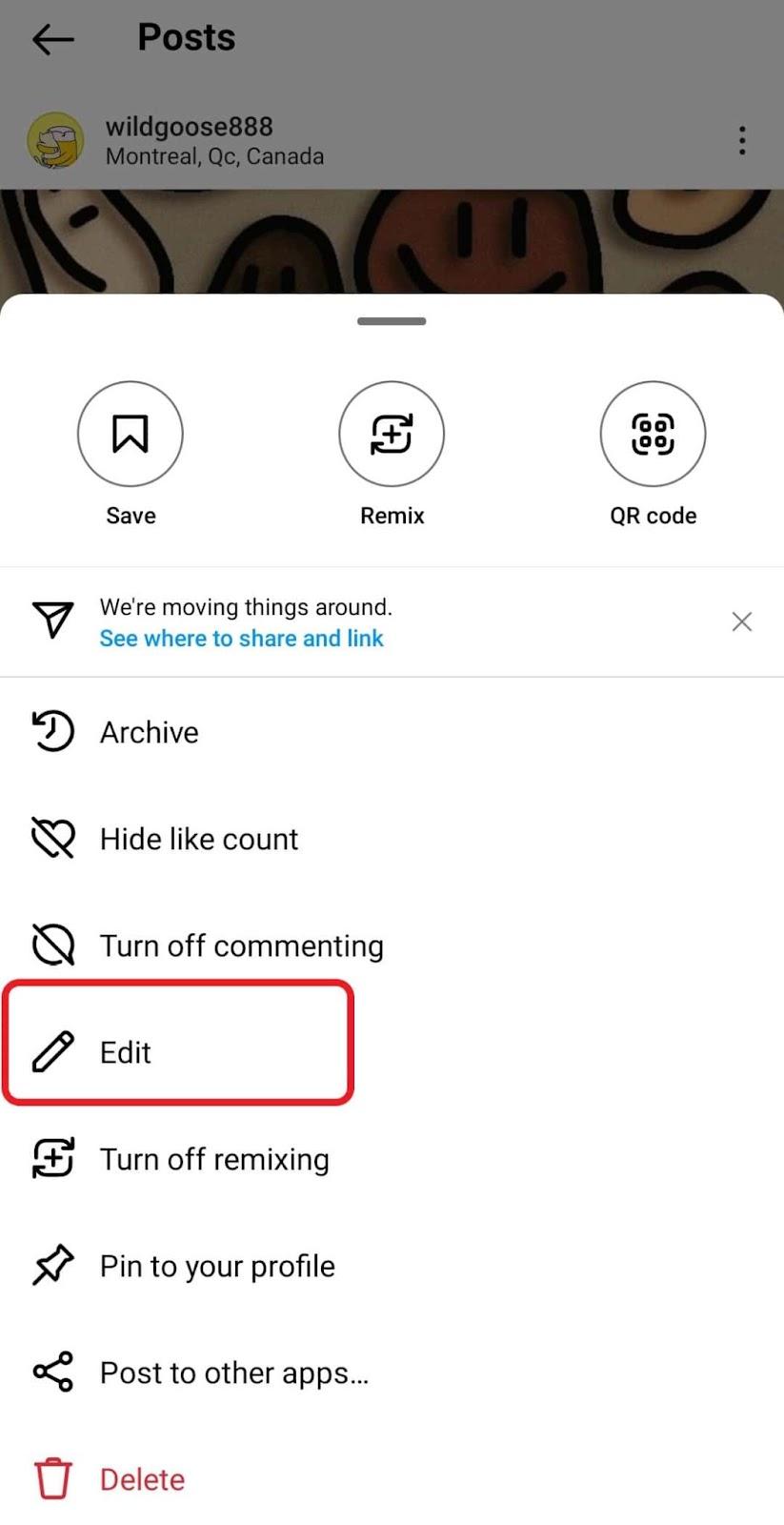
- Tap on the three dots in the top right corner of the post.
- Select “Edit” from the list.
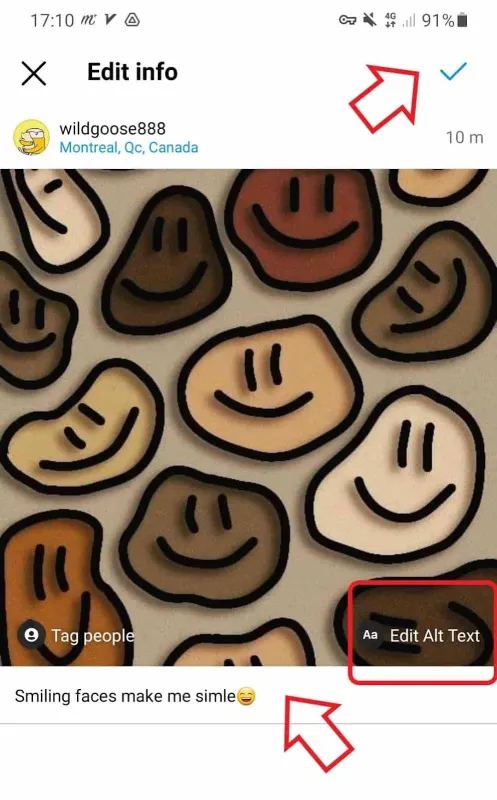
- Make the necessary changes to your post, such as changing the caption, location, tags, or alt text .
- Tap the checkmark in the top right corner of the screen and it’s done! Your post has now been edited, and the changes will be visible to your followers.
Instagram does not notify your followers when you edit a post. However, the post may show up in their feed again, so they may see the updated version.
Pro Tip: Want to create a super compelling post without the hassle of editing? Trust AiGrow to handle your content. Benefit from our affordable prices, premium quality, and a 14-day money-back guarantee. Don’t wait, sign up on AiGrow today and give your posts a powerful boost!
How to Edit Archived Posts on Instagram?
First of all, let’s address another question: ‘Can you edit an archived post on Instagram, or is it just for unarchived posts?’ The great news is that you can indeed edit archived posts as well.
However, to do this, you first need to unarchive it and share it on your profile. Here’s how to edit posts on Instagram from your archive.
- Go to your profile page, tap the three horizontal lines in the top right corner, and select “Archive” from the menu.

- Now, tap the menu and choose “Posts archive.”

- Find the post you want to edit and tap on it to open it.
- Tap on the three dots in the top right corner of the post and select “Show on profile.”

5. Once it’s back on your feed, you can edit it just like we explained earlier.
How To Edit An Instagram Post On Computer?
Luckily, you can also edit your posts on Instagram using a PC. Right now, we’re going to show you how to edit post on Instagram after posting through the web.
- Navigate to your profile, select the post you wish to edit, and click on the three-dot icon at the upper right corner.

- Then, click on Edit.

- Next, simply edit your caption, location, or tags, and click “Done” to save your changes.

How To Edit Photos On An Instagram Post?
When it comes to updating an old Instagram post, the question arises: “How to replace a photo on Instagram after posting?” Well, let’s clarify something first: Can you edit an Instagram post to add another photo at all? The answer is a No.
In fact, the only elements you can modify in Instagram posts are alt texts, tags, captions, and location. Therefore, remember this: Once you’ve shared your post, you can’t enhance the image quality by applying filters or effects.
Also Read: How to edit Instagram Reels
How To Edit An Instagram Post With Multiple Pictures?
Instagram carousels or posts with multiple pictures are becoming increasingly popular. If you’ve shared one and now wish to make some changes, you can edit the caption, tags, alt text, or location.
Remember that you can’t add a new photo, or rearrange them. But there’s a cool trick to easily shuffle your photos like magic. Ready to learn how to edit an Instagram post with this trick? Watch this video.
How To Edit An Instagram Post To Delete A Photo
Wondering how to delete a picture from Instagram carousels? Deleting a picture from an Instagram carousel is simpler than you might think. Go to the post and select “Edit” (follow the steps we mentioned earlier).
Then, pick the picture you want to remove and tap the recycle bin at the top left corner to delete it. Easy as that!
Note: You can delete individual slides (pictures or videos) from a post that has multiple slides. Please note that you need a minimum of three slides to access this feature.
In such posts, a trash can icon appears in the top left corner of each slide, enabling you to remove it. You cannot convert a multi-slide post into a single-picture or single-video post. For example, if you have a ten-slide post, you can delete up to eight slides.

And check this out:

Also Read: The Ultimate Guide To Editing Comments On Instagram
Last Words
I hope this blog helped you figure out how to edit your Instagram posts. Feel free to explore the available options and find what suits your style. The key is to make your posts look cool while staying true to yourself.
FAQs
Up to now, we’ve discussed how to edit an Instagram post; now, let’s address some frequently asked questions on this topic.
1. Can You Edit Instagram Post After It’s Been Published?
Yes, you can edit your Instagram post after it’s been published.
2. How Do I Undo An Edit On My Post?
To undo an edit on your post, simply click on the three dots at the top right corner of your post, and select “Edit” again. From there, you can make the necessary changes or revert to the original version.
3. Does Instagram Notify My Followers When I Edit A Post?
No, Instagram does not notify your followers when you edit a post.
4. Will Editing My Post Affect Its Engagement?
Editing your post should not negatively impact its engagement unless you make significant changes that change its main message or intended meaning.
5. How Often Should I Edit My Instagram Posts?
It’s up to you how often you edit your Instagram posts. However, it’s recommended to only make necessary changes and not excessively edit your posts.
6. Can You Edit The Order Of Photos On An Instagram Post?
Wondering how to change the order of Instagram posts? Sadly, you can’t edit the order of photos on an Instagram post once it has been published. Instead, you would need to delete the post and repost it with the desired photo order. Don’t worry! We teach you how to repost on Instagram.
Note: To rearrange the order of your photos, you can delete one and subsequently recover it from the ‘Recently deleted’ section in your settings within 30 days. Unfortunately, direct editing of the photo order in your post is not available.
7. Why Can’t I Edit My Instagram Post?
If you can’t edit an Instagram post on the app, it could be because of the following reasons:
- You’ve got a bad Internet connection.
- You’re using an old version of the app.
- Your cache data could stop you from editing an Instagram post.
- Sometimes, Instagram third-party apps can affect Instagram’s functions.
- Or it might be only a temporary glitch and will be gone soon.
8. How Do You Edit An Instagram Post Without Losing Likes And Comments?
Editing an Instagram post should not affect the likes and comments on your post. However, if you delete your post and repost it with the same caption and tags, you may lose the likes and comments associated with the original post.
9. Does Editing An Instagram Post Repost It?
We’ve already created a whole post on whether editing an Instagram post reposts it or not, but to keep it short: NO, editing an Instagram post doesn’t repost it. It stays in the same spot on your profile and in your followers’ feeds. The only change is the content of the post.
10. Can You Edit An Instagram Story?
No, unfortunately, it’s not possible at the moment.
11. Can You Delete All Instagram Posts?
Yes, you certainly can. If you’re wondering how to delete all Instagram posts, you have two options: manual deletion or using third-party apps. Given that manually deleting many posts can be quite time-consuming, you can explore tools like AiGrow to make the process more efficient.
12. Can You Change a Photo on Instagram After Posting?
Unfortunately not. You can not add, delete, or replace photos in a post once it’s published. The best thing you can do is to delete the post and share a new one. Here is how to delete an Instagram post:
- Open the intended post from your profile,
- Tap the three-dot icon above the post.
- Select Delete.
[Note: You may decrease your engagement rate by deleting and re-publishing a post.]
13. How to Add a Photo on Instagram After Posting?
Instagram does not allow users to add new photos to an existing post. Once you’ve posted a photo on Instagram, you can’t insert additional images into that same post.
14. How to Edit Archived Stories on Instagram?
After posting an Instagram story, no changes or edits can be made, whether the story is still visible within the initial 24 hours or has been archived.
15. How to Replace a Photo on Instagram After Posting?
Under no circumstances can you replace a photo. Your only option is to delete the existing photo and repost a new one.
