

Ever scrolled through Instagram and had a fleeting moment of panic? Maybe you logged in on a friend’s phone or used a public computer, and now you’re worried someone else might be lurking on your account.
In this blog post, I’ll teach you the simple steps to check login activity on Instagram and check exactly which devices currently hold the key to your Instagram account.
I’ll also show you how to remove any suspicious logins, ensuring your account stays secure and your photos remain under your control. So let’s see how to check Instagram login devices in 2024.
How to Check Instagram Login Devices on iPhone and Android
The process for checking Instagram login devices is identical on both iPhone and Android devices. Here’s How to tell if someone else is using your instagram account on iPhone and Android:
Using the Instagram App (iPhone & Android):
- Open the Instagram app and navigate to your profile by tapping your profile picture in the bottom right corner.
- Tap the three horizontal lines (hamburger menu) in the top right corner.
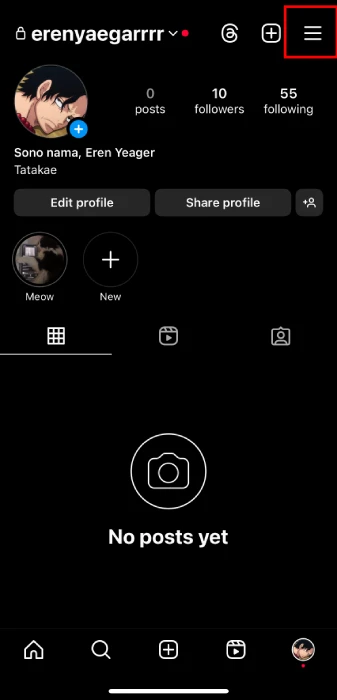
- Select “Accounts Center” (you might need to update your app if you don’t see this option).
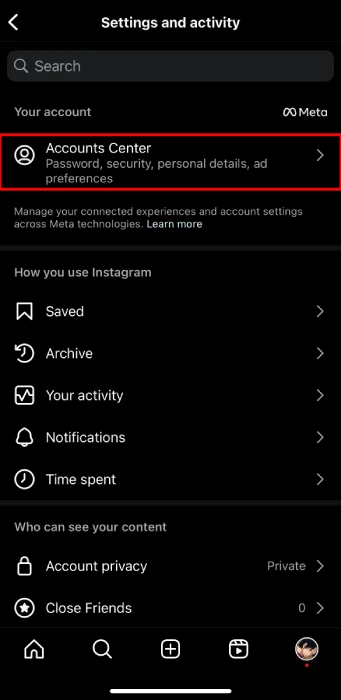
- Tap on “Password and Security” under “Account Settings.”
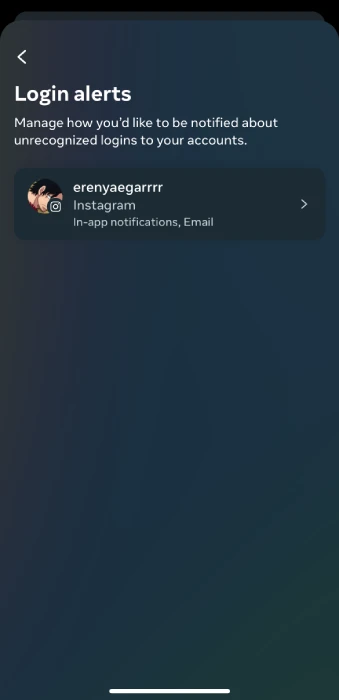
- Under “Security Checks,” tap on “Login alerts“
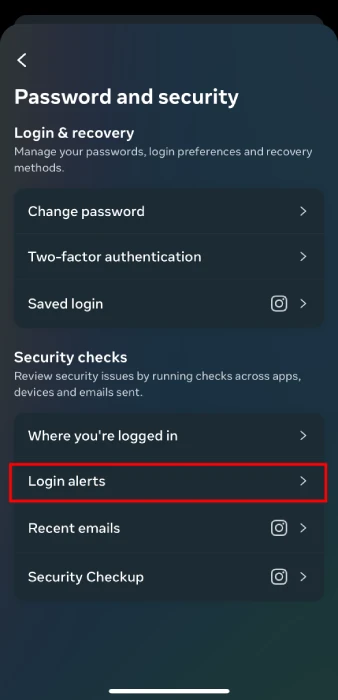
- You’ll see a list of devices that have recently accessed your account, along with their location and the last time they were active.
How to Remove Someone Logged into Your Instagram Account
Instagram doesn’t offer a direct way to remotely log out someone from a specific device. But there are two effective methods to secure your account and essentially remove any unauthorized access:
- Log Out of All Devices:
This option removes all currently logged-in devices, including yours. You’ll need to log back in on your preferred devices afterward. Here’s how to do it:- Follow steps 1-3 from the previous instructions on checking login devices (go to “Accounts Center” and “Password and Security”).
- Under “Security Checks,” tap on “Log Out of All Devices.”
- Confirm by re-entering your password.
- Change Your Password:
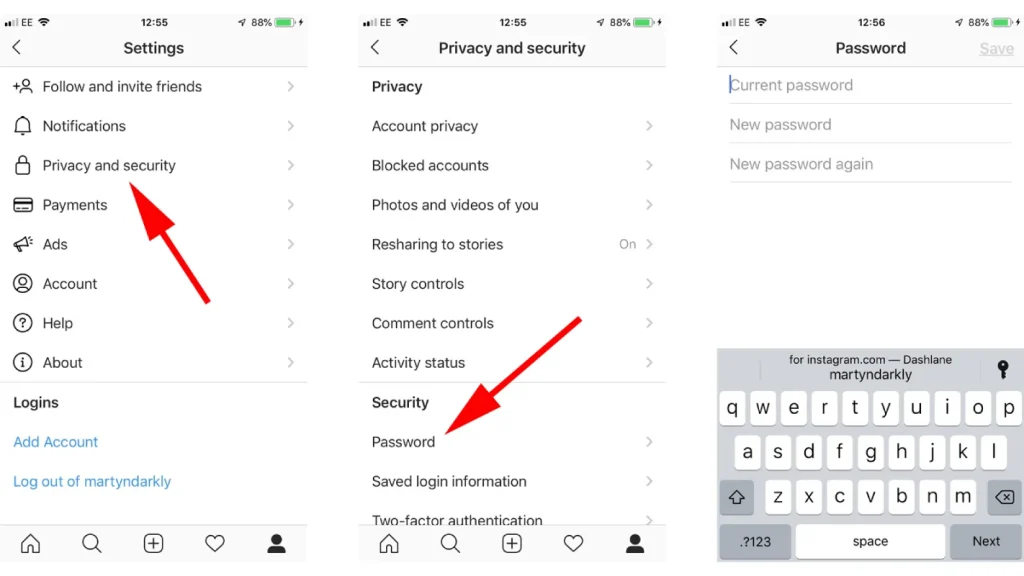
This method renders any existing login credentials invalid. Anyone currently logged in will be automatically logged out upon trying to use your old password. Here’s how:- Follow steps 1-3 from the checking login devices instructions (go to “Accounts Center” and “Password and Security”).
- Tap on “Password.”
- Enter your current password, then create a strong and unique new password.
Remember: After using either of these methods, be sure to log back into your Instagram account on your trusted devices.
Additional Security Tip:
- Enable two-factor authentication (2FA) for your Instagram account. This adds an extra layer of security by requiring a code from your phone in addition to your password when logging in from a new device.
Read more: Challenge Required Error on Instagram – How to Fix it?
How to Check if Someone is Using Your Account
Here are some red flags to watch out for that might indicate someone else is using your account:
Suspicious Login Activity:
- “Where You’re Logged In” List: As mentioned earlier, check the list of logged-in devices on Instagram (refer to previous instructions). Look for unrecognized devices or locations.
- Login Attempts: If you receive notifications about login attempts you didn’t initiate, especially from unknown locations, it’s a cause for concern.
Account Activity:
- Unexpected Posts or Messages: Have you noticed posts or messages you didn’t create? This could be a sign someone else is using your account.
- Changes to Profile Information: Is your profile information different, like your bio, email address, or profile picture? This could be a red flag.
- Following or Blocking Unfamiliar Accounts: Do you see new follows or blocked accounts you don’t recognize?
Financial Activity (if applicable):
- Linked Accounts: If your Instagram is connected to Facebook accounts or other platforms where financial transactions occur, be sure to monitor those accounts for any unauthorized activity.
General Account Issues:
- Difficulty Logging In: Are you having trouble logging in to your account, even with the correct credentials? This could indicate someone else might have changed the password.
- Security Alerts: If Instagram sends you security alerts about suspicious activity, take them seriously and follow their recommended actions.
Taking Action:
If you suspect someone else is using your account, here’s what to do:
- Change your password immediately to a strong, unique password you don’t use for any other accounts.
- Enable two-factor authentication (2FA): This adds an extra layer of security by requiring a code from your phone in addition to your password when logging in from a new device.
- Report the issue to Instagram: Instagram provides options to report suspicious activity within the app.
- Consider a security scan: Run a security scan on your devices to check for malware or spyware that might be capturing your login credentials.
Read more: “We Restrict Certain Activity on Instagram to Protect Our Community” [6 ways to fix in 2024]
If I Log Into Instagram on Another Device Will it Notify Me?
Instagram itself won’t directly notify you every time you log in from a new device. There are, however, ways to stay informed and secure your account:
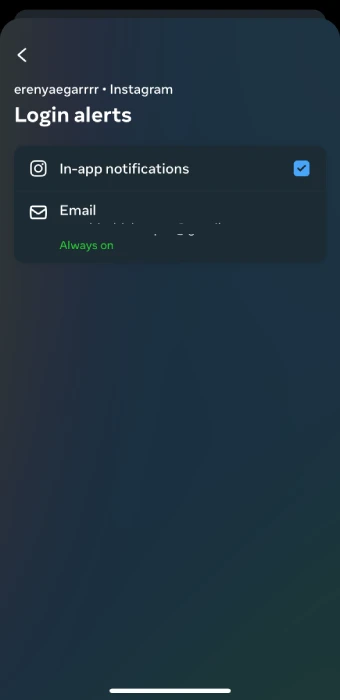
- Login Attempts with Two-Factor Authentication (2FA): If you have 2FA enabled, you will receive a notification and a code whenever someone tries to log in from an unrecognized device. This is the strongest notification option as it requires additional verification beyond your password.
- Suspicious Login Activity Emails (Less Reliable): In some cases, Instagram might send an email notification if it detects a login attempt from a very different location than usual. This system isn’t foolproof and may not catch every new login.
Here’s what you can do to stay on top of things:
- Regularly Check Logged-In Devices: Use the “Where You’re Logged In” feature (mentioned previously) to see a list of all devices currently accessing your account. This way, you can identify any unrecognized devices and take action.
- Enable Two-Factor Authentication: This is highly recommended for added security. It requires a code from your phone in addition to your password whenever someone tries to log in from a new device.
Someone Logged Into My Instagram Account From Another Location, What Should I Do?
Here’s what you should do if someone logged into your Instagram account from another location:
1. Secure your account:
- Change your password immediately: Create a strong and unique password that you don’t use for any other accounts. Use capital words, signs, numbers, everything. For example “A!d8SkB7D@n!J3@1lc00sl” is considered a super strong password.
- Enable two-factor authentication (2FA) if you haven’t already: This adds an extra layer of security by requiring a code from your phone in addition to your password when logging in from a new device.
2. Identify the unauthorized access:
- Check “Where You’re Logged In”: Go to your Instagram settings and check the list of devices currently accessing your account (refer to previous instructions on how to find this section). Look for any unrecognized devices or locations.
3. Take further action based on the situation:
- If it’s just an unrecognized device you used: Log out of all devices using the “Log Out of All Devices” option in settings. This will ensure no other devices (including yours) are logged in. Then, log back in on your trusted devices with the new password.
- If you suspect a compromised account: Report the suspicious activity to Instagram. They have options within the app to report compromised accounts.
- Consider a security scan: If you’re worried about malware or spyware capturing your login credentials, run a security scan on your devices.
Note:
- Be cautious of phishing attempts: Never click on suspicious links or enter your Instagram credentials on untrusted websites. Phishing scams can trick you into giving away your login information.
- Review linked accounts: If your Instagram account is connected to Facebook accounts or other platforms, check those accounts for any unauthorized activity as well.
- Change your email password: If someone has access to your email, they can easily log into your account without you even finding out. So change your email password as well, just in case!
FAQs on How to Check Instagram Login Devices
Now let’s answer some frequently asked questions on this subject:
Will Someone Know if I Logged Into Their Instagram?
Not necessarily directly. Instagram won’t notify someone every time their account is accessed from a new device.
However, there are ways they might find out:
- Two-Factor Authentication (2FA): If enabled, the account owner will receive a notification and code whenever someone tries to log in from an unrecognized device.
- Login Attempts Email (Less Reliable): Instagram may send an email if it detects a login from a very different location than usual.
How do I Remove My Instagram Account From Other Devices?
There isn’t a way to log out a specific device, but you can effectively remove all logins except your own:
- Go to your Instagram settings (profile picture -> hamburger menu -> Settings).
- Navigate to “Accounts Center” and then “Password and Security.”
- Under “Security Checks” tap “Log Out of All Devices.”
- Confirm by re-entering your password. This will log out all devices currently accessing your account, requiring them to log back in with your new password (if you changed it).
Does Instagram Tell You When Another Device Logs in?
Instagram itself won’t directly notify you every time someone logs in from a new device. However, you can turn on the receiving an email every time there’s a login into your account, or:
Two-Factor Authentication (2FA): With 2FA enabled, you’ll get a notification and code whenever someone tries to log in from a new device, requiring additional verification
How Do I Know if My Instagram Account is Open on Another Device?
- Check “Where You’re Logged In”: This feature in your settings shows a list of all devices currently accessing your account with location and last active time. Look for anything unrecognized.
- Watch for suspicious activity: Unexpected posts, messages, profile changes, or unrecognized follows/blocks could indicate unauthorized access.
