

Instagram is a widely used platform that more than one billion active users use monthly to contact each other, share posts and videos, and grow their businesses. One of the best features added to this platform is the DM tool which allows users to chat and contact each other in the app. In the last updates, many users have reported that they face Instagram messages blacked out issues on the platform.
In this article, we will show you why Instagram messages black error happens and how to fix them.
Looking for an Instagram DM management tool to use your messages without any bugs and glitches? AiGrow is what you need.
What Is The Instagram Messages Blacked Out Error?
After the new Instagram update, this platform faces a new DM error for many users. These users, mainly from US and UK, have reported that their messages turned black, and they cannot read and answer to them anymore. Also, some other users reported that they only see a black border around Instagram messages but can still read them. But what is this error, and how to fix it so you can use your DMs usually? If you are asking yourself why are my Instagram messages blacked out, you came to the right place. Here is everything you need to know about fixing it.
How To Fix Instagram Messages Blacked Out Error?
If you are one of the users experiencing Instagram messages blacked out issues, here are the ways to fix it.
Restart Your Device
Restarting your device is the first solution that comes to mind when you see that Instagram messages are blacked out. Sometimes it’s a simple glitch that can be easily solved this way, so you don’t need to try other solutions, and it’s an excellent way to start.
Another thing you need to notice has a strong and stable network connection. If you are using Wifi, try switching to mobile data or restarting your router.
Check If Instagram Is Down
The next step when facing blacked out messages on Instagram is to check whether Instagram is down or not. If you have another device, log into your account and check your DMs. If you still see black Instagram messages, the problem is probably from the Instagram app. However, to make sure, you can use a third-party status checker tool such as Down Detector to see if the problem is from the app. All you need to do is enter the Instagram URL and let the platform to find the possible issues.
Update To The Latest Version Of Instagram
If the last two steps didn’t work for you with your Instagram black message, the problem might be from the version of Instagram that you are using. In that case, updating your Instagram app to the latest version can help you with the issue. Instagram tries fixing common bugs and glitches in every update and adding new features. To update your Instagram app, follow these steps:
Android:
- Open the google play store and search for Instagram.
- If you are using an older app version, there is an “Update” button in front of it.
- Tap on it and use that version to check your DMs.
IOS:
- Similar to android, open the App Store and find Instagram.
- Hit the “Update” button next to it.
Uninstall And Reinstall The App
If you still have a problem with blacked out Instagram messages, another step you need to try is uninstalling and reinstalling the app. Here are the steps to reinstall the app on your device and fix the error of the black border on Instagram messages.
Uninstall Instagram On iPhone
- Tap a free space on your home screen to stop the apps from jiggling.
- To complete the uninstall action, click on the “Delete” option.
- Restart your device after deleting the app.
- Once your iPhone entirely comes back on, locate and download the latest version of Instagram from the App Store.
Uninstall Instagram on Android
- Click on the “Apps” option in the Settings app.
- Select “Instagram.”
- Tap the Uninstall button to uninstall the app.
- Reinstall Instagram afterward from Google Play Store, then sign back into the app using your login information.
Report The Problem To Instagram
If you need help fixing your issue and are still asking yourself why my messages blacked out on Instagram, you need to report the problem to the app. Of course, it will take some time for the Instagram support team to solve the problem, but it worth trying. Follow these simple steps to report your Instagram message black error in the app:
Try Instagram Desktop On Desktop
If you have tried all of the above steps and still you have problems and telling yourself all my Instagram messages are black, here is the last solution. Instagram messages are now available on a desktop, and you can easily access your DM inbox from the Instagram website. Most of the glitches you experience while using Instagram are because of the app, so if you access it through the official website, you can use DMs with Instagram messages blacked out errors. In the latest updates, Instagram allows users to try all the features, such as primary vs. general messages on a desktop. However, unfortunately, you still can’t react to Instagram messages or search messages. To access your DMs on your desktop, follow these steps:
- Log into your Instagram account from the official website.
- From the left tab, select “Messages” to open your inbox.
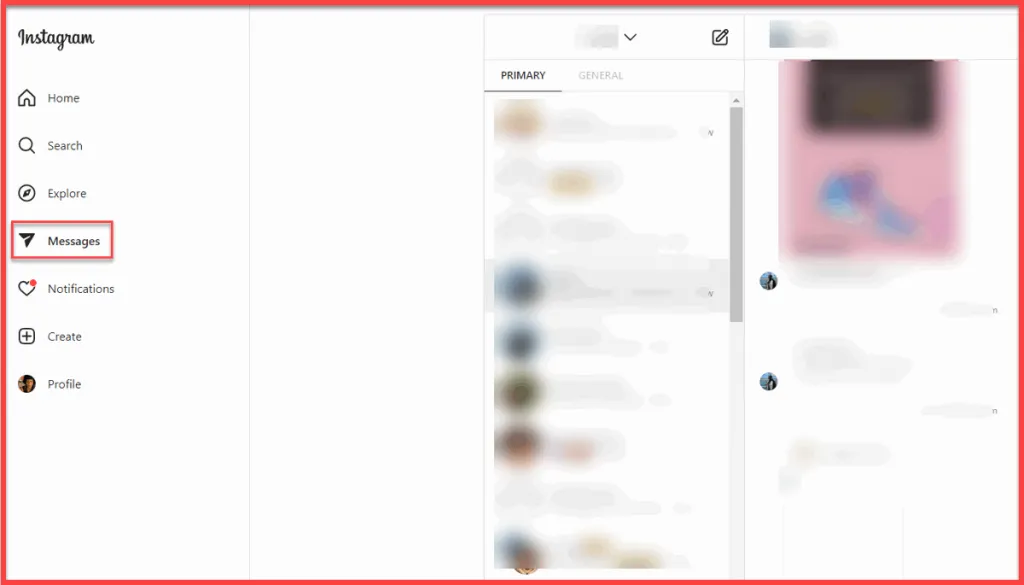
As you can see, blacked out messages on Instagram error is not appearing here, and you can access and reply to your DMs usually.
What Is AiGrow And How To Use It?
In the last parts, we showed you how to fix the Instagram messages blacked out problems with a few simple steps. But there is another solution you can try to access DMs without any bugs and use special tools and features that Instagram doesn’t offer.
AiGrow is an Instagram growth and management tool with multiple features, including DM tools, to access your messages quickly and use them like a pro. Here is what AiGrow provides for users:
- Automated DMs: With AiGrow, you can send automatic DMs to a targeted audience. You can target users by “Current Followers,” “New Followers,” “Followers of an Influencer,” and “Hashtag Users.” This professional tool with a powerful AI engine will change the message formats so Instagram won’t get suspicious while you send mass DMs.
- Auto Reply: This feature works similarly to the quick-reply feature on Instagram and allows you to automatically respond to users sending you DM with a preset message.
- DM To Email: You can receive and respond to your Instagram DMs from your email inbox with AiGrow.
- DM Inbox: With AiGrow, you can view, search, filter, and answer to your DMs on your desktop.
Start Managing Your DMs With AiGrow
We told you everything you need to know about “why is there a black border around my Instagram messages” and how to fix it. After that, we introduced you to AiGrow to access your messages without any glitches and manage them like a pro. Now let’s show you how to step by step set up your account on AiGrow and start using it.
- First, sign up to the AiGrow website for free and log into your account.
- Click “Add Instagram Account” to connect your Instagram page to AiGrow. You can add multiple accounts here and manage them from the same place.
- Choose “Access” to start using different DM tools.
As you can see, this process takes only a few seconds and is beginner-friendly. Now you will be redirected to your dashboard.
In the DM tab, you can access the tools and features that AiGrow provides.
Conclusion
With more than 500 million daily users, Instagram is one of the most popular social media platforms. Apparently, in the recent updates, this platform faces a massive error of blacked-out Instagram messages. What is this error, why it happens, and how to fix it?
This article will tell you everything you need to know about this error and the best ways to fix it.
