


Instagram has become one of the hottest social hangouts lately. With more users joining every day, everyone’s keen on growing their follower count. One great strategy is to repost content from accounts similar to yours. In this article, we’ll walk you through how to repost photos on Instagram both on desktop and app. Let’s get started!
Ready to boost your Instagram followers organically? Join AiGrow today and benefit from a dedicated account manager, resulting in significant follower growth. Plus, enjoy the assurance of a 14-day money-back guarantee.
Can You repost on Instagram?
Before we go to how to repost on Instagram, let’s clarify some key points. Can you repost any content on Instagram? The answer is not straightforward.
Instagram permits reposting feed posts, but with a caveat – it’s limited to public accounts. Regrettably, when it comes to stories, Instagram doesn’t offer a native option for resharing them.
Why You Need To Repost On Instagram
There are plenty of good reasons to repost on Instagram. Here’s why it’s a smart move:
Expand your content: Reposting helps diversify your content by sharing posts from your followers or other relevant accounts.
Engage your audience: If you find out how to repost on Instagram, you’ll actually find an effective way to engage with your audience. Because it shows that you appreciate their content and helps build a strong sense of community.
Save time: Instead of creating new content from scratch, reposting allows you to share valuable content from others without extensive effort.
Boost credibility: Moreover, sharing user-generated content can enhance your credibility and authenticity.
Drive traffic: The best part is that reposting can drive traffic to your website or other social media profiles when you strategically share content related to your offerings.
Increase reach: Above all, reposting introduces your profile to a wider audience, especially when you’re sharing content with popular or trending hashtags.
How to repost on Instagram?
Now that you understand the importance of reposting on Instagram, we can dive into how to repost Instagram stories, Reels, and more.
Pro tip: According to Instagram’s terms of use, you must get their permission. If you don’t, your account could be disabled or shadowbanned. And, remember to give the owner credit by tagging them in the photo or caption.
How to share Instagram post to story?
You can only repost someone’s post in your story if they have a public account. Want to know how to share a post on Instagram stories? Follow these simple steps:
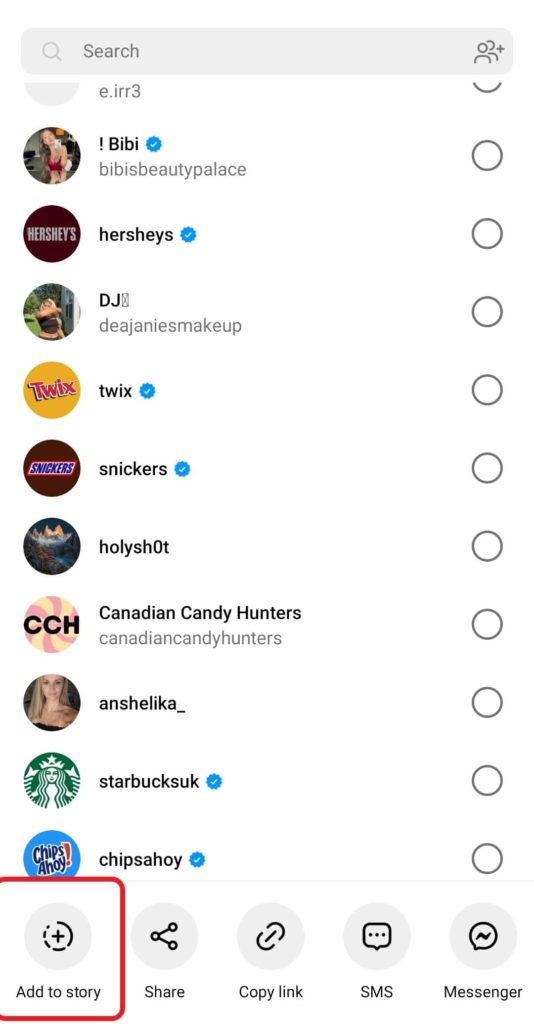
- Tap the paper airplane icon next to the post.

2. At the bottom, you’ll find various options to share the post. Select “Add to story.”
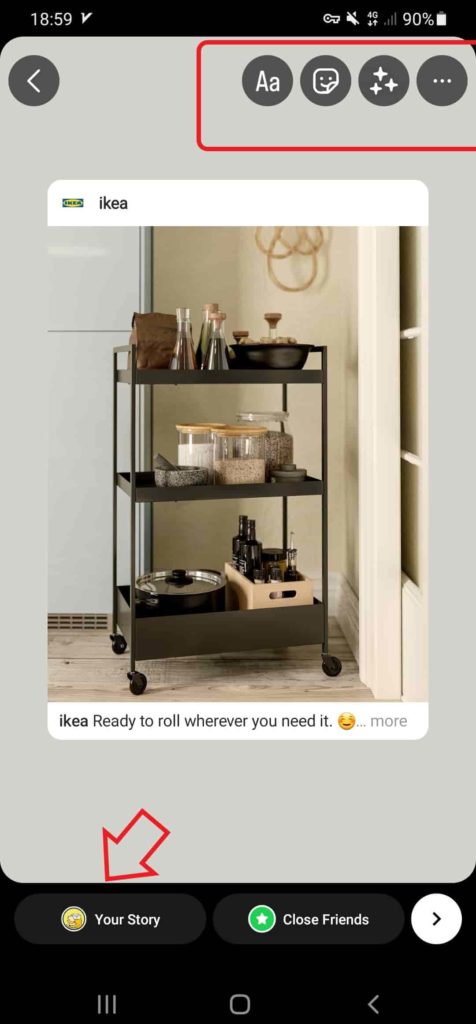
3. Now, you can include text, filters, tags, or whatever you like. Afterward, simply tap “Your Story”.
How to repost a reel on Instagram?
Reposting a reel is easy, just like sharing regular posts. Simply tap the airplane icon, choose “Add to Story,” make any changes you want, and then share it by tapping “Your Story.”

How to repost a story on Instagram?
Sometimes you come across a story on Instagram that you want to share with your followers. You might wonder how to repost a story on Instagram that you’re not tagged in. Unfortunately, it’s not straightforward if you’re not tagged.
You’ve got two options: either take screenshots or use third-party apps and tools (We’ll talk about soon).
Repost a story you’re tagged in
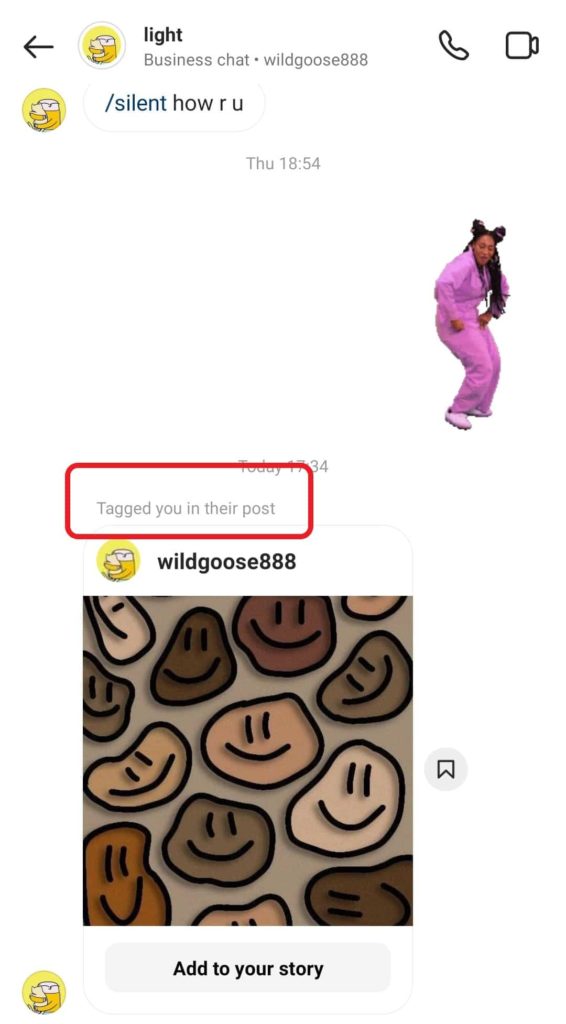
As mentioned earlier, you can easily share stories you’re tagged in as your own post. It’s a breeze – simply tap “Add to your story,” then customize with text or filters, and share away.
How to share a post on instagram to my feed?
You can’t directly share other users’ posts in your feed; you’ll have to take screenshots. Now, let’s explore how to repost a post on Instagram.
- First, capture a screenshot, then tap the (+) icon to share it.

2. Now, you can resize the image to fit your feed.

3. Next, edit your picture or apply filters, then tap “Next.”

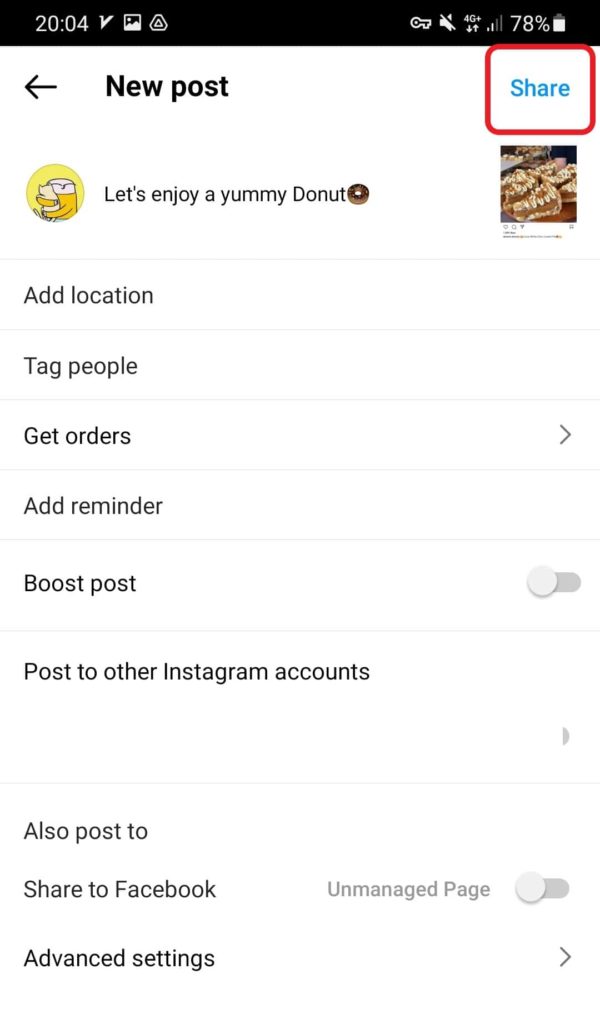
4. In the final step, include a location, caption, or tag anyone you want, then click “Share.” To make your Instagram repost more interesting, try using some of the best captions available.
How to repost tagged post on Instagram?
If someone tags you in a post and you want to share it on your story, it’s pretty simple. Just tap “Add to your story,” then add filters, text, or anything you like, and finally, click “Your story.” Easy as pie!
How to repost on Instagram on the desktop?
Instagram on desktop has its limitations, and reposting is no exception. So, if you’re wondering how to repost a story on instagram that you’re tagged in on pc, we have some bad news: you can’t!
To repost on Instagram desktop, you’ve got two options:
- Take screenshots and reshare them in your feed
- Using third-party online tools like DownloadGram
But here’s the good news: you can easily share your screenshots on your Mac or Windows computer. Let’s explore how to repost on Instagram using screenshots and on your PC.”
How to repost on Instagram on Windows
To begin, select the post you wish to screenshot.
- To capture your entire screen and save it automatically, tap the Windows key + Print Screen. The screenshot will be saved to the Pictures> Screenshot folder.
- Use the Snipping tool program and capture a screenshot from the post.
- Now, go to your feed and click on Create on the left side.

- Then, select the shot from your computer.

- Here, you can crop and resize your image, then tap on Next.

- Add your favorite filter and hit Next.
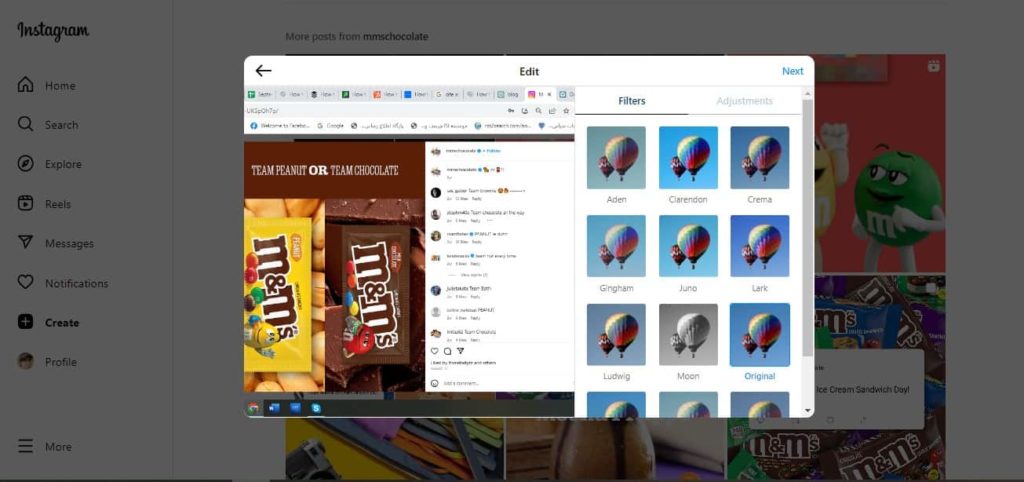
- Finally, include the location, caption, or any other settings you prefer and share it.

How to repost on Instagram on Mac
Reposting screenshots on a Mac follows a similar process to what we explained for Windows. Capture your shots on Instagram and share them.
- Press and hold these keys together to take a screenshot from your entire screen: Shift+ Command+ 3.
- Press and hold Shift+ Command+ 4 to take a screenshot from a specific part of your screen.
How to repost on Instagram using third-party apps?
Great news! Both Android and iPhone users can easily reshare Instagram posts using special repost apps. Want to learn how? Let’s discover how to repost an original post using these Instagram repost apps.
Repost: For Posts, Stories

Wondering how to repost on Instagram on iPhone? Repost app lets you repost multiple Instagram posts from private profiles by signing in with your account. This app also offers other features like:
- Adding attribution marks crediting the original poster
- Creating avatars and profile pictures with AI art
- Copying and pasting captions automatically
- Offering more than 100 templates for stories and other social media posts.
Reposta

Reposta is an excellent solution for those wondering how to repost on Instagram Android. This free app allows you to effortlessly repost or download photos, videos, and Reels from your Instagram account.
Reposter for Story & Video
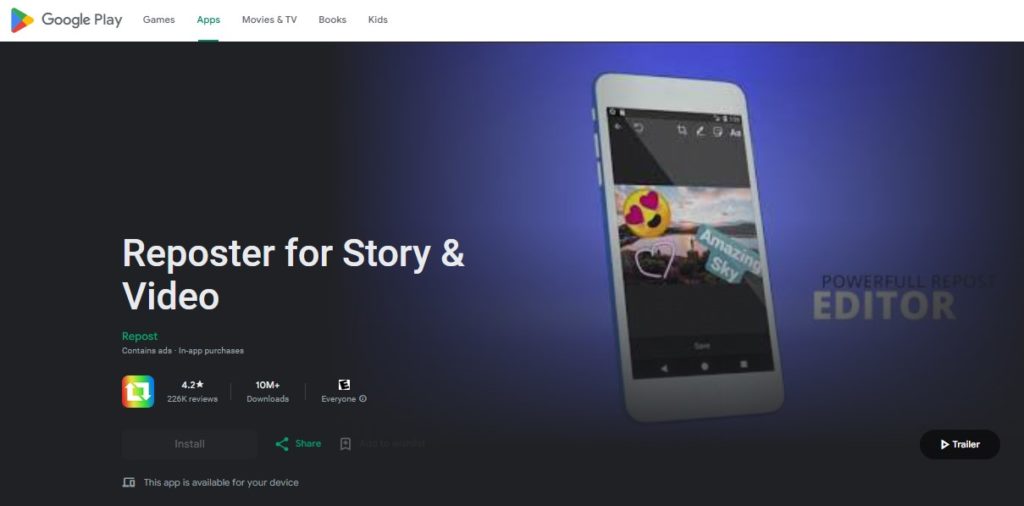
How to repost on Instagram for free? Reposter could be the answer! This user-friendly app, readily available on the Google Play Store, eliminates the hassle of taking screenshots.
With Reposter, you can effortlessly share other Instagram users’ posts, stories, Reels, or even carousels – all without the need to log in.
DownloadGram
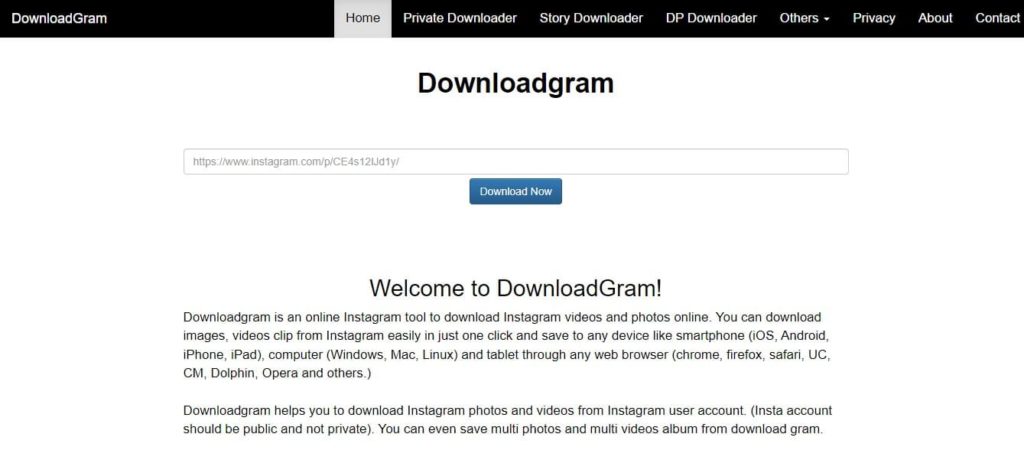
Looking to reshare original content on Instagram? DownloadGram is an online free tool that allows you to download any media format (Images, videos, stories) on Instagram and save them to your device (iOS, Android, iPad, Tablet, Computer).
So if you’re curious about how to repost a story on Instagram from PC, give DownloadGram a shot.
Repost for Instagram-JaredCo

This Instagram repost app is completely free and specifically designed for Android users. It offers some handy features:
- Easily repost Instagram photos and videos without any watermarks, preserving the original content.
- Save Instagram photos directly to your phone’s picture folder.
- No need to switch between different applications.
- Convenient options like reposting it right away to your Instagram feed, keeping it for later, saving it to your device, or sharing it with other apps that handle photos and video.
FAQs on how to repost on Instagram
Now you’ve learned how to repost on Instagram on computer and app, let’s delve into some frequently asked questions you might have.
Q1: Can I repost Instagram stories?
Sadly, Instagram doesn’t allow sharing stories directly. You can only reshare public feed posts.
Q2: How can I give credit to the original content creators?
There are some effective ways, including:
- Tag Them: In your post or story, tag the creator to give them direct credit.
- Mention in Caption: Acknowledge the creator by mentioning them in your caption.
- Use Their Handle: Include their Instagram handle in your post.
- Share Their Story: If you’re sharing a story, tag them directly.
- Ask for Permission: Always get permission before reposting their content.
- Credit in Comments: If none of the above, credit them in the comments.
- Use Proper Hashtags: Include relevant hashtags like #Repost or #Credit to signify you’re sharing.
Q3: What is the best time to repost on Instagram?
We provided a full post about the best time to post on Instagram. This could help you know the right time to repost on IG.
- Best times to post on Instagram: Mondays from 10 a.m. to noon. Tuesdays from 9 a.m. to 1 p.m. Wednesdays from 10 a.m. to 1 p.m. Fridays from 9 to 11 a.m.
- The best days to post on Instagram are Tuesdays and Wednesdays.
Q4: Is it okay to repost on Instagram without permission?
No, reposting without permission may infringe on copyrights and result in account issues. Always ask for permission and give credit when sharing others’ content.
