


Nowadays, YouTube is the second largest search engine in the world, with millions of videos sharing daily. There are times when you find one of these videos interesting enough to share with your followers on Instagram. If you are looking for possible ways to share a YouTube video on Instagram, this article is all you need.
It should be noted that sharing YouTube videos directly to Instagram is impossible yet. Besides, you can’t download a YouTube video from the platform itself to share it on your Instagram account as a post, story, etc.
The easiest way to share a YouTube video on Instagram
Due to the restrictions mentioned above, you may consider the process of sharing a YouTube video on Instagram a bit complicated. So, in this article, we provide you with an easy, fast and secure way of sharing YouTube videos on Instagram without needing to download the video.
Here‘s where AiGrow comes in to help you meet your needs without wasting your time going through this process. Let’s start scheduling and sharing YouTube videos on Instagram easily and directly by signing up for this free tool.
Share a YouTube video on Instagram directly from AiGrow
Unfortunately, there are restrictions in sharing a YouTube video on Instagram directly, as we explained. The good news is that AiGrow has launched a service that lets you publish and schedule YouTube videos directly from its dashboard to Instagram.
Working with this service is easy as A, B, C. First of all, you need to just copy the YouTube video’s link from YouTube and paste it into AiGrow’s dashboard.
Then follow this step-by-step guide to leave the rest to AiGrow.
- Sign up on AiGrow for free and connect your Instagram account to its dashboard.
- Then tap on the Scheduler tab(1), click on the post and Scheduling(2), choose Schedule(3), and then click on the Feed option(4).
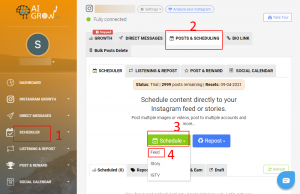
3. Copy and Paste the URL of the YouTube video in the box and tap on the Save option.
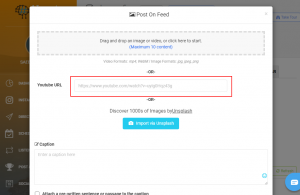
- Now, you can add a caption, hashtag, location, etc., in the open window. You can also set a scheduling date and time if you want to post it in the future(1); if not, you can choose the Post Now(2)option to post the YouTube video right at the moment.
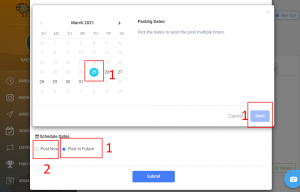
5. At the end, click on Submit.
How to share a YouTube video on Instagram story?
Bear in mind that in order to post a YouTube video to Instagram, you have to download the video you want to share on your story.
Due to the fact that downloading a YouTube video right on the main platform isn’t possible, the very first thing you need is a YouTube video downloader app and even Telegram Bots that will do this for you. But that’s not all. If you want to share audio from YouTube on your Instagram, you can use YouTube to MP3 converters like YTMP3. This tool allows you to convert YouTube videos to MP3 and use them in your Instagram posts, stories, and reels. By utilizing YT MP3, you can access your favorite audio even when you’re offline.
Note: There are a variety of YouTube video downloaders depending on whether you use Android( TubeMate app) or IOS( Documents by Readdle).
we are going to share a link with you that you can use to download and share a YouTube video on Instagram whether you are using a Mac or Windows desktop or an Android, iPhone, or iPad.
step-by-step guide to download YouTube videos and Upload on Instagram.
- Go to https://tube2gram.com in a desktop or mobile web browser.

2. Tap to select Post YouTube to Instagram.
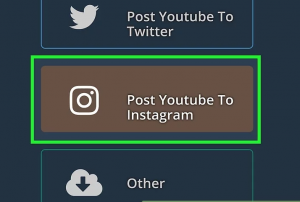
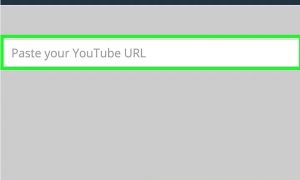
3. Enter the YouTube URL. As soon as you enter the URL, you’ll see a preview of the YouTube video appear.
Note: knowing Instagram’s video size is of great importance because it prevents you from facing not only cropped and low-quality videos but also every other probable errors.
Want to know more about Instagram video size? Let’s dive in!
- Video resolution: Maximum 1920 x 1080
- Format: MP4 and MOV
- Video length: 3 – 60 seconds
- Frame rate: 30fps or below
- File size limit: 15MB max
- Playback length: maximum of 60 seconds
- Click Start Download.
5. Click either Download Video or Download on Mobile.
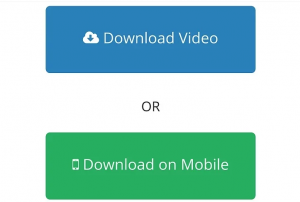
After downloading the video on your mobile gallery, everything is actually ready to create your story.
Conclusion
To sum it up, sharing an intriguing YouTube video on your Instagram story, feed or IGTV can have lots of benefits. However, YouTube has some limitations. It neither allows you to share your content directly on Instagram nor to download a video from its platform.
Moreover, using other apps to download YouTube videos not only needs a lot of time but also it can lead to other issues such as the quality of the video you download.
So, the best and easiest way is AiGrow’s feature to schedule YouTube videos and publish them on Instagram without needing to download the video.
[/vc_column_text][/vc_column][/vc_row]
