

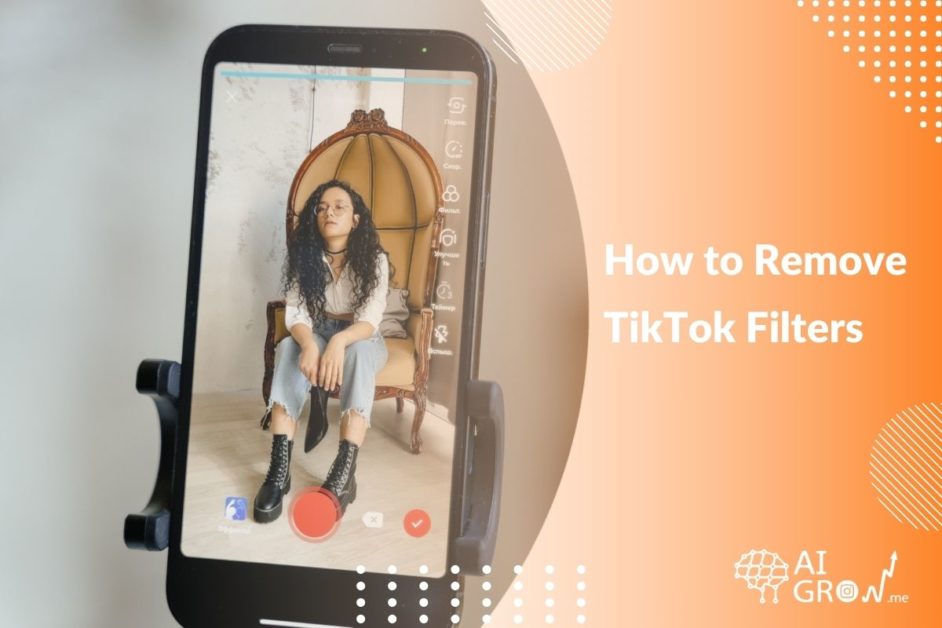
Filters are sweet spots on TikTok, but not everybody prefers to look unreal or weird. But to connect to your audience, you have to do more than publish your videos at the best time to post on TikTok. You also need to show your real one.
That’s why many users want to know how to remove TikTok filters. Getting rid of filters on TikTok is a bit tricky. But don’t worry! In this blog, we’ll show what you can do with those filters. Let’s dive in!
How to Remove TikTok Filter from Your Videos?
Before we show you how to remove filters on TikTok, note that:
- You can’t remove filters and effects from a video that has already been posted.
- Once you record your video with a special filter or effect, you can’t remove it. The only thing you can do is re-recording your video.
Suggested Post: Is It Easier to Grow on TikTok or Instagram
How to Remove a Filter from a Saved (Drafted) Tiktok Video?
Sorry, but you can’t remove a filter you added to a video while recording. It’s only possible to undo and redo the filters and effects you’ve added when editing. But removing the filter you recorded your videos with? We have to disappoint you!
Follow these steps to remove filters you’ve inserted into your video when editing:
- Open TikTok and tap ‘Profile’ at the bottom right corner.

How to Remove a TikTok Filter from Drafts
- Now, go to ‘Drafts’.

Removing TikTok Filters from Videos
- Select the video from which you want to remove filters.

How to Remove Filters from Saved Videos
- Then, click ‘Effects’. To undo any effect you’ve recently added, tap the back arrow. Remember, if you want to remove different filters, you have to undo as many filters as you’ve used.

Remove TikTok Filters and Effects
Suggested Post: How to Add Your Instagram to TikTok
How To Remove a Filter from a TikTok Video (Before Recording)
Prevention is better than cure! Now that TikTok doesn’t allow you to remove filters and effects after shooting videos, disable them beforehand. It’s so simple:
- When recording the video, make sure the ‘Beauty’ touch on the right-sided menu is disabled. If you see a red checkmark next to it, just tap to turn it off.

Disabling Beauty Filter on TikTok
- Now, tap the ‘Filters’ and make sure the crossed-out circle is on.

Turning off TikTok Filters Before Recording
How to Remove TikTok Filter on Other People’s Videos?
If you want to know how to remove a TikTok filter from someone’s videos, we’re sorry! There’s no way you could remove filters and effects from others’ TikTok videos. By now, we haven’t come across a third-party app or tool with this feature.
How to Remove TikTok Filters: FAQs
Here are a few FAQs about removing TikTok filters.
1. How Can I Remove TikTok Filters and Effects?
You can only delete filters you added to videos during editing. To do so, simply select the video from your drafts, tap “Effects,” and undo that effect.
Removing TikTok filters that you added while recording or removing filters from already posted videos is not possible.
2. Is There an App to Remove TikTok Filters?
No, no app could remove filters from TikTok or other platforms’ videos. Apps can simply edit videos or photos and add new effects to them.
3. How to Remove a TikTok Filter on Snapchat?
Unfortunately, you can’t remove TikTok filters on another app like Snapchat. So, try recording your video directly on Snapchat without applying any filters.
4. How to Remove Rotoscope Filter on TikTok?
Let’s change the question to: Can you remove the rotoscope filter on TikTok? To be honest, it’s not possible to unfilter your rotoscope TikTok videos. And sadly, there’s no app out there to delete rotoscope filters from your videos.
Note: Don’t listen to those claiming to remove the rotoscope filter with editing apps! They’re all scams.
Final Words
There isn’t much good news for those wondering how to remove TikTok filters from their videos. TikTok doesn’t allow you to remove a filter you used while recording a video. The solution? Re-record your video.
It’s also not possible to remove the filters and effects from videos you’ve already posted or from someone else’s videos. So, to ensure your TikToks are filter-free, simply disable them before recording.
