

Are you ready to take your Instagram profile to the next level? You can try adding Threads link to your Instagram bio.
Adding the Threads link to your bio is a game-changer, allowing you to connect with your audience in new and exciting ways. Whether you’re a business looking to drive traffic to your website or an influencer eager to share exclusive content, Threads empowers you to make the most of your Instagram presence.
In this blog, we’ll explore how to add Threads link on Instagram bio. Let’s walk through the steps!
Why Do You Need to Add Threads link in Bio on Instagram?
Adding Threads profile link to your Instagram account can bring several benefits. Here are some of the key ones:
- Your followers can access your Threads content effortlessly and this will encourage more engagement as your audience can explore your content seamlessly.
- With Threads link in your Instagram bio, you can streamline communication with your followers. They can easily switch between Instagram and Threads, allowing you to connect on a more personal level.
- By guiding your Instagram followers to Threads, you’ll enhance the visibility of your content. This strengthens your Threads community and increases the chance of reaching a wider audience.
How to Add Threads link on Instagram Profile?
When you join the Threads app, your account link automatically appears on your Instagram bio. However, this is temporary, and you must add Threads link in bio forever. This is simple and requires the following steps:
- Open your Threads profile and tap Share Profile;

- Tap Copy to copy the link in the clipboard;

- Now, go to your Instagram profile and click Edit profile;

- Tap Add link and then Add external link, and paste the link in the URL section.

- Once you tap the check mark, it’s done and the Threads link will appear below your Instagram profile picture.

You can also add Threads link in bio via the Instagram app. To do so, simply tap on the Threads badge at the top next to the + sign, then follow the same steps as you did above.

Read some Threads bio examples to get more inspired.
How to remove Threads profile link on Instagram?
You know how to add Threads link on Instagram, but what if you ever need to remove it? Let’s explore how to do that.
- Open your Instagram profile and tap Edit profile;

- Scroll down and tap Links;

- After that, choose Threads link;

- And finally, select the Remove link.

You can also learn how to link Instagram to your Facebook page.
How to Add Instagram Link to Threads Profile?
Just like you can include your Threads link in bio on Instagram, you can also do vice versa. Let’s find out how to do it.
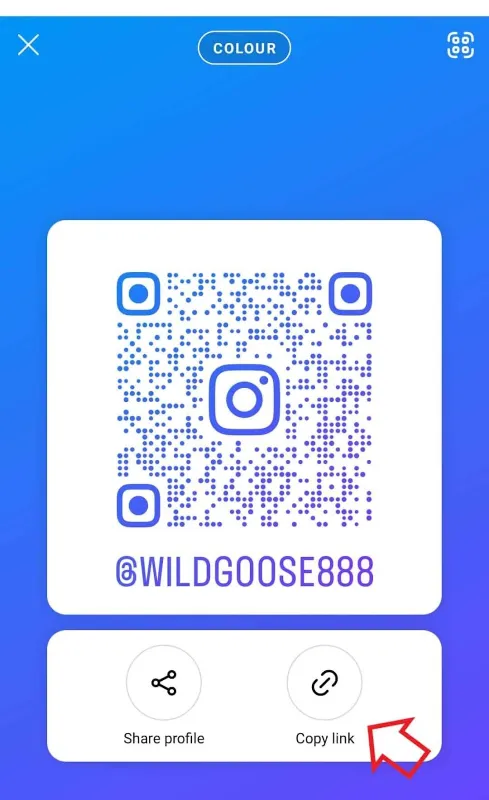
- Open your Instagram profile and click Share profile;

- Then, tap Copy link;
- Now, open your Threads profile and tap Edit profile;

- Go to Link and tap Add link;

- Paste the link and tap Done.
If you want to delete the link, you should first tap × and then checkmark to confirm it.

Can I import link from Instagram on Threads?
Yes, you can simply import any link available on your Instagram profile on your Threads bio. Head over to your Threads profile and tap Add link.
Next, click the Import link so that any link on your IG bio will be copied on your Threads profile. In addition to Instagram links, Threads allows you to transfer Instagram followers.

Conclusion
In summary, mastering how to add Threads link on Instagram profile opens up a world of opportunities for seamless content sharing and enhanced engagement with your followers.
By linking these platforms, you can keep your followers updated with just one tap. It also lets you build a strong online community. So, it’s highly recommended to add Threads profile link to your IG to make the most of both popular social media platforms.
