


Instagram Reels is a feature within the Instagram app that allows users to create and share short-form videos up to 60 seconds long. It has become an increasingly popular platform for creating and sharing videos, thanks to its easy-to-use interface and the ability to add music, effects, and text overlays.
Editing Instagram Reels is essential for creating engaging videos that stand out from the crowd. With so many users on the platform, it’s crucial to make sure your content is high-quality and unique to capture the attention of your audience. In this article, we’ll cover everything you need to know on how to edit Instagram reels like a pro.
How to Make and Edit Instagram Reels?
If you’re new to Instagram Reels, getting started can be a bit daunting. Here’s a step-by-step guide on how to make reels and how to edit Instagram reels after:
- Open the Instagram app and navigate to the Reels tab.
- Tap the “+” icon to create a new Reel.
- Choose the length of your Reel (up to 60 seconds) and start recording.
- Use the various creative tools to add effects, filters, text overlays, and music to your Reel.
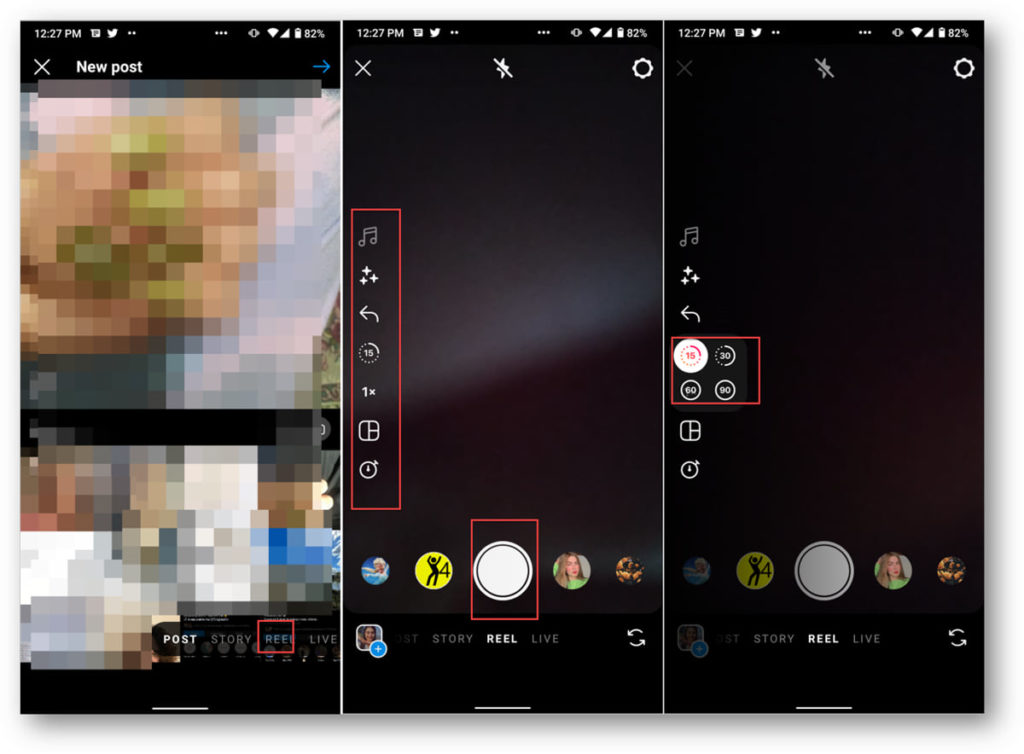
- Once you’ve finished recording, tap the arrow icon to move to the editing screen.
- Use the editing tools to trim, cut, and adjust the timing of your video.
- Add additional effects and text overlays as desired.
- Preview your Reel to make sure everything looks good.
- Add relevant hashtags and a caption to your Reel.
- Share your Reel to your Instagram feed and/or to the Reels tab.
When editing your Instagram posts, it’s important to keep in mind the audience you’re targeting and the message you want to convey. By using creative effects and music, you can make your Reel stand out from the crowd and keep your audience engaged. Don’t be afraid to experiment with different editing techniques to see what works best for you and your brand.
How to edit text in reels on Instagram?
Adding text to Instagram Reels can be a great way to enhance your videos and provide additional context to your viewers. Here’s how to add texts and how to edit Instagram reels
texts:
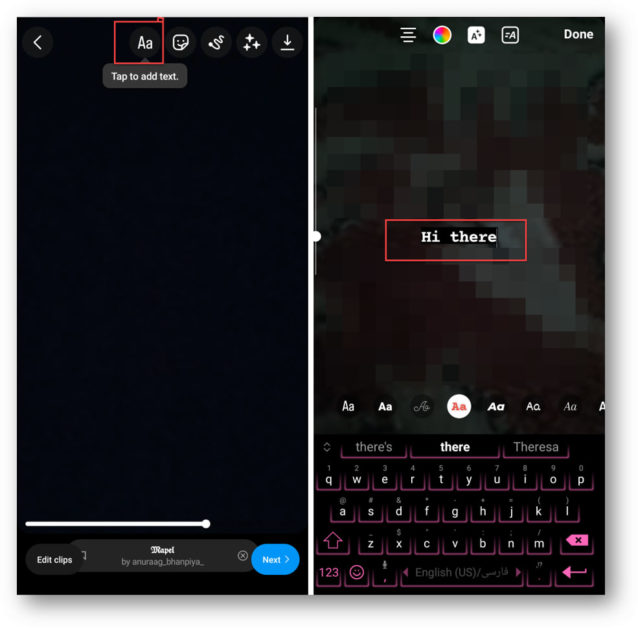
- After recording your Reel, tap the text icon on the editing screen.
- Choose the font and style you want to use for your text.
- Type out your desired text and adjust the size and position as desired.
- Use the “Aa” button to add additional text boxes to your Reel.
- Use the color palette to choose the color of your text.
- Add any additional effects, such as an outline or background color, to your text.
How to edit text on Instagram Reels after posting
If you’ve already posted your Reel and want to edit the text, here’s how to edit text on instagram reels:
- Navigate to the Reel you want to edit and tap the three dots in the top right corner.
- Choose “Edit Reel” from the options menu.
- Tap on the text you want to edit and make the desired changes.
- Preview your edited Reel to make sure everything looks good.
- Save and publish your edited Reel.
By adding and editing text on Instagram Reels, you can provide additional context and information to your viewers, making your content more engaging and impactful.
Also read: Instagram reels bonuses eligibility
Editing Music and Audio on Instagram Reels
Music and audio can be a great way to enhance the mood and impact of your Instagram Reels. Here’s how to add and edit music and audio on Instagram Reels:
Adding Music
Here is how to add music and how to edit music on Instagram Reels after posting:
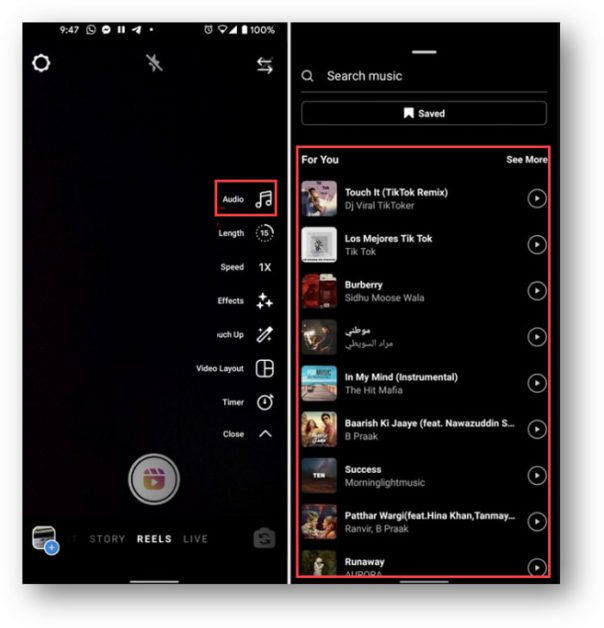
- After recording your Reel, tap the music icon on the editing screen.
- Browse through the available music options or use the search bar to find a specific song.
- Preview the song and select the portion you want to use in your Reel.
- Adjust the volume of the music using the slider.
- Use the various creative tools to add effects and filters to your Reel.
Editing Audio
If you want to remove or edit the audio from your Reel, here’s how to edit audio on Instagram reels
- Tap on the Reel you want to edit and tap the three dots in the top right corner.
- Choose “Edit Reel” from the options menu.
- Tap on the audio track you want to edit.
- Adjust the volume or remove the audio entirely as desired.
- Preview your edited Reel to make sure everything looks good.
- Save and publish your edited Reel.
Editing Music After Posting
If you’ve already posted your Reel and want to edit the music, here’s how to edit music on Instagram reels
- Navigate to the Reel you want to edit and tap the three dots in the top right corner.
- Choose “Edit Reel” from the options menu.
- Tap on the music icon and select a new song or edit the current song as desired.
- Preview your edited Reel to make sure everything looks good.
- Save and publish your edited Reel.
By adding and editing music and audio on Instagram Reels, you can create engaging and impactful videos that stand out from the crowd.
How to Edit Videos for Instagram Reels?
Follow these step-by-step guide to know how to edit Instagram Reels and videos:
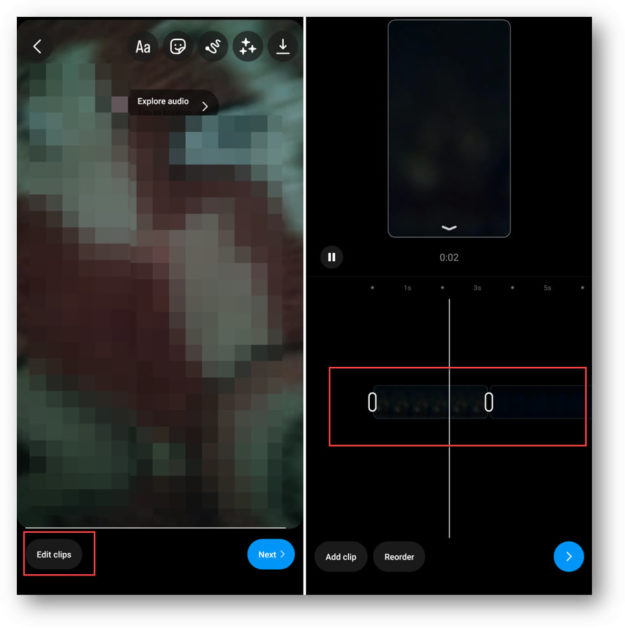
- After recording your Reel, tap the edit button in the bottom left corner of the screen.
- Use the trimming tool to select the portion of the video you want to keep.
- Use the editing tools to adjust the speed, add filters, and apply other effects.
- Preview your edited Reel to make sure everything looks good.
- Save and publish your edited Reel.
How to Edit Captions on Instagram Reels?
Want to know how to edit reels caption on Instagram after posting? Follow these steps to learn how to edit words on Instagram Reels:
- Navigate to the Reel you want to edit and tap the three dots in the top right corner.
- Choose “Edit Reel” from the options menu.
- Tap on the caption area and make any necessary edits.
- Preview your edited Reel to make sure everything looks good.
- Save and publish your edited Reel.
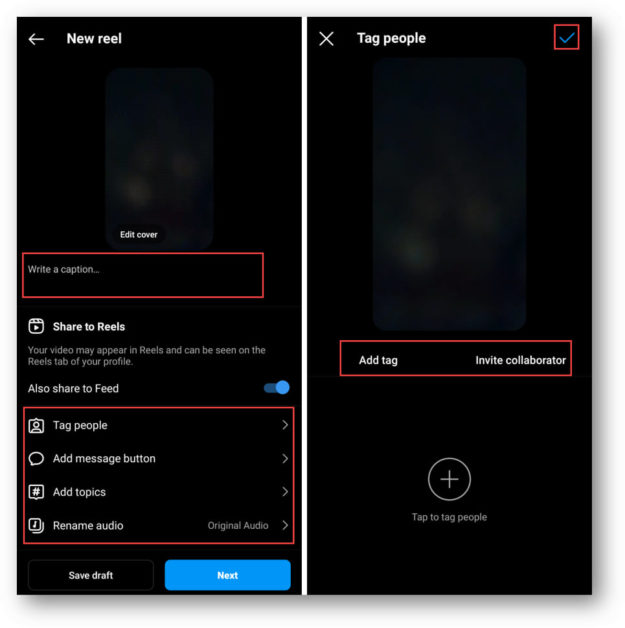
Editing videos and captions on Instagram Reels can help you fine-tune your content and make it more engaging for your audience. With a little bit of editing know-how, you can create Reels that stand out and get noticed on the platform.
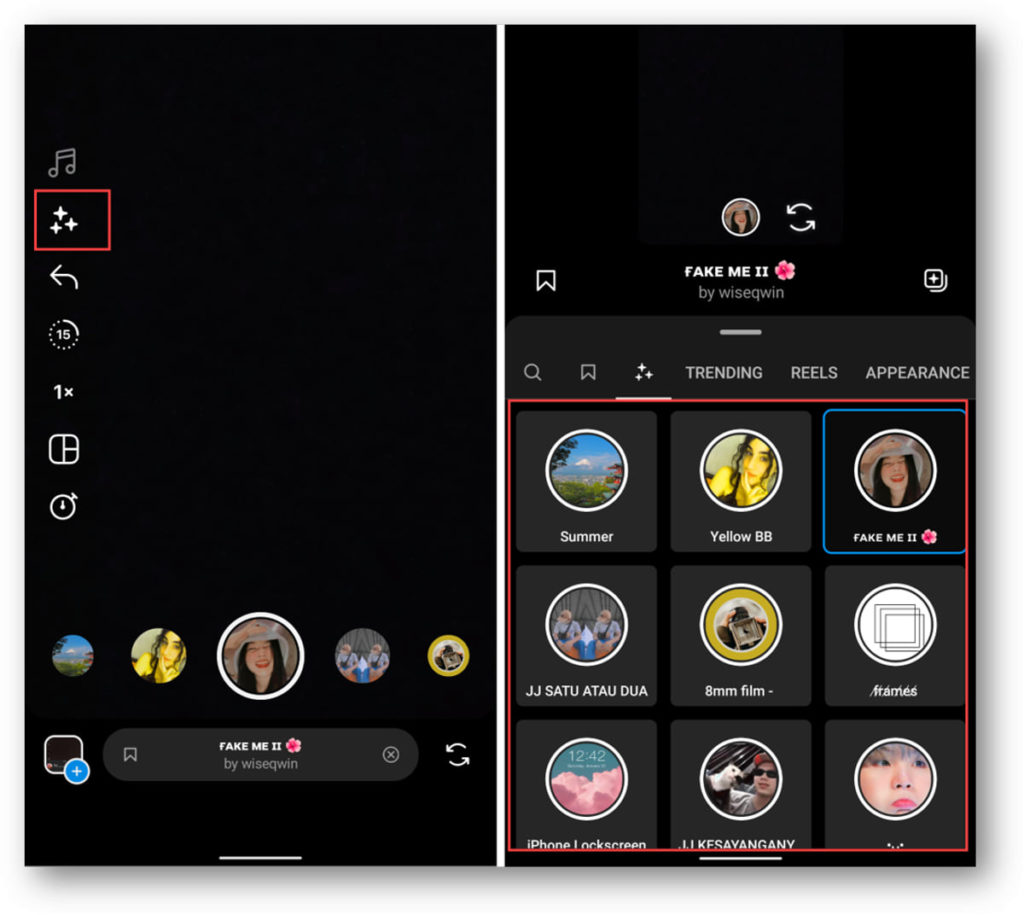
Editing Transitions and Effects on Instagram Reels
- After recording your Reel, tap the edit button in the bottom left corner of the screen.
- Tap the transitions button to see all the available options.
- Select the transition you want to use and adjust the duration if needed.
- Use the editing tools to add filters, adjust the speed, and apply other effects.
- Preview your edited Reel to make sure everything looks good.
- Save and publish your edited Reel.
How to Edit Subtitles on Instagram Reels?
- Navigate to the Reel you want to edit and tap the three dots in the top right corner.
- Choose “Edit Reel” from the options menu.
- Tap on the subtitle area and make any necessary edits.
- Preview your edited Reel to make sure everything looks good.
- Save and publish your edited Reel.
How to Edit Highlight Reels on Instagram?
- Navigate to your profile and tap the “+” icon next to “Story Highlights.”
- Choose the Reels you want to include in the highlight and tap “Next.”
- Edit the cover image for the highlight and add a title if desired.
- Preview your highlight to make sure everything looks good.
- Save and publish your edited highlight.
Editing transitions, subtitles, and highlight reels can help you make your Instagram Reels more polished and professional-looking. With a little bit of editing know-how, you can create Reels that stand out and capture the attention of your audience.
Advanced Editing Features on Instagram Reels
Now that you know the basics of how to edit Instagram Reels, let’s move to advance tools for professionals.
1. Editing the Duration of Text on Instagram Reels:
- After adding text to your Reel, tap and hold the text to bring up the editing options.
- Use the slider to adjust the duration of the text on the screen.
- Preview your edited Reel to make sure everything looks good.
- Save and publish your edited Reel.
2. Editing Draft Reels on Instagram:
- To edit a draft Reel, go to your profile and tap the “Drafts” tab.
- Tap the Reel you want to edit and make any necessary changes.
- Preview your edited Reel to make sure everything looks good.
- Save and publish your edited Reel.
3. Editing Suggested Reels on Instagram:
Want to know how to edit reels in Instagram? Here is a step-by-step guide to how to edit clips on instagram reels
- To edit a suggested Reel, tap the three dots in the top right corner of the Reel.
- Choose “Edit Reel” from the options menu.
- Make any necessary changes to the Reel.
- Preview your edited Reel to make sure everything looks good.
- Save and publish your edited Reel.
4. Editing Audio in Instagram Reels
Want to know how to edit reels for Instagram? Here is how to edit audio:
- After selecting the audio you want to use for your Reel, tap the editing tools button.
- Use the tools to adjust the volume, trim the audio, and apply other effects.
- Preview your edited Reel to make sure everything sounds good.
- Save and publish your edited Reel.
These advanced editing features can help you take your Instagram Reels to the next level. With the ability to fine-tune things like text duration, audio, and suggested Reels, you can create content that is truly unique and stands out from the crowd.
Editing Instagram Reels on Laptop
While the primary way to create and edit Instagram Reels is through the mobile app, there are ways to edit your Reels on a laptop as well. Here are the steps to how to edit reels on Instagram:
- Save your Reel to your camera roll on your mobile device.
- Transfer the Reel to your laptop using a USB cable or email.
- Open Instagram on your laptop and log in to your account.
- Click on your profile and select the Reel you want to edit.
- Click on the three dots in the top right corner of the Reel and select “Save Video.”
- Open your preferred video editing software on your laptop and import the saved Reel.
- Edit the Reel as desired, including adding music, text, and other effects.
- Save the edited Reel to your laptop.
- Transfer the edited Reel back to your mobile device using a USB cable or email.
- Upload the edited Reel to Instagram using the mobile app.
While editing Instagram Reels on a laptop may be a bit more time-consuming than editing on a mobile device, it can allow for more advanced editing techniques and a larger screen to work with. By following these steps, you can edit your Reels on your laptop and create content that stands out from the crowd.
Advanced Editing Techniques
While basic editing techniques can certainly make your Instagram Reels stand out, taking advantage of more advanced editing techniques can really take your content to the next level. Here are some tips for using advanced editing techniques in your Instagram Reels:
1. Use third-party apps and software
While Instagram’s built-in editing tools are powerful, using third-party apps and software can allow you to access more advanced features and create more complex edits. Some popular options for editing Instagram Reels include Adobe Premiere Pro, Final Cut Pro, and InShot.
2. Experiment with effects
Instagram Reels offers a variety of built-in effects that can be added to your content, but don’t be afraid to experiment with third-party effects as well. There are countless effects packs available online, some of which can add truly unique and eye-catching visual elements to your Reels.
3. Play with speed
Adjusting the speed of your footage can create some truly unique and attention-grabbing effects. Consider slowing down certain portions of your Reel for a dramatic effect, or speeding up your footage for a fast-paced and energetic feel.
4. Use text creatively
While adding captions and text to your Reels is a great way to provide context and information, consider using text creatively as well. For example, you could animate your text to make it more eye-catching, or use text to create a visual element within your Reel.
5. Incorporate sound effects
Sound effects can add another layer of depth and interest to your Reels. Consider adding sound effects that match the actions on screen, or using music and sound effects creatively to create a unique audio experience.
By taking advantage of these advanced editing techniques, you can create Instagram Reels that truly stand out from the crowd. To get started, consider checking out some examples of Reels that have been edited using advanced techniques. Look for creators who are pushing the boundaries of what’s possible on the platform, and use their work as inspiration for your own edits.
Conclusion
In conclusion, Instagram Reels have taken the social media world by storm, and it’s essential to know how to edit them properly to make the most out of them. By following the above steps, you can easily create and know how to edit Instagram reels. Always keep in mind the importance of sound, captions, transitions, and other effects to make your Reels engaging and interesting. Additionally, using third-party apps and software can enhance your Reels further, allowing you to create unique and creative content. Lastly, remember to use relevant hashtags and optimize your Reels for SEO to reach a broader audience. With these tips and tricks, you can take your Instagram Reels to the next level and grow your social media presence effectively.
FAQs
1. What is the maximum length for an Instagram Reel?
The maximum length for an Instagram Reel is 60 seconds.
2. Can I add filters to my Reel?
Yes, you can add filters to your Reel. When creating a Reel, you will see an option to add filters.
3. How do I edit captions or music on an existing Reel?
To edit the caption of an existing Reel, go to your Reel and tap on the three dots in the top right corner. Then, select “Edit Caption” and make the necessary changes. To edit the music of an existing Reel, you will need to create a new Reel with the desired music.
4. Can I save my Reel as a draft and edit it later?
Yes, you can save your Reel as a draft by selecting “Save as Draft” when you are finished creating it. You can then edit and publish the Reel later.
5. Are there any best practices for using hashtags on Reels?
Yes, when using hashtags on Reels, it is best to use relevant and specific hashtags. Avoid using overly broad hashtags that may not be relevant to your content. Also, try to limit the number of hashtags to around 3-5 per Reel.
