


Many users, particularly those who had their accounts suspended for respective reasons, have got the error message on Instagram “Confirm your info on the app,” “Confirm your account,” or “Confirm your account to request a review.”
So, if you are getting this message too, you are not alone! Here, I’ve gathered some information just for you. Read this blog to see why this error occurs and how you can fix it.
Ready to get started? Let’s go then!
Why Is Instagram Making You Confirm Your Account?
Before I guide you on fixing the Instagram error “Confirm your info on the app,” let’s quickly explore why it happens, so you can prevent it or understand how it occurred.
Third-Party Apps
One of the most common reasons that users face this error is because of the third-party apps they use. These accounts typically employ third-party apps, often bots, to boost their followers and expand their pages. Additionally, they use direct message services and other automation tools.
If these apps use bots and automation, Instagram’s latest algorithm will detect it and require you to stop using them.
But how to avoid it?
Use AiGrow: A Risk-Free Manual Organic Growth Service
Overnight success is a myth! You might be using Instagram automation tools and bots to grow faster.
With Instagram’s new algorithm focusing on natural growth instead of quick shortcuts, using bots might trigger an error like “Confirm your info on the app.”
That’s why we recommend you use Instagram management tools that provide you with an account manager. This way, all the actions on your account are performed manually and risk-free. In other words, Instagram will no longer get suspicious of your activities.
AiGrow is a manual Instagram management and growth service with multiple features to help professional Instagrammers save time on managing their page.

This platform doesn’t use any automation tools that can put your account in danger; instead, a dedicated growth team of Instagram experts will help you with your content strategy, growth, etc.
AiGrow guarantees your account safety and allows you to access Instagram without any errors and limits. Here is what AiGrow provides for users:
- 14-day Money-back Guarantee
- Dedicated Growth Team
- Cancel Anytime
- Live Strategy And Onboarding Meeting
- Organic And Real Followers (target by hashtags, locations, and competitors’ accounts)
- Analytical Reports (daily and weekly)
- Score Cards And Growth Hacks
- Premium Direct Message Marketing
- Premium Bio Link
- Advanced Influencer/Brand Promotion
- Advanced Content Creation
- Safe and Secure (Risk-Free)
- Priority 24/7 Support
Note: AiGrow is a risk-free tool as it is 100% manual and uses fresh IPs.
JOIN FREE AND GET 15% OFF YOUR FIRST ORDER
How To Fix Instagram Error “Confirm Your Info On The App” Issue?
If you are facing this error and don’t know how to beat the endless Instagram confirm identity loop, don’t worry. Follow the steps below to access your page again.
Method 1: Follow The On-Screen Instructions
The first method when you see Instagram’s confirm your info on the app message is obviously to follow the on-screen instructions.
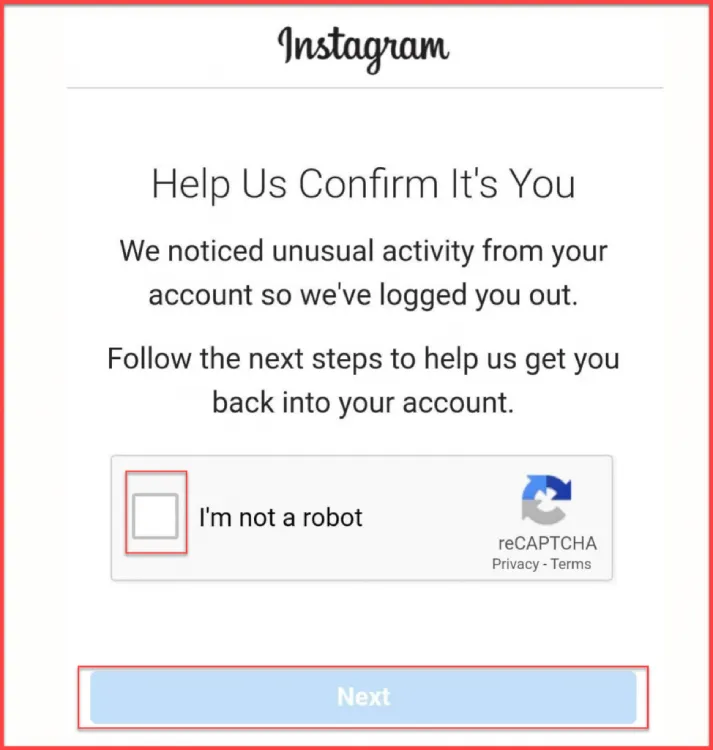
- Complete the ReCaptcha on the screen to verify you are not a bot.
- Tap “Next.”
- Add the phone number that you used to create an account.
- Click “Submit.”
- Next, you will receive a confirmation code on your phone. Once you receive it, select “Submit.”
After following these simple steps, the error should disappear. However, in some instances, it may persist and reappear every few minutes. In such cases, try alternative methods to resolve the issue of Instagram confirming your information on the app.
Method 2: Complete The Video Selfie Verification
If you are still asking yourself, “Why is Instagram making me confirm my account even after following the on-screen instructions?” you need to attempt to complete the video selfie verification.
In most cases, you will receive an “Instagram confirm your info on the app” message for a video verification.
Here is what you need to know before submitting the video.
- First of all, if you can’t access the selfie video verification, use another device to complete the verification.
- The optimal positioning of your camera is crucial for successful completion.
- It’s important that your entire face is visible in the camera while you’re speaking.
- Maintain a camera angle that is at or near eye level. After that, gently swivel your head in the direction shown on the screen.
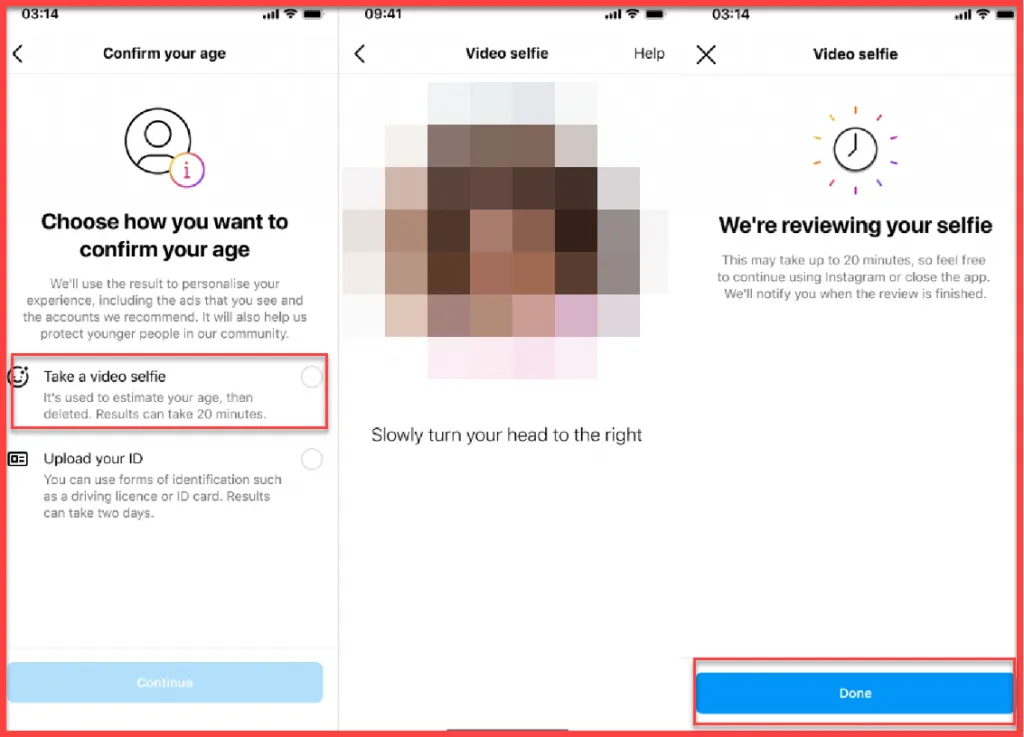
Note: The “Instagram can’t confirm my identity video” page will now appear on the computer screen. However, it can only be accessed using your smartphone. [After completing the process, click the submit button.]
By following the tips above, you can avoid encountering a ” we weren’t able to confirm your identity from the video you submitted” error.
Otherwise, you may be prompted to upload another video.
Method 3: Uninstall And Reinstall Instagram After 3 Days
If you still face Instagram’s confirm your info on the app blank screen errors, another method you need to try is uninstalling and reinstalling the app on your device.
Here are the steps to reinstall the app on your device and fix the Instagram confirm your info on the app error.
How To Uninstall And Reinstall Instagram?
If you’re encountering issues with Instagram or looking to start fresh with a clean slate, uninstalling and reinstalling the app can be a straightforward solution.
Here’s a step-by-step guide on how to uninstall and reinstall Instagram on your device:
Uninstall Instagram On iPhone
- Tap a free space on your home screen to stop the apps from jiggling.
- To complete the uninstall action, choose the “Delete” option.
- Restart your device after deleting the app.
- Locate and download the latest version of Instagram from the App Store and log into your account after a few days.
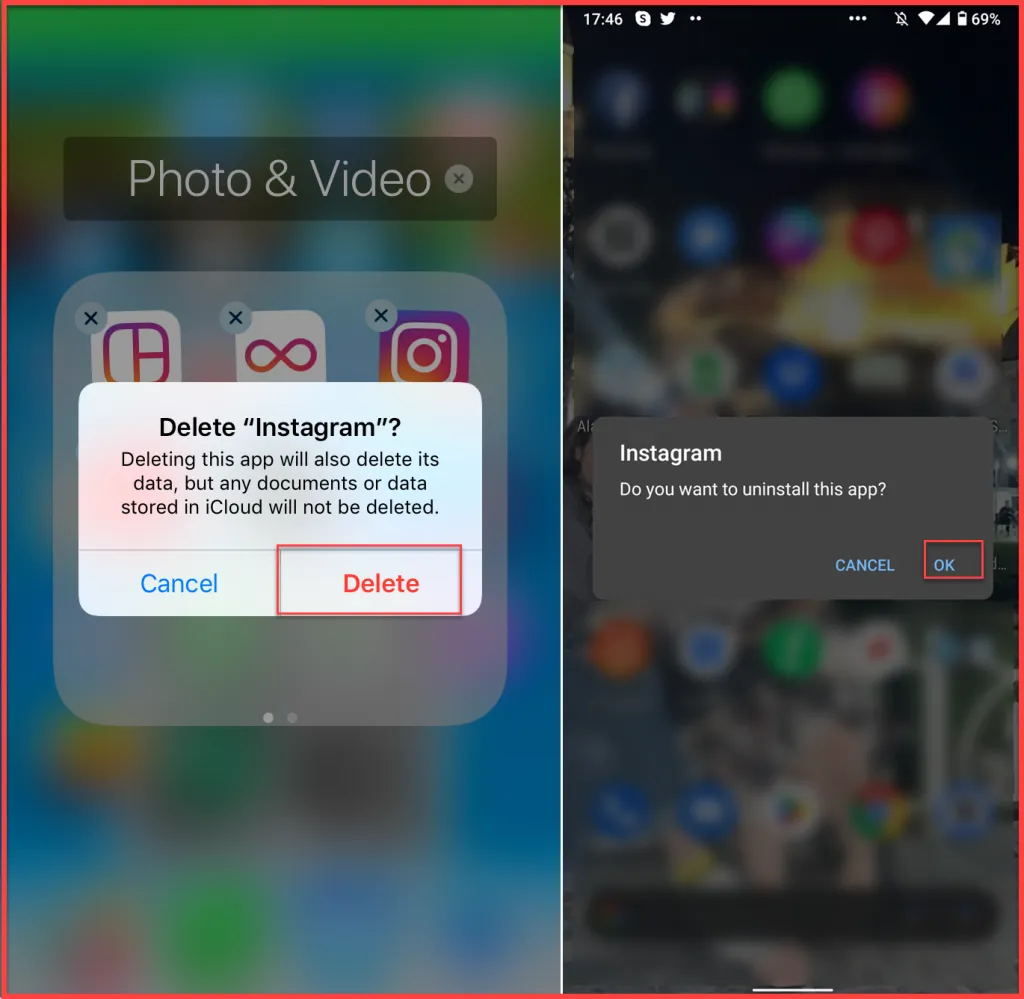
Uninstall Instagram on Android
- Click on the “Apps” option in the Settings app.
- Select “Instagram.”
- Tap the Uninstall button to uninstall the app.
Reinstall Instagram afterward from Google Play Store, then sign back into the app using your login information after a few days.
Method 4: Access Instagram Camera From Settings
If you haven’t given permission to Instagram to use the camera, you will face a white screen on the app telling you to confirm your info. You need to give access to your cam at least for the verification process to work properly. Here is how to give camera permission to Instagram on your settings.
- Open your “Settings” on your smartphone,
- Select Apps and find “Instagram.”
- Allow access to the camera by turning its button on.
Restart your Instagram app and try to follow the verification process again.
Method 5: Unlink Third-Party Apps
As mentioned above, in many cases, the “Instagram confirms your info on the app not working” error occurs when you connect your Instagram page to an untrustworthy source.
It’s clear that you need to stop using these apps ASAP; otherwise, you may face bans, shadowbans, or action blocks. However, that’s not sufficient; you also need to unlink the third-party tool (app, websites) from your page. Here’s how to unlink your account and resolve the Instagram login “confirm your info on the app” errors.
App:
- Log into your Instagram account and go to your profile.
- Tap the three-line icon at the top-right corner.
- Select “Settings and privacy.”
- Choose “Website permissions” and tap “Apps and websites.”
- Remove any active third-party apps or websites in this section.
Desktop:
- Log into your Instagram account on your desktop and tap the “More” button at the left button.
- Choose “Settings.”
- Select “Website permissions” and tap “Apps and websites.”
- Here you can view and unlink apps and websites you have connected to your Instagram account.
Method 6: Use Another Device To Log in
Still, encountering the Instagram’s confirm your info on the app error after all the above methods?
Another way to fix the glitch is to log into your Instagram account using another device. You can also use the Instagram desktop to test if you are still facing the error or not.
Instagram’s “Confirm Your Info On The App” – Reddit
Now let’s see what Reddit users say about this issue and how they fix it.
“Turns out it was trying to make me perform a video selfie verification, but the app is broken. Downloaded an older version of the app (version 199) on Apkmirror and the video selfie verification comes up properly and was instantly able to unlock my account afterward.”

In this thread and the comments, you can see that some users, especially those who perform massive actions, have encountered this issue.
Even though the app is prompting them to create a verification video, Instagram doesn’t allow some users to complete the process. However, by downloading an older version of the app, users have been able to resolve this Instagram confirm identity loop.
Other users have also attempted this method and mentioned in the comments that it worked for them too.
How to Protect Your Instagram Account?
You must have noticed the importance of securing your Instagram account by now. To ensure the safety of your personal information and maintain a seamless experience, follow these key practices:
1. Two-Factor Authentication: Enable 2FA for an added layer of security.
2. Change Passwords Regularly: Update your Instagram password frequently using a strong combination of characters.
3. Avoid Public Networks: Refrain from using Instagram on public Wi-Fi; if necessary, use a VPN.
4. Beware of Suspicious Emails: Ignore and don’t engage with emails asking for personal information.
5. Keep Login Details Private: Never share your Instagram login credentials.
Last Words
In this blog post, I’ve delved into various strategies to address Instagram’s ‘Confirm your info on the app’ error, providing practical solutions to enhance your account security. By following the outlined steps, you not only resolve the immediate issue but also fortify your Instagram experience. Feel free to implement these solutions and contribute to a more secure Instagram community.
FAQs
Now, let’s answer some frequently asked questions regarding our topic.
1. How Can I Confirm My Disabled Instagram Account?
Some users have reported that Instagram has deactivated their page after liking too many posts, following too many users, or unfollowing them.
These actions are considered spam and Instagram is very sensitive to these behaviors.
Given that your Instagram account has been disabled for violating terms, you can regain access to your account with a few simple steps:
2. How Do You Confirm Your Information On The Instagram App To Get It Back?
If your account got disabled by Instagram or received an error on the app asking you to confirm your information, here’s what to do.
- The first step is to log into your account again if it got deactivated to face the error.
- Follow the on-screen instructions to receive a code on your phone number.
- If Instagram asks you for video verification, give access to the Instagram camera from your phone’s settings.
- Follow the required steps and restart your app when you are done.
3. Why Instagram Says Confirm Your Info On The App?
There are a couple of possible reasons that you face this error on the app. But the most common reason is using untrusted third-party tools that use automation or bots.
4. What Do I Do If I Can’t Confirm My Instagram Account?
Based on Reddit solutions, download an older version of Instagram, and follow the on-screen instructions.
5. How Long Does It Take For Instagram To Confirm Your Info?
If Instagram confirms your info on the app without a selfie video, the error will disappear immediately. However, if it asks you to upload a video, it can take up to two business days for the Instagram team to review your video. If you pass the review, you will receive an email with a link to reset your password.
6. Why Is My Instagram Confirmation Code Not Working?
In the first step of confirming your Instagram account, you will receive a 6-digit code on your phone number. If you can’t receive it, try to change your network connection and if it doesn’t work, use another device to complete the process.
7. Why Won’t Instagram Send Me A Confirmation Code To My Phone?
If you are not receiving a confirmation code on your phone number, it’s possibly because of a poor network connection. Try to switch to mobile data (or Wi-Fi); if it doesn’t work, use another device and try again.
