

[vc_row][vc_column][ultimate_heading main_heading=”Removed Posts by Instagram? Resolve the Issue with the Direct Scheduling ” heading_tag=”h1″ alignment=”left” spacer=”line_only” line_height=”1″ main_heading_font_family=”font_family:Open Sans|font_call:Open+Sans|variant:700″ main_heading_style=”font-weight:700;” margin_design_tab_text=””][/ultimate_heading][vc_empty_space height=”50px”][vc_column_text]
If you have a problem with posting on Instagram and you face the following message “Post removed by Instagram”, proceed with the following steps.
NOTE: You have to use “Google Chrome” browser on a PC or laptop for this. If you don’t have this browser you can get it using this link in Google’s site.
Step1:
First, log into your Instagram on a chrome web browser on a desktop, you can open it here.

Simply enter your Instagram account’s credentials on Instagram’s website
Step2:
Log into your account on our platform. Enter the credentials of your account here.
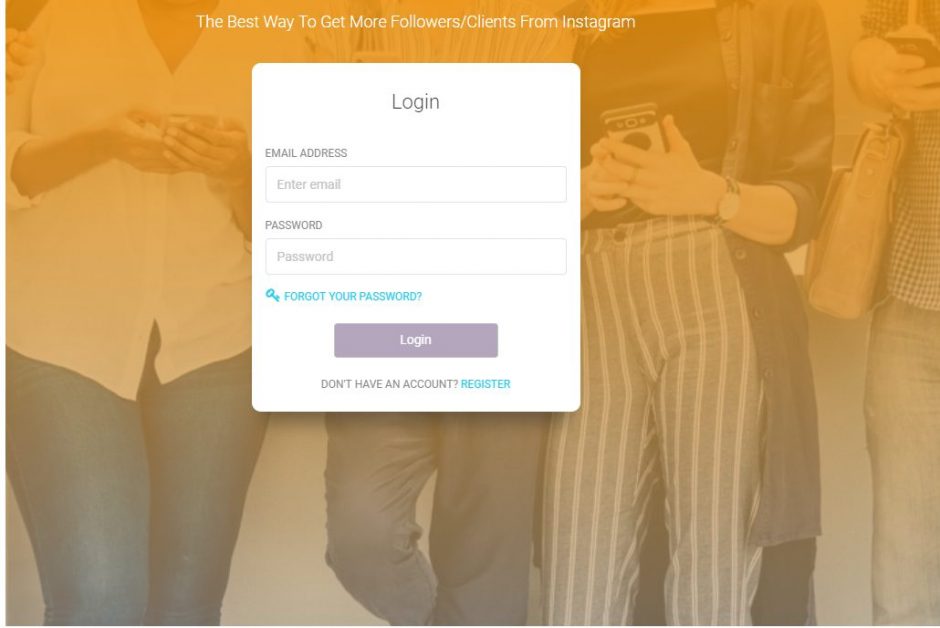
Once logged in, Delete the Instagram account which runs to this issue (‘Removed by Instagram”) from your dashboard.

Step 3:
Go to this safe google chrome extension and add it to your browser. Click on “Add to Chrome” and wait till it is installed on your browser.

Step 4:
Run the extension which is sitting on top right of your browser next to bookmark.

Step 5:
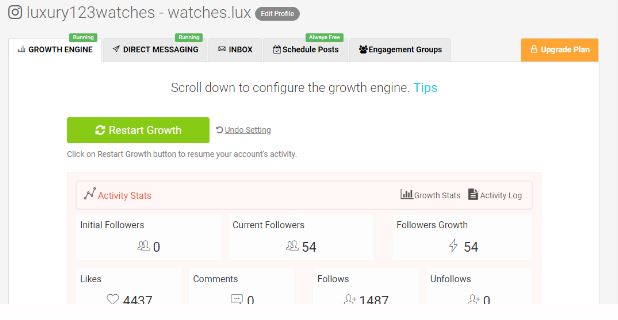
Click on Next. This will add your Instagram account to your dashboard automatically.

Step 6:
Once you’ve added your account to your dashboard, You have to join all the previous engagement pods that you had before. For a detailed guide to doing that, check out this video:
https://www.youtube.com/watch?v=0WjVIfP9nSA
That’s it. If you find it useful or you have any problem, You can check our FAQ or contact us and let us know. Send your questions to support@aigrow.me[/vc_column_text][/vc_column][/vc_row]
 Summarize this article with:





